How to Run Billing Cycles
Generate recurring customer invoices automatically from active contracts using the Billing Run Agent.
- An Artifi account with admin access
- At least one legal entity configured
- Active recurring contracts with customers
The Billing Run Agent finds active recurring contracts due for billing, generates AR invoices, and emits events for invoice delivery and payment collection. It runs as a code agent with zero API cost.
What This Agent Does
The Billing Run Agent scans your recurring contracts, identifies which ones are due for billing in the current period, and generates AR invoices for each. It runs in Code mode — pure Python, no LLM calls — so every run costs $0.00. A typical run completes in under 30 seconds.
After generating invoices, the agent emits events that trigger downstream agents: the Invoice Delivery Agent sends the invoice to your customer by email, and the Payment Collection Agent initiates collection if a payment method is configured.
Example: Monthly Invoice Generation
This walkthrough shows a real billing run that generated two invoices for a total of €116.96.
Step 1: Find the Billing Run Agent
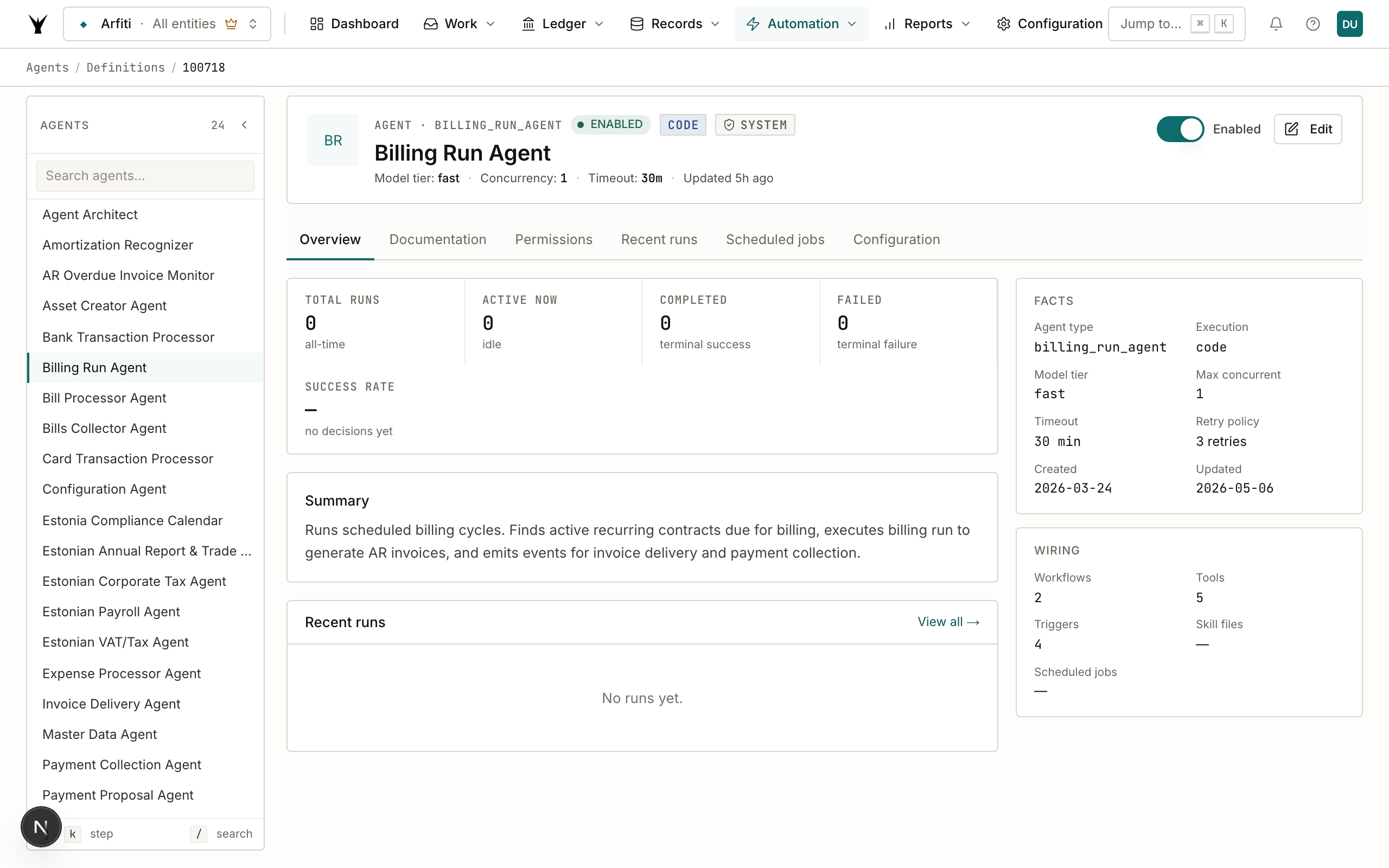
Navigate to Agents > Definitions in the admin dashboard. The Billing Run Agent appears in the list with execution mode Code and trigger events for scheduled runs and manual triggers.
Step 2: Trigger a Run
You can trigger a billing run in two ways:
- Scheduled: Create a scheduled job under Agents > Scheduled Jobs (e.g., weekly on Mondays).
- Manual: Click the Run button on the agent definition page.
The agent starts immediately. Because it runs in Code mode, there are no LLM tokens to wait for.
Step 3: View the Run
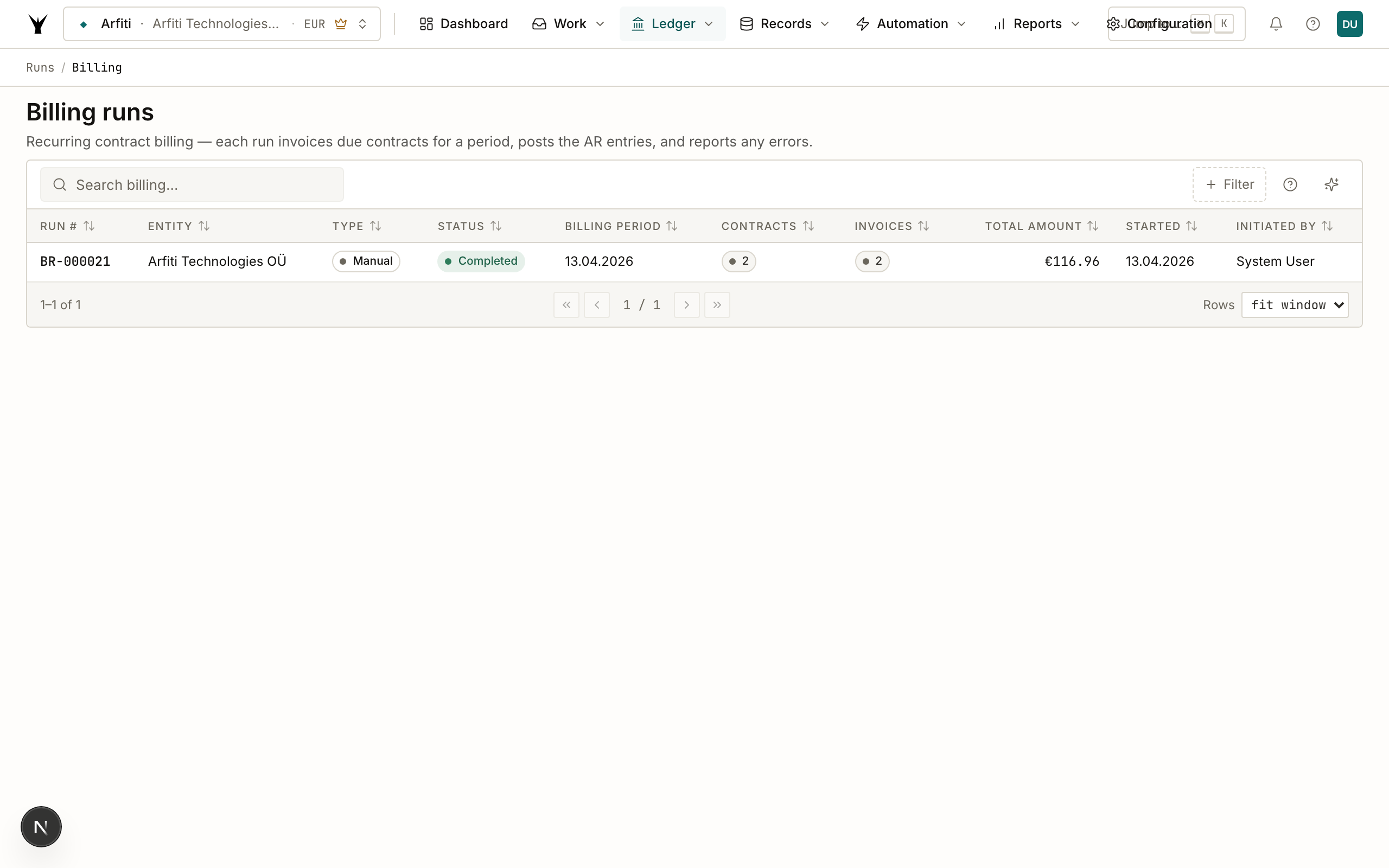
Navigate to Runs > Billing to see all billing runs for the legal entity. Each run shows the run number, period, contract count, invoice total, and status.
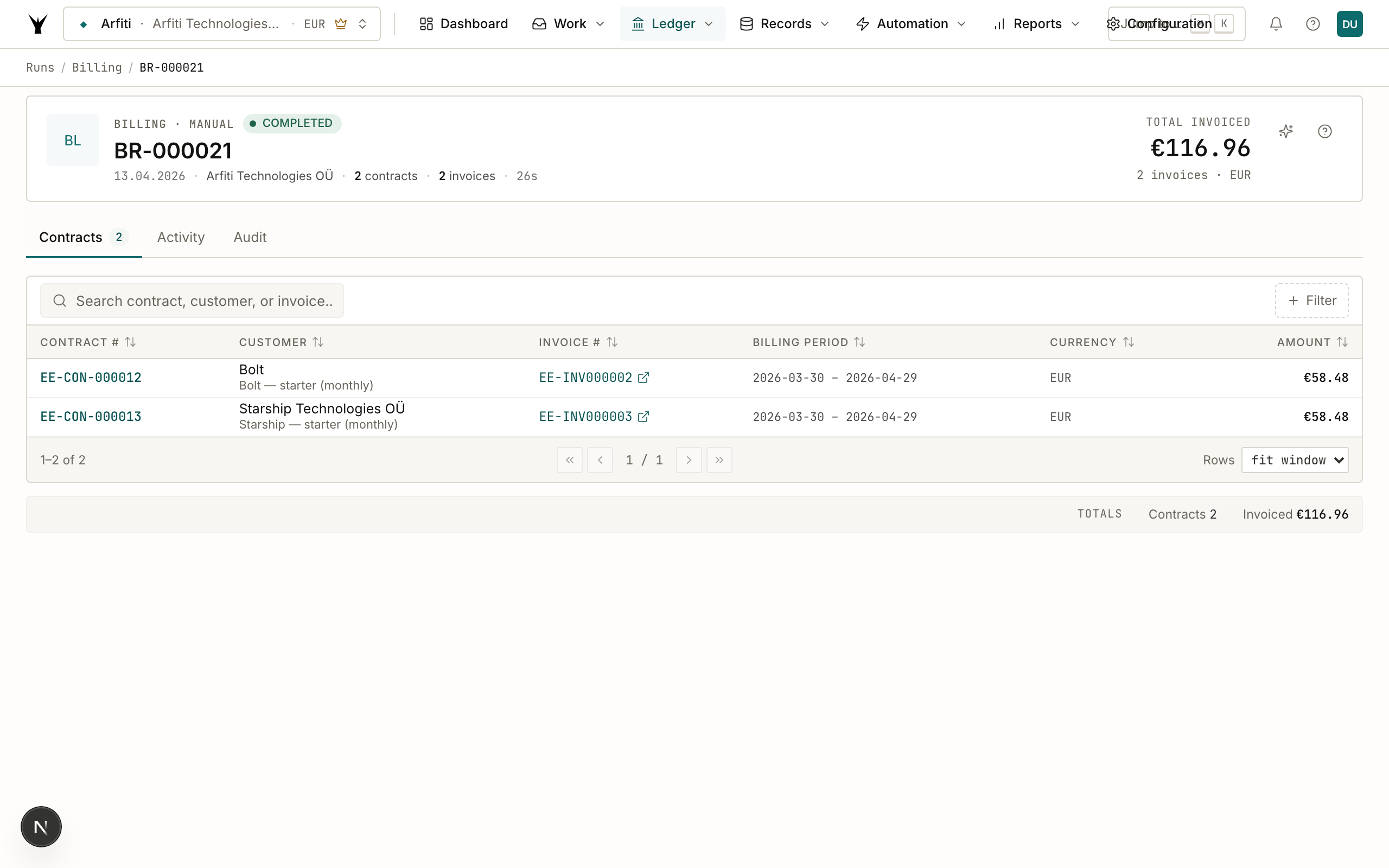
Click the run to see full details. This run completed in 26 seconds, processed 2 contracts, and generated 2 invoices totaling €116.96.
Step 4: Inspect the Audit Trail
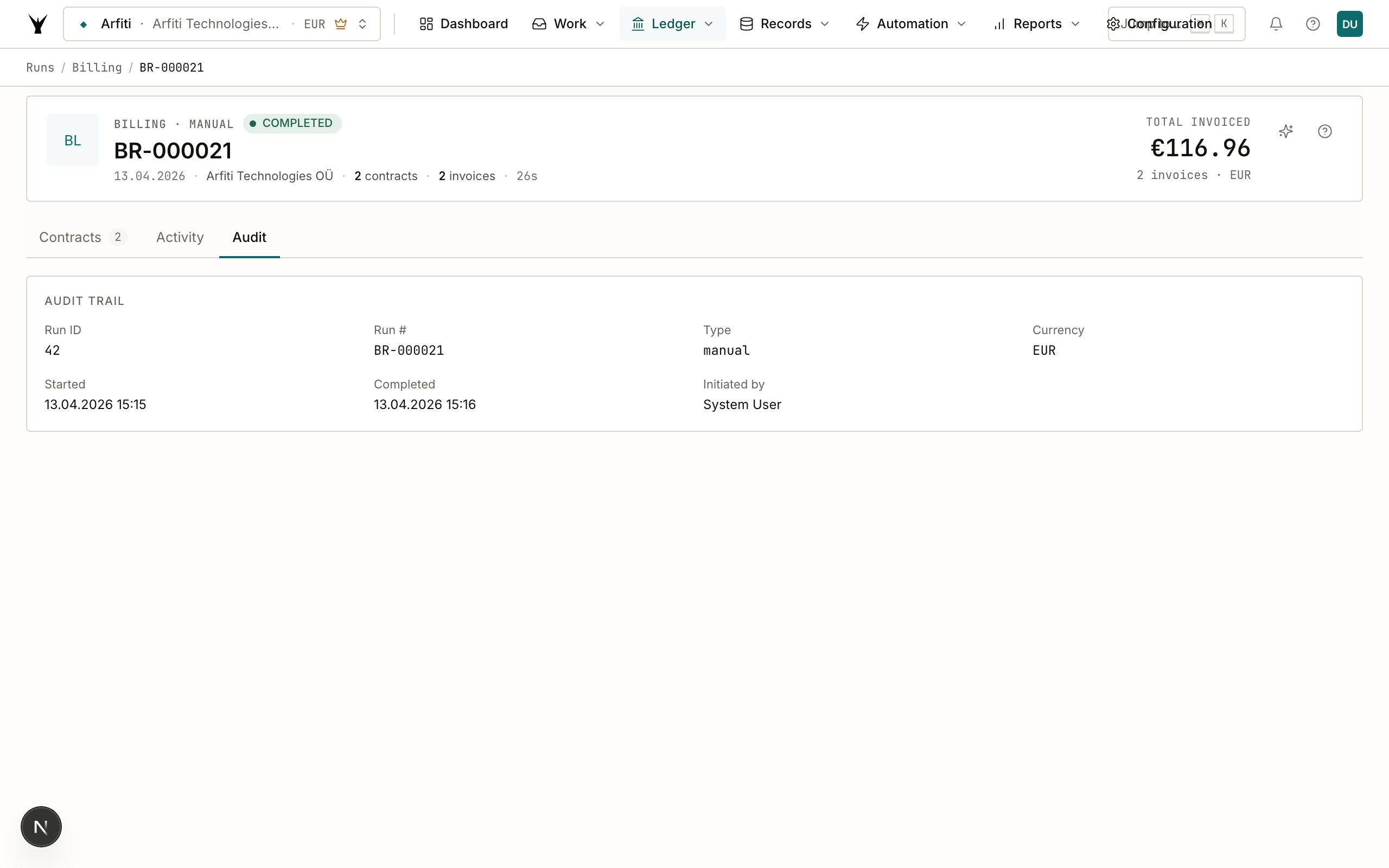
Switch to the Audit tab to see the full lifecycle — when the run started, when it completed, the workflow steps that fired, and which user or system triggered it.
Step 5: Verify the Invoices
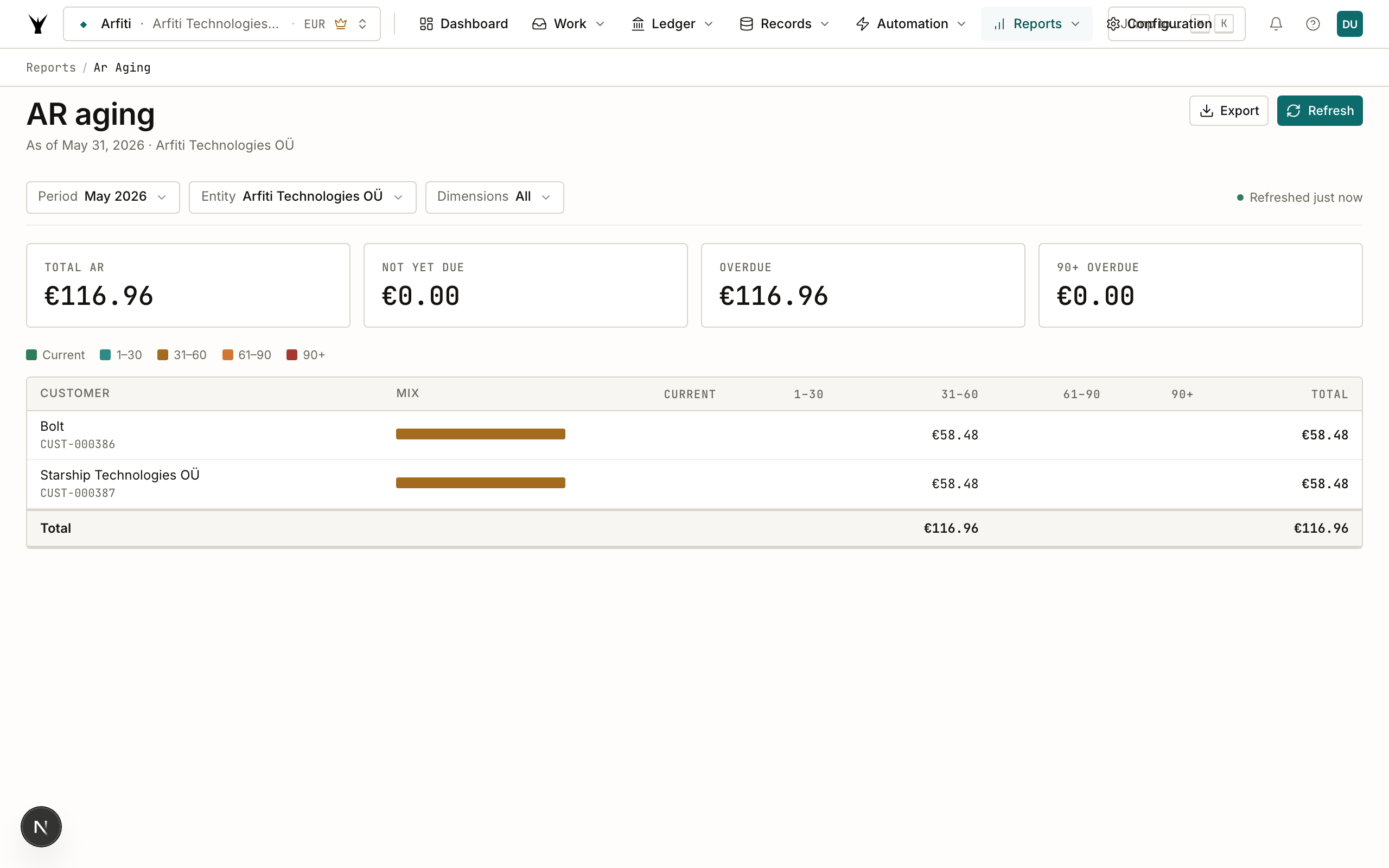
Open Reports > AR Aging and select your legal entity. The invoices generated by the billing run appear under each customer with their current aging status.
In this example, Bolt and Starship Technologies each received an invoice for €58.48, matching the contract terms (€49.00 base + 19.45% VAT).
Configuration
Open the agent definition and switch to the Configuration tab to customize billing behavior.
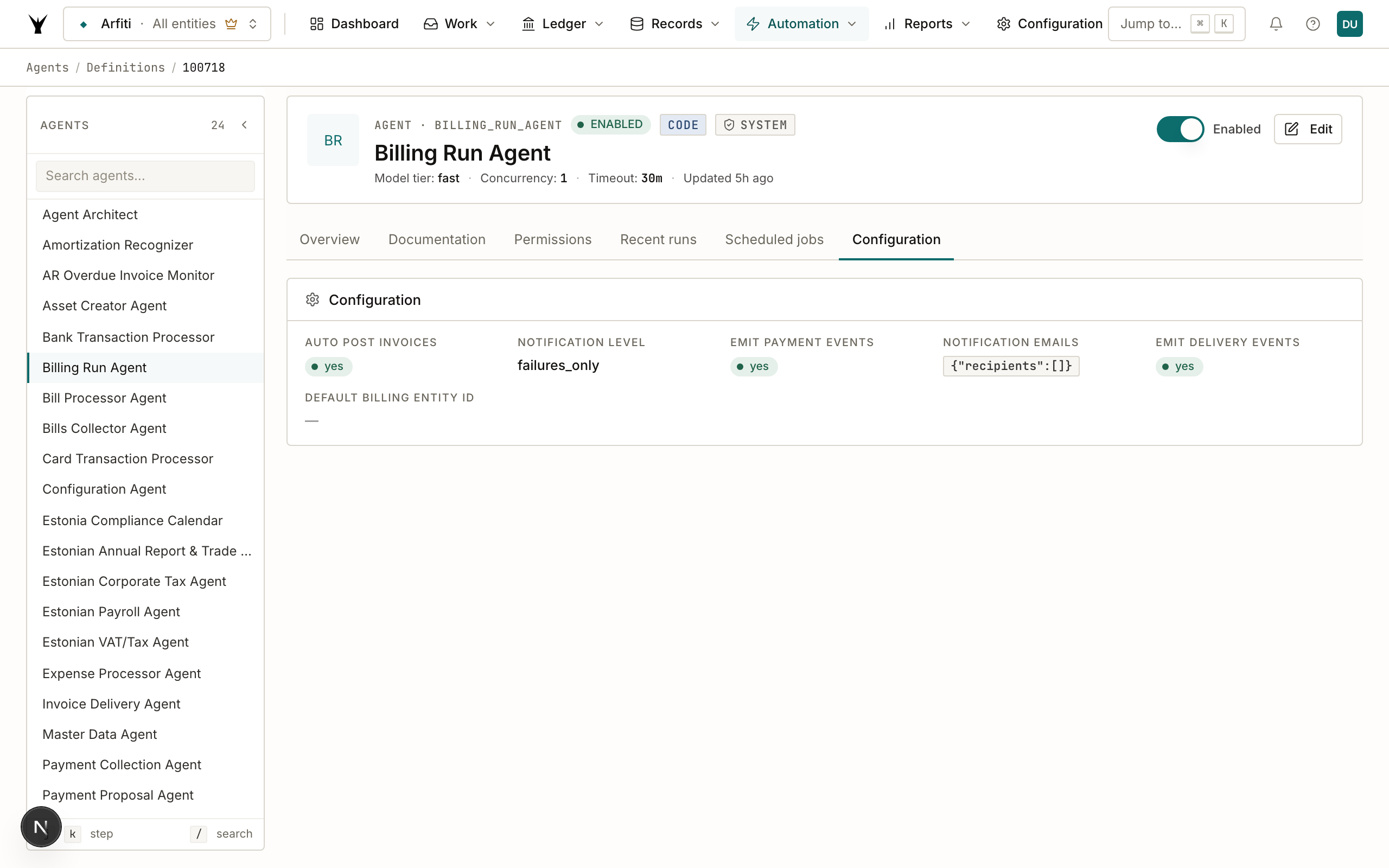
| Setting | What it does |
|---|---|
| Auto Post Invoices | When enabled, invoices are posted immediately. Disable to create drafts for review first. |
| Emit Delivery Events | Triggers the Invoice Delivery Agent to email invoices to customers after generation. |
| Emit Payment Events | Triggers the Payment Collection Agent to initiate payment collection. |
| Notification Level | Controls when you get notified: all, failures_only, or none. |
| Default Billing Entity Id | Restricts billing to a specific legal entity. Leave empty to process all entities. |
Common Issues
| Problem | Cause | Fix |
|---|---|---|
| No invoices generated | No contracts due in the current billing period | Check contract start dates and billing intervals in your recurring contracts |
| Invoice amount seems wrong | Tax calculation applied automatically | Review the tax code assigned to contract line items |
| Customer didn't receive invoice | Invoice Delivery Agent not enabled or email not configured | Check that Emit Delivery Events is enabled and the customer has an email address |
| Run takes longer than expected | Large number of contracts being processed | Normal for 50+ contracts — the agent processes them sequentially |
Next Steps
- Manage Agents — Learn about all 15 default agents and how to configure them
- Build Custom Agents — Create your own agents for custom workflows
- Agent Orchestration — Understand how agents trigger each other in multi-step workflows
The same procedure runs daily under governance — agents propose, your team approves through risk lanes, and every write lands as an immutable audit row.