Agents Overview
Understand, configure, and monitor AI agents that automate your accounting workflows — from vendor bill processing to bank reconciliation.
- An Artifi account with admin access
- At least one legal entity configured
Artifi agents are autonomous AI workers that run accounting tasks on your behalf — without you needing to initiate each one manually. When a vendor emails an invoice, the Bill Processor agent reads it, extracts the line items, matches it against a purchase order if one exists, and creates a vendor bill ready for approval. When your bank syncs overnight, the Bank Transaction Processor categorizes every transaction against your chart of accounts. When a payment run comes due, the Payment Proposal agent builds a ranked list of what to pay and when.
Agents operate in the background, triggered by events, schedules, or requests from other agents. You configure them once, monitor them through the admin dashboard, and intervene only when something needs human judgment.
This guide covers the three execution modes, the full catalog of default agents, how triggers work, and how to monitor agent activity in the admin dashboard.
Related guides: Build Custom Agents walks you through creating agents from scratch. Agent Orchestration covers multi-agent workflows and saga patterns for complex, multi-phase operations.
Three Execution Modes
Every agent runs in one of three modes. The mode determines whether the agent uses an LLM at runtime, which controls both cost and the type of judgment the agent can apply.
Code
Code agents run pure Python — no LLM calls at runtime. They execute deterministic logic: fetch bank transactions, match amounts, post journal entries, send emails. Because there is no model involved, the cost per run is effectively zero, and latency is low.
Use Code mode when the task is well-defined and the rules are stable. Bank transaction categorization, billing run generation, payment scheduling, and statement reconciliation are all tasks where the logic can be expressed precisely in code. Code agents are also easier to test and audit — the same input always produces the same output.
LLM
LLM agents call Claude at runtime using the MCP tool interface. They can read documents, interpret ambiguous data, make judgment calls, and escalate to humans when confidence is low. A typical run costs between $0.05 and $0.50 depending on the context size and number of tool calls.
Use LLM mode when the task requires interpretation. The Master Data Agent validates and enriches vendor or customer records by reasoning about incomplete data. The Configuration Agent understands natural-language instructions and translates them into system configuration changes. The Agent Architect can design and register new agents based on a description of what you need.
Hybrid
Hybrid agents use Python as the base execution layer, with targeted inline calls to Claude Haiku for specific sub-tasks where language understanding adds value. A typical run costs between $0.01 and $0.10 — significantly cheaper than full LLM mode while retaining the ability to interpret unstructured content.
The Bill Processor is a canonical example: Python handles structured extraction and database writes, while Haiku reads the natural-language description on each invoice line to suggest the right expense account. The Hybrid pattern gives you LLM capability where it matters without paying for it everywhere.
Default Agent Catalog
Artifi ships with 15 agents covering the core accounting automation surface. All are active by default. You can disable individual agents, adjust their triggers, or customize their prompts in Administration > Agents.
You can see all agents — their current status, execution mode, and last run time — on the Agent Definitions page.
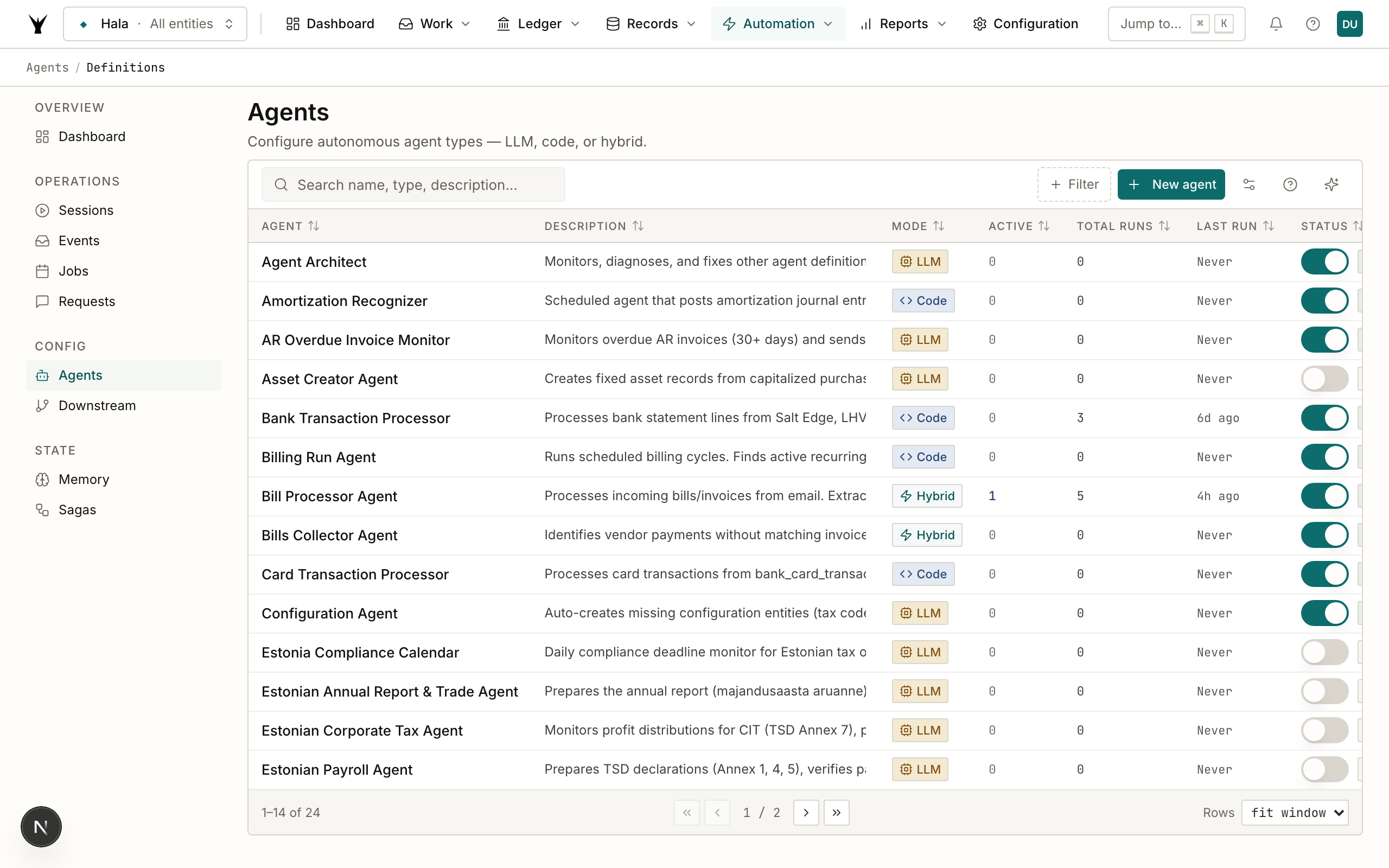
Clicking any agent opens its detail view, where you can inspect its configuration, review its prompt, adjust its triggers, and access its run history.
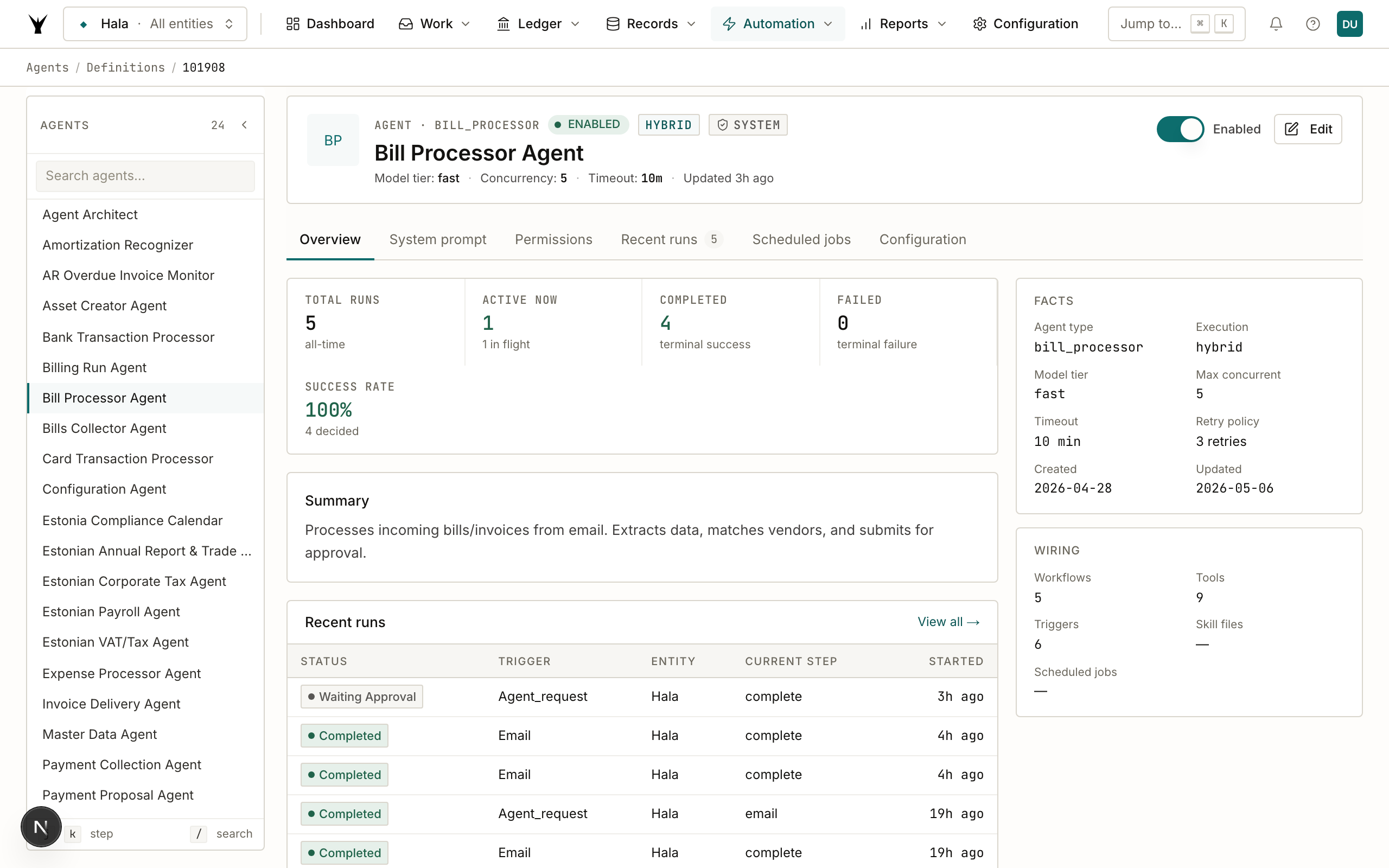
| Agent | Mode | Trigger | What It Does |
|---|---|---|---|
| Bill Processor | Hybrid | Reads vendor invoices received by email, extracts header and line data, matches against purchase orders, and creates draft vendor bills for review or auto-posts when confidence is high. | |
| Expense Processor | Hybrid | Processes employee expense submissions received by email, extracts receipt data, validates against expense policy, and creates expense report entries. | |
| Bank Transaction Processor | Code | Bank sync | Categorizes incoming bank statement lines against your chart of accounts using learned mappings. Posts journal entries for high-confidence matches and queues exceptions for review. |
| Reconciliation Agent | Code | Schedule | Runs the 3-pass bank reconciliation process: deterministic exact matching, heuristic fuzzy matching, and exception flagging. Auto-confirms matches above the confidence threshold. |
| Master Data Agent | LLM | Agent request | Validates and enriches vendor, customer, and employee records. Detects duplicates, fills missing fields from context, and flags records that need human review before activation. |
| Configuration Agent | LLM | Agent request | Handles system configuration tasks described in natural language — chart of accounts adjustments, posting profile setup, dimension hierarchy changes, and entity settings. |
| Billing Run Agent | Code | Schedule | Generates recurring customer invoices based on active subscription contracts and billing schedules. Creates draft invoices and queues them for the Invoice Delivery Agent. |
| Invoice Delivery Agent | Code | Schedule | Sends generated customer invoices by email using configured delivery templates. Updates invoice status and logs delivery confirmation. |
| Payment Proposal Agent | Code | Schedule | Builds a ranked payment proposal listing outstanding vendor bills due within the payment window, grouped by vendor and sorted by priority. Outputs a proposal for approval before any payments are made. |
| Payment Collection Agent | Code | Schedule | Monitors overdue customer invoices and initiates collection actions: reminder emails, escalation flags, and collection holds based on aging thresholds. |
| Bills Collector Agent | Hybrid | Schedule | Sends personalized payment reminder emails to vendors who have not submitted expected invoices, using account history to personalize the message. |
| Receipts Collector Agent | Hybrid | Schedule | Follows up with employees who have submitted expense claims without attaching receipts, using context from the original expense entry to request the right documents. |
| Card Transaction Processor | Code | Card sync | Processes corporate card transaction feeds, matches transactions to employees and expense categories, and creates expense entries. Flags unrecognized merchants for review. |
| Stripe Transaction Processor | Code | Webhook | Processes Stripe webhook events — charges, refunds, payouts, disputes — and posts the corresponding journal entries in real time. Handles fee extraction and net settlement logic. |
| Agent Architect | LLM | Manual | Meta-agent that designs and registers new agents based on a description of the task. Outputs a config.yaml and prompt.md, registers the agent in the system, and explains the design choices. |
How Agents Are Triggered
Agents start running when a trigger fires. There are three trigger types.
Event-Driven (Automatic)
Event-driven triggers fire automatically when something happens in the system. You do not need to do anything — the agent picks up the event and runs.
Email: When a vendor sends an invoice to your company's configured email address, the system receives the message and dispatches it to the Bill Processor or Expense Processor based on the sender and subject line routing rules.
Bank sync: When a bank connector completes a statement fetch, the system emits a sync-complete event. The Bank Transaction Processor picks this up and begins categorizing the new lines immediately.
Agent requests: Agents can trigger other agents. The Bill Processor may call the Master Data Agent to validate a vendor it has not seen before. The Master Data Agent may call the Configuration Agent to resolve an account mapping. This chaining is handled automatically through the agent request queue.
Webhooks: External services like Stripe post event notifications to your Artifi webhook endpoint. The Stripe Transaction Processor subscribes to these events and processes them as they arrive.
How to View the Event Queue
Incoming events — emails received, bank syncs completed, webhook payloads, agent-to-agent requests — all pass through the event queue before dispatch. You can inspect the queue at any time under Administration > Agents > Queue.
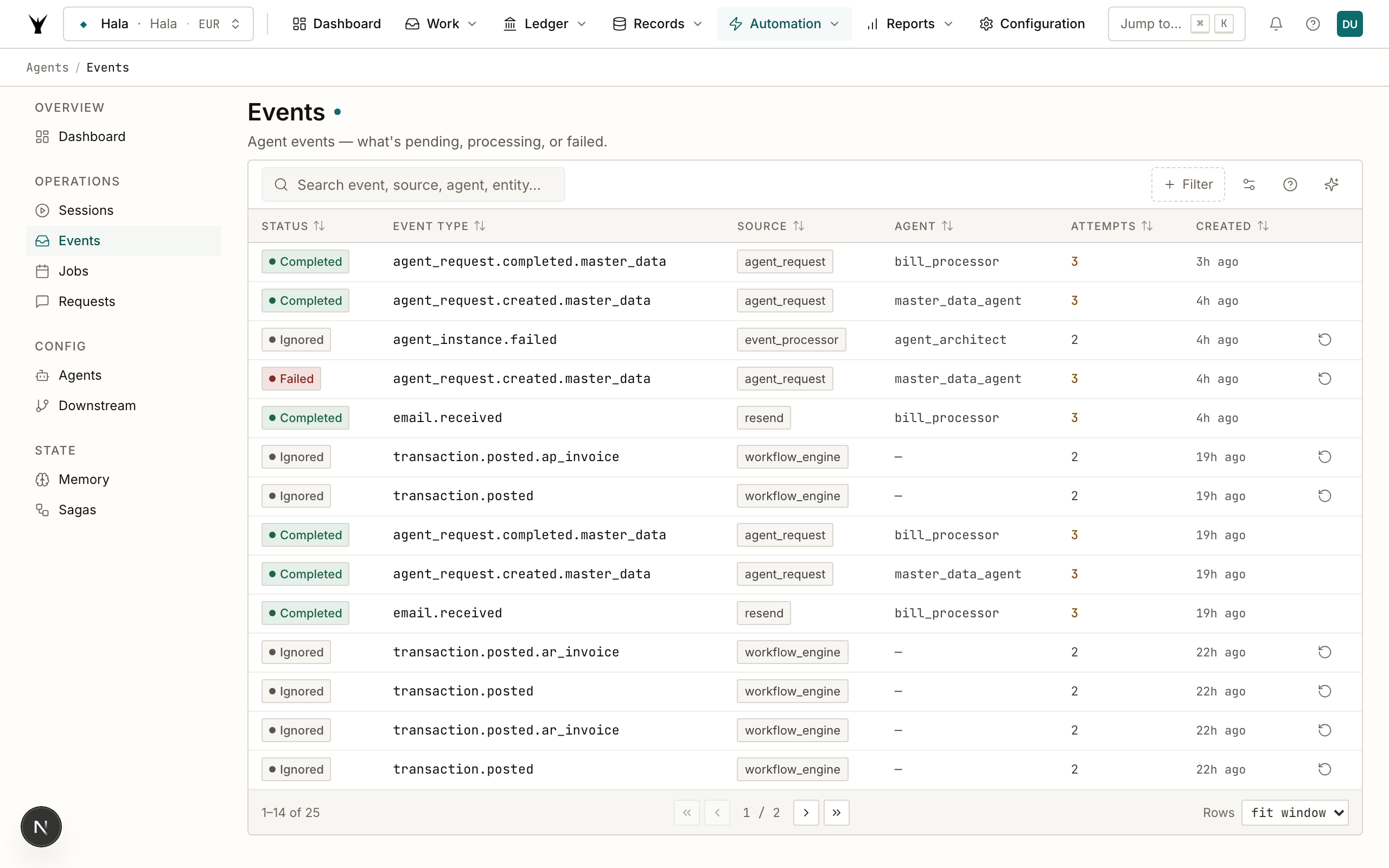
The queue shows each event's type, originating source, age, assigned agent, and current status. Events awaiting retry after a delivery failure are highlighted separately. If you notice an event sitting in the queue longer than expected, it typically indicates the assigned agent is paused, disabled, or waiting on a human response in the Agent Requests queue.
How to Schedule an Agent
Scheduled triggers run agents on a recurring timetable. You create and edit schedules in Administration > Agents > Scheduled Jobs.
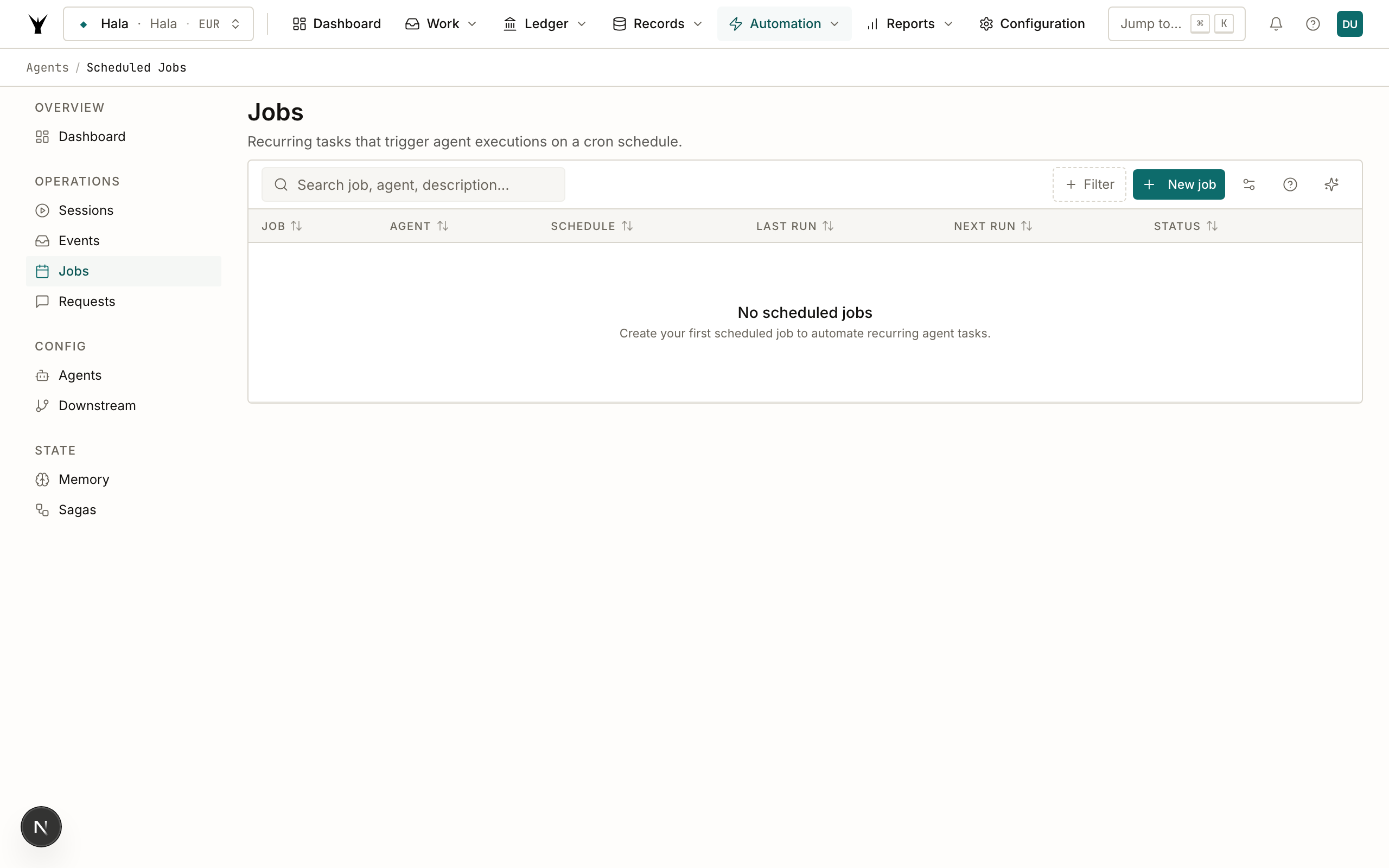
Steps to create a new scheduled trigger:
- Navigate to Administration > Agents > Scheduled Jobs.
- Click Add Schedule in the top-right corner.
- Select the agent you want to schedule from the dropdown.
- Choose the legal entity the schedule applies to. Each entity can have its own independent schedule for the same agent — useful when subsidiaries run billing or reconciliation on different days.
- Enter a cron expression for the desired frequency (see the reference table below).
- Click Save. The schedule activates immediately and will appear in the list with the next calculated run time.
To disable a schedule without deleting it, toggle the Active switch on any row. To force an immediate run outside the regular schedule, click Run Now on the relevant row.
Common cron expressions for accounting schedules:
| Schedule | Cron Expression | Use Case |
|---|---|---|
| Daily at 7:00 AM | 0 7 * * * | Bank reconciliation, morning transaction processing |
| Weekdays at 8:00 AM | 0 8 * * 1-5 | Payment proposal generation, invoice delivery |
| Monday at 9:00 AM | 0 9 * * 1 | Weekly billing run, payment collection review |
| 1st of month at 6:00 AM | 0 6 1 * * | Monthly recurring invoices, subscription billing |
| Last day of month at 11:00 PM | 0 23 28-31 * * | Period-end reconciliation, closing checks |
| Every 15 minutes | */15 * * * * | Near-real-time bank transaction processing |
How to Run an Agent Manually
You can trigger any agent manually from the admin dashboard or directly through Claude. Manual triggers are useful for one-off tasks, testing a new agent configuration, or re-running a failed session.
From the admin dashboard:
- Navigate to Administration > Agents.
- Open the Agent Definitions tab.
- Find the agent you want to run and click into its detail view.
- Click Run Now. A panel will appear where you can pass optional context parameters — for example, a specific date range for the Reconciliation Agent or a specific vendor ID for the Master Data Agent.
- Confirm and the agent starts immediately. A new session record will appear in the Sessions list within seconds.
From Claude.ai:
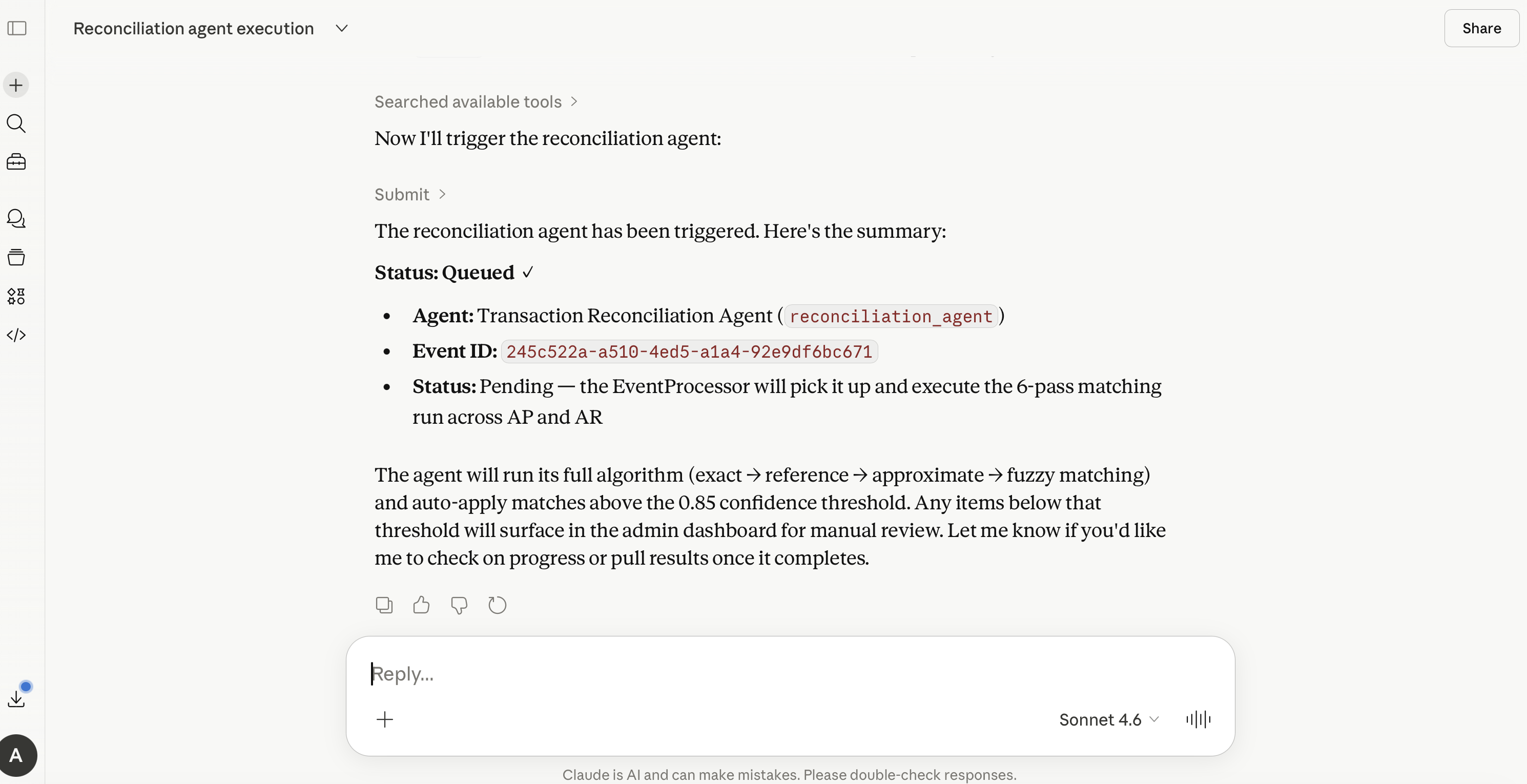
You can also trigger agents programmatically via MCP tools:
submit(
    object_type="agent_run",
    operation="trigger",
    data=json.dumps({
        "agent_code": "reconciliation_agent",
        "legal_entity_id": 9,
        "parameters": {
            "bank_account_id": 42,
            "from_date": "2026-03-01",
            "to_date": "2026-03-31"
        }
    })
)
Monitoring Agents
The admin dashboard provides a dedicated monitoring surface for agent activity at Administration > Agents. The top-level dashboard gives you an immediate overview before you drill into any specific area.
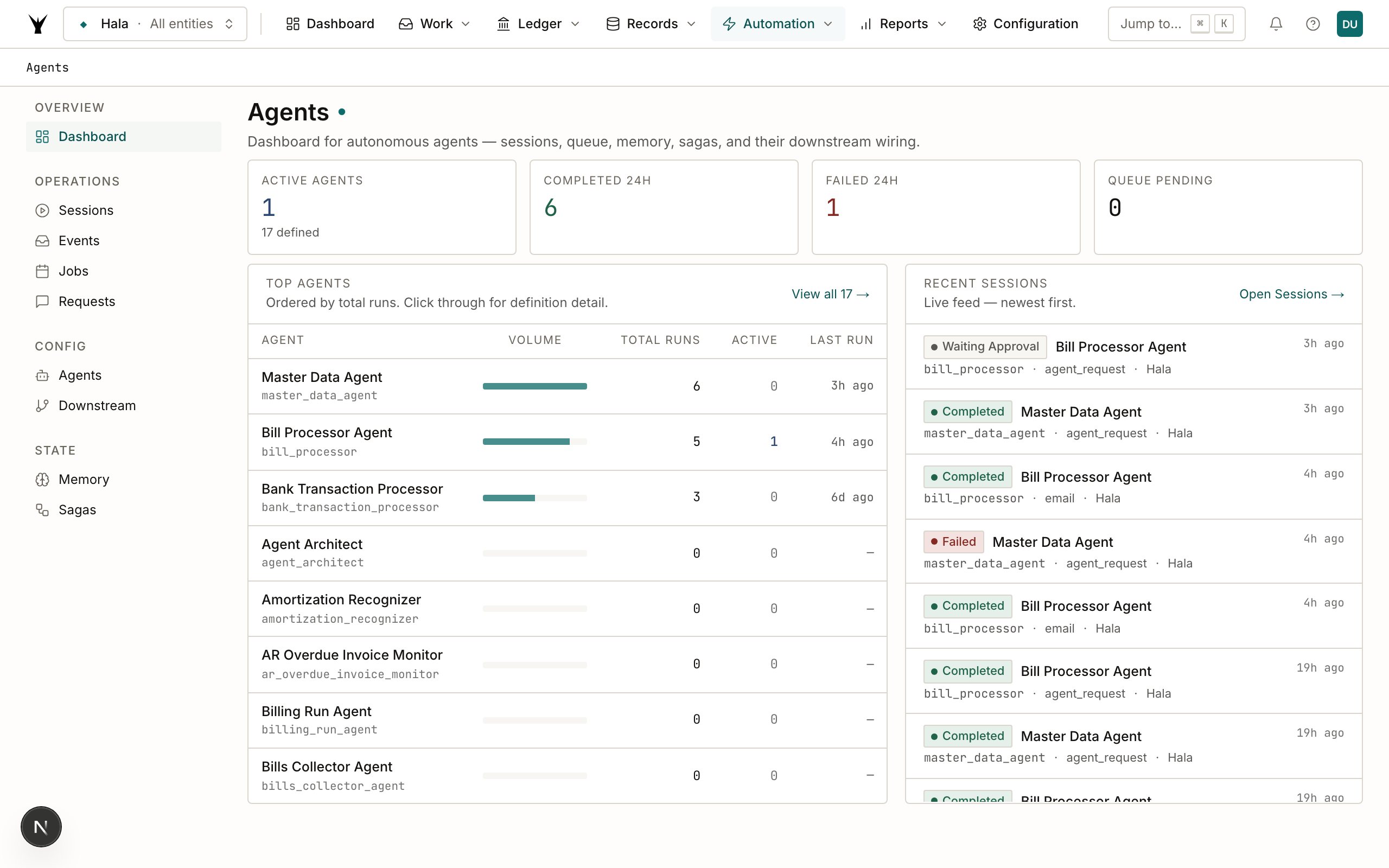
The dashboard cards show aggregate metrics for the current period: total runs, success rate, average run duration, and cost by agent. Use this view to spot regressions — a drop in the Bill Processor's success rate after a vendor changes their invoice format will surface here before you notice it in the individual session log.
How to Check if an Agent Ran Successfully
Every agent execution creates a session record. The Sessions tab is your primary tool for verifying that agents ran, reviewing what they did, and diagnosing unexpected outcomes.
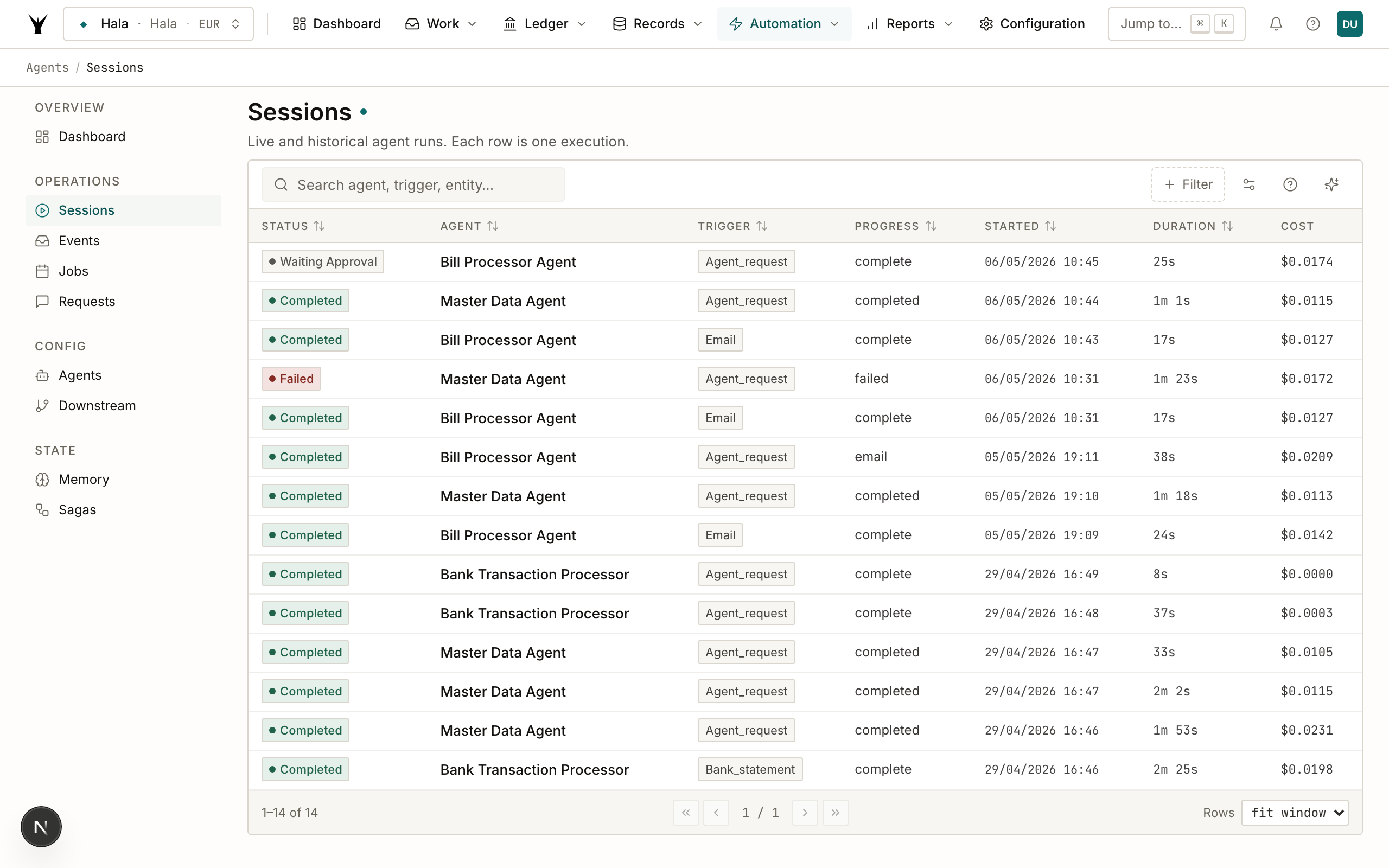
The sessions list shows each run's agent name, legal entity, start time, duration, cost, and final status. Color-coded status badges make it easy to identify failures at a glance.
Steps to investigate a specific run:
- Navigate to Administration > Agents > Sessions.
- Use the filters at the top to narrow by agent, entity, date range, or status.
- Click any row to open the full session detail.
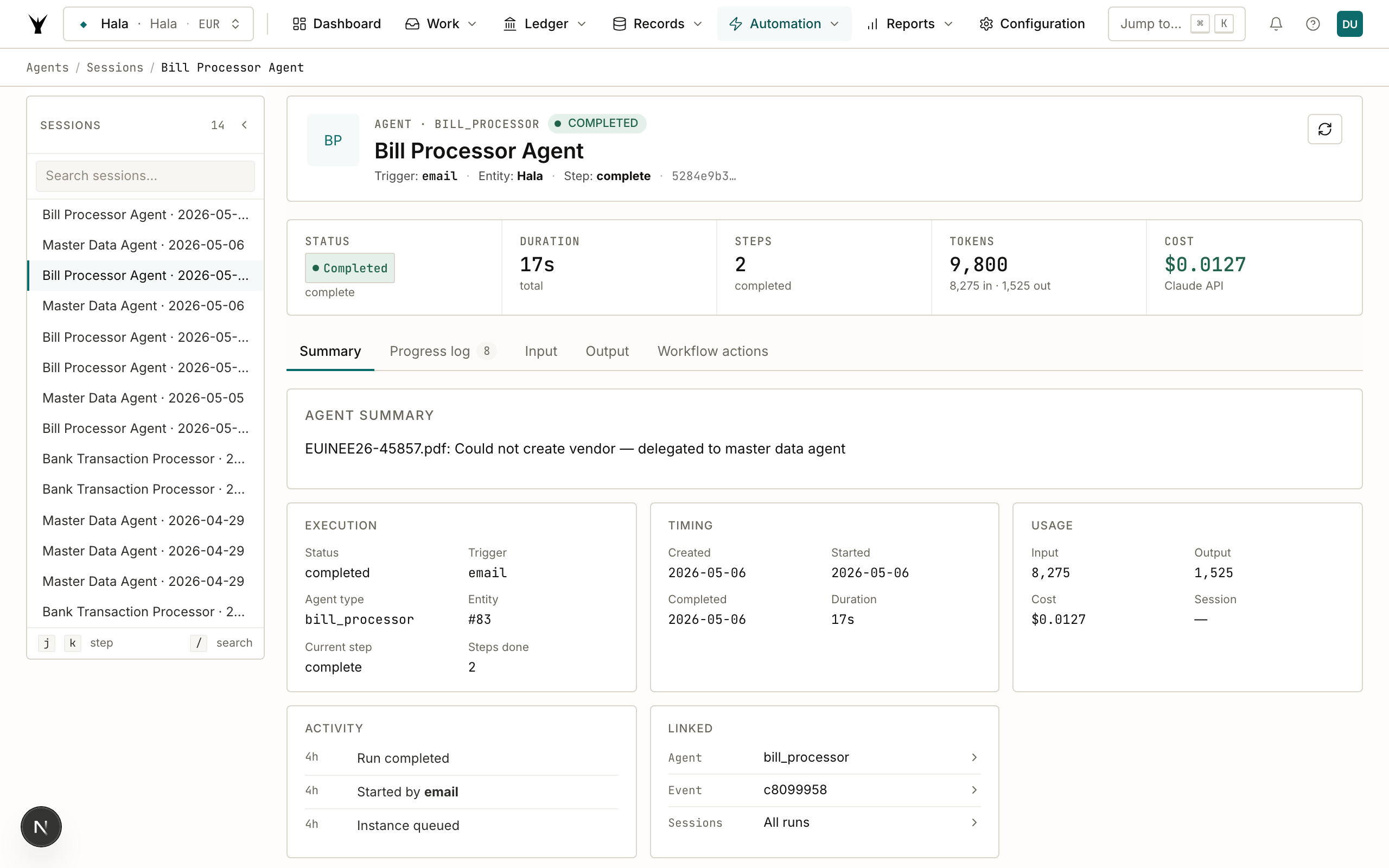
The session detail shows the complete execution trace: every MCP tool call the agent made, the inputs and outputs at each step, any errors encountered, and the final result. If an agent produced an unexpected vendor bill, created the wrong journal entry, or stopped partway through, the session detail will show you exactly where and why.
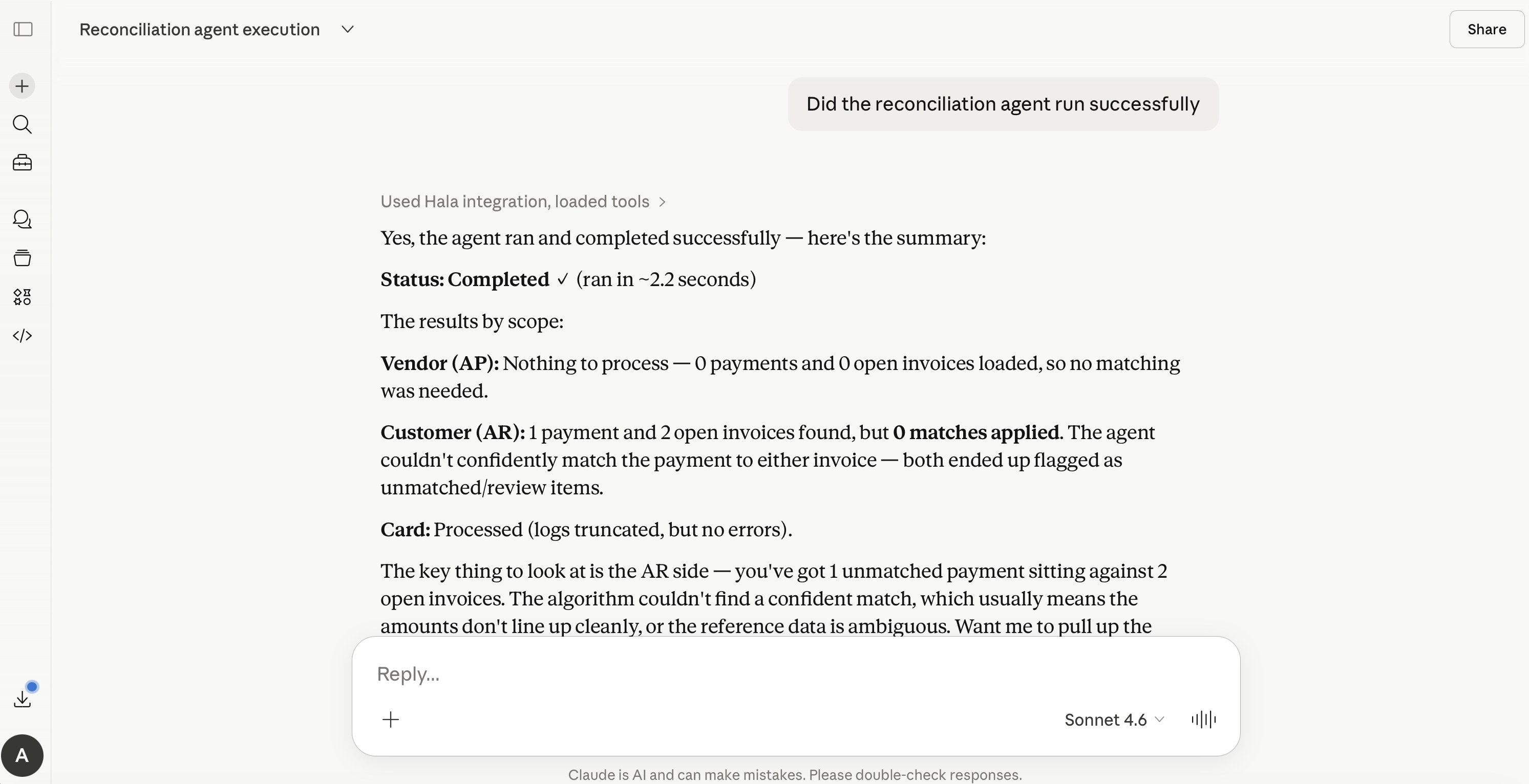
How to View What an Agent Learned
Agents accumulate learned mappings over time. The Memory tab exposes these mappings so you can review, correct, or remove them.
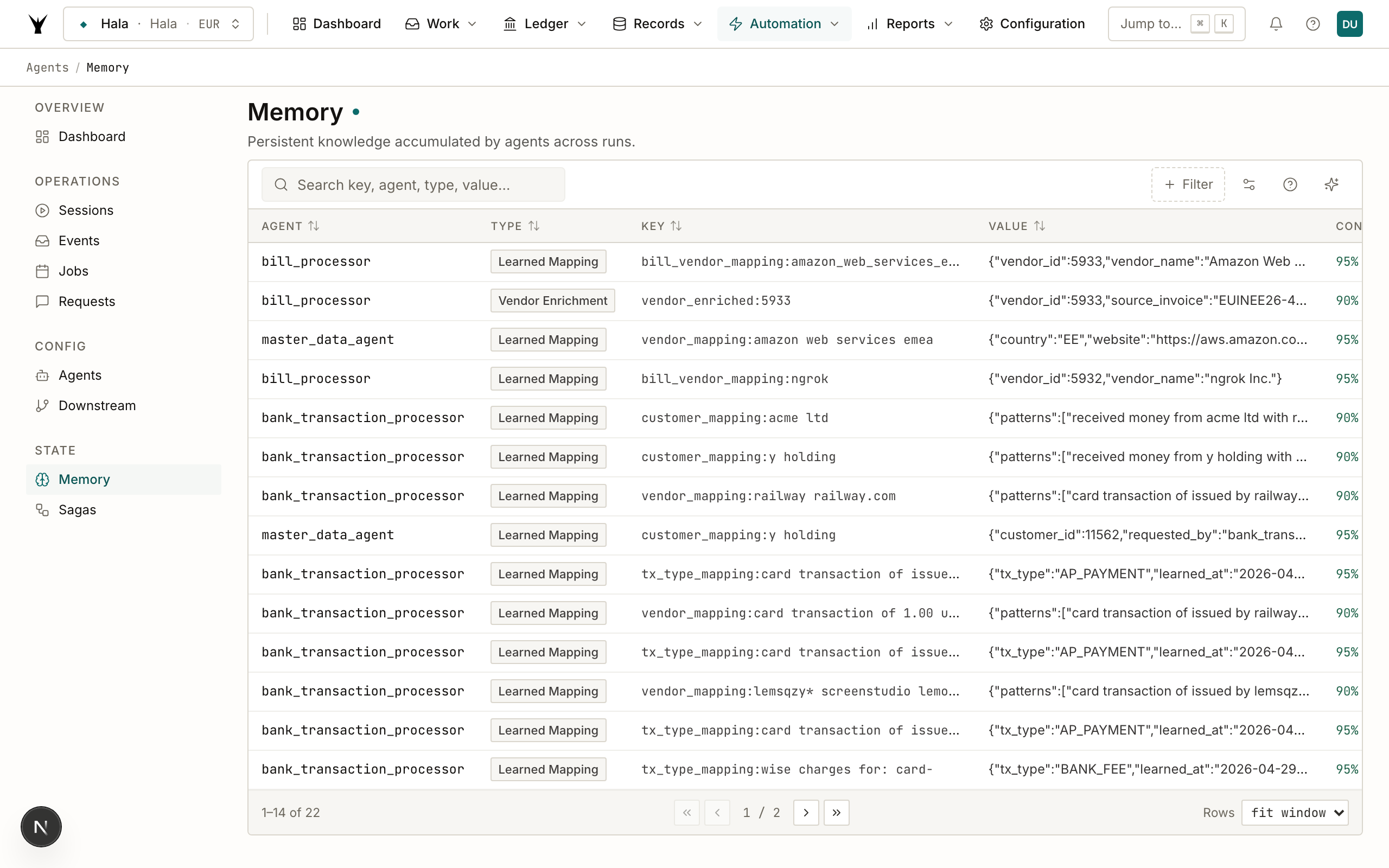
The Bank Transaction Processor, for example, remembers how it categorized transactions from each merchant — after confirming that an Amazon charge goes to Cloud Infrastructure expense, it applies that mapping automatically in every subsequent run. Memory entries are stored per-agent and per-entity.
To review or manage memory entries:
- Navigate to Administration > Agents > Memory.
- Filter by agent or entity to narrow the list.
- Click any entry to view its full detail — the trigger pattern, the learned value, and the number of times it has been applied.
- To remove an incorrect mapping, click Delete. The agent will re-evaluate the next matching transaction from scratch rather than applying the stale rule.
Editing memory directly is useful when a vendor changes their invoice format, a bank changes how they describe a fee, or you want to correct a miscategorization that the agent has been applying consistently.
Claude.ai — Screenshot placeholder: asking Claude about agent memory — e.g., "How is the bank transaction processor categorizing AWS charges?" and Claude showing the memory entry and its history
Sagas
The Sagas tab tracks multi-phase workflows that span multiple agents and may run over hours or days.
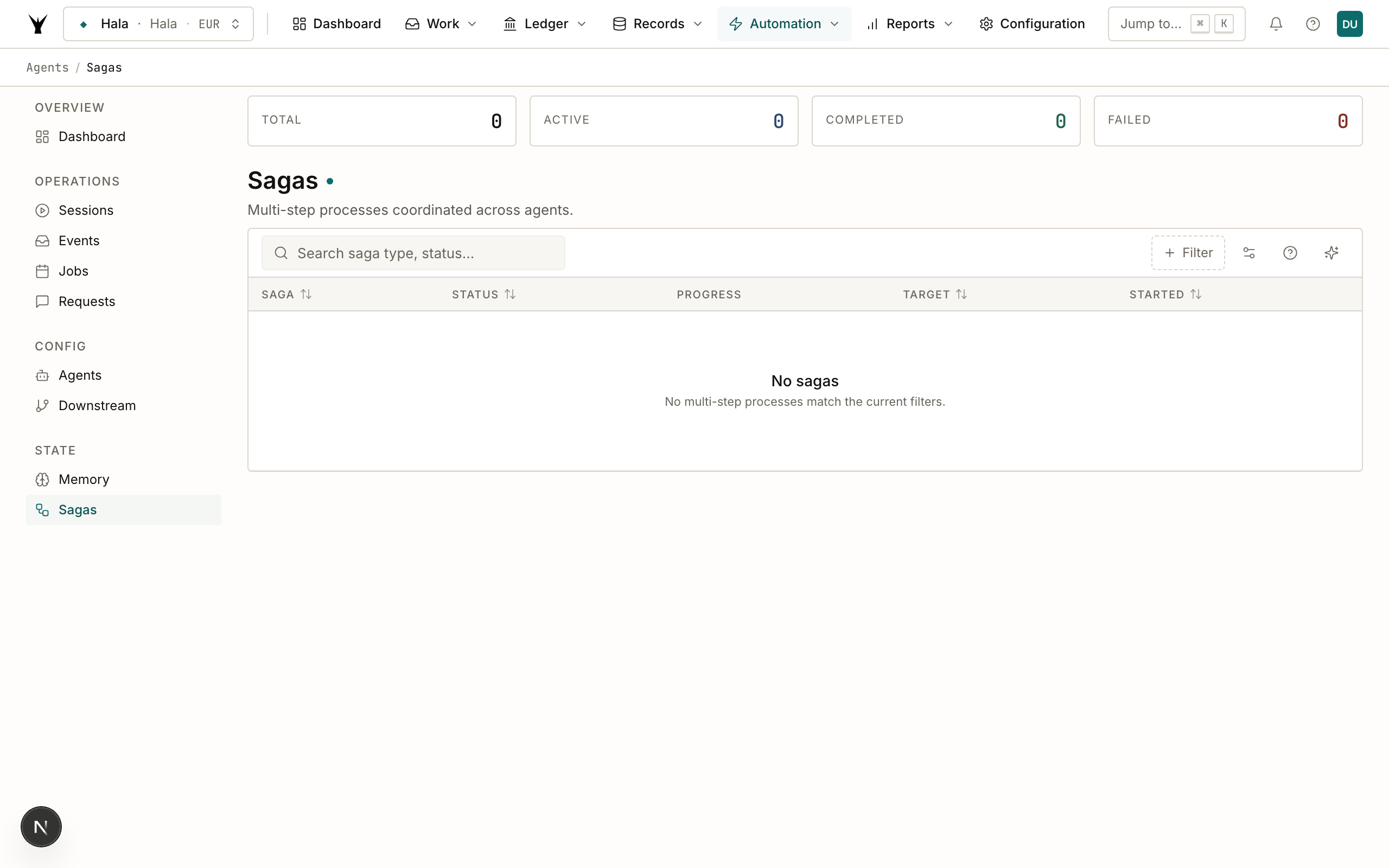
A payment collection saga, for example, involves the Billing Run Agent, Invoice Delivery Agent, and Payment Collection Agent operating in sequence over weeks. The Sagas view shows each active saga, its current phase, which agents have completed, and any holds waiting for human input.
Downstream Rules
Downstream Rules configures how agent output events are routed to trigger further actions.
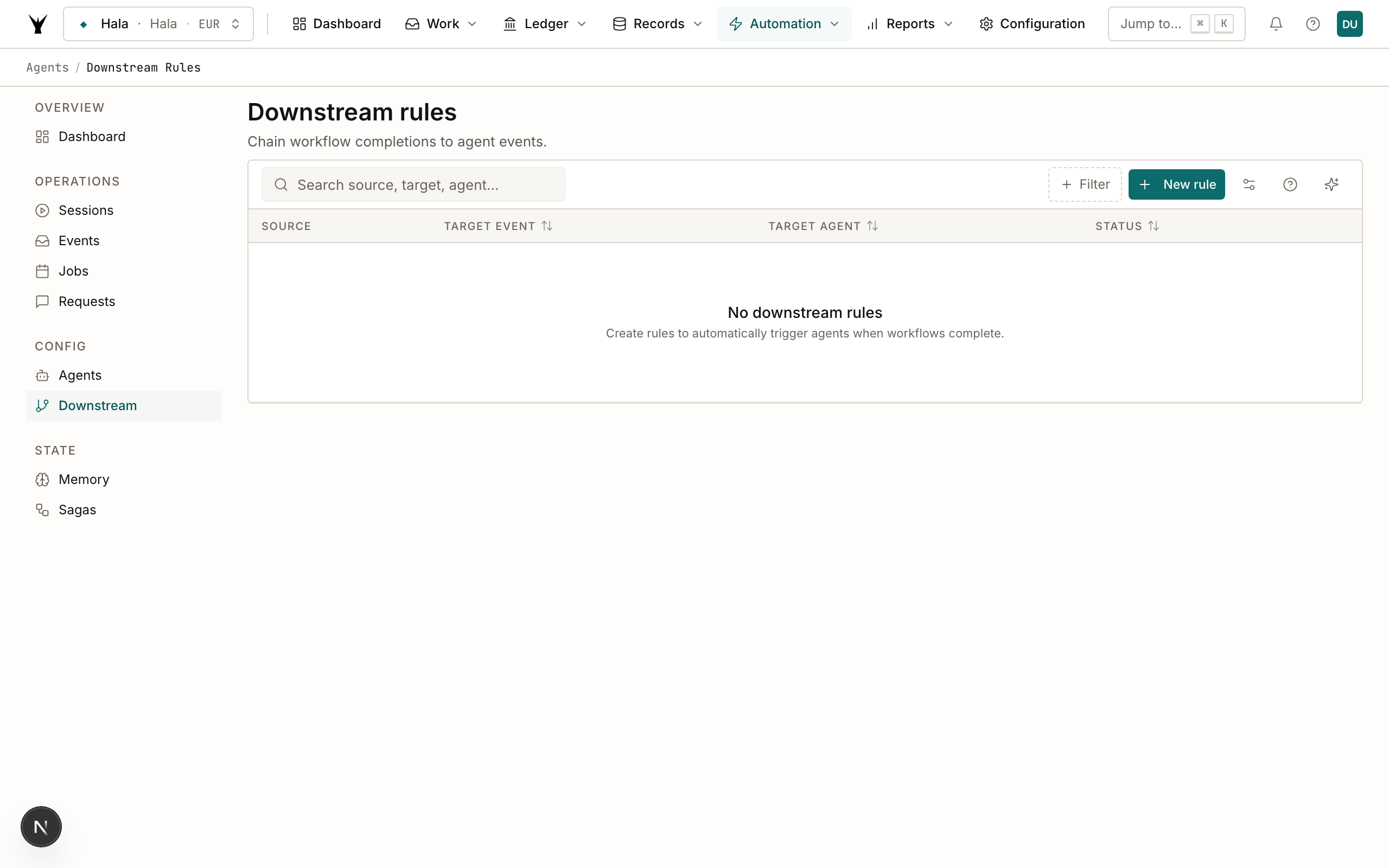
For example, you can create a rule that sends a Slack notification whenever the Bill Processor creates a vendor bill over a certain amount, or that triggers the Master Data Agent whenever a new vendor is created by any agent. Rules are expressed as simple if-then conditions on event type and payload fields.
Agent Requests
Agent Requests is the escalation queue. When an agent encounters something it is not confident handling — an invoice from an unknown vendor, a transaction that does not match any account, a configuration instruction that is ambiguous — it creates an agent request and pauses.
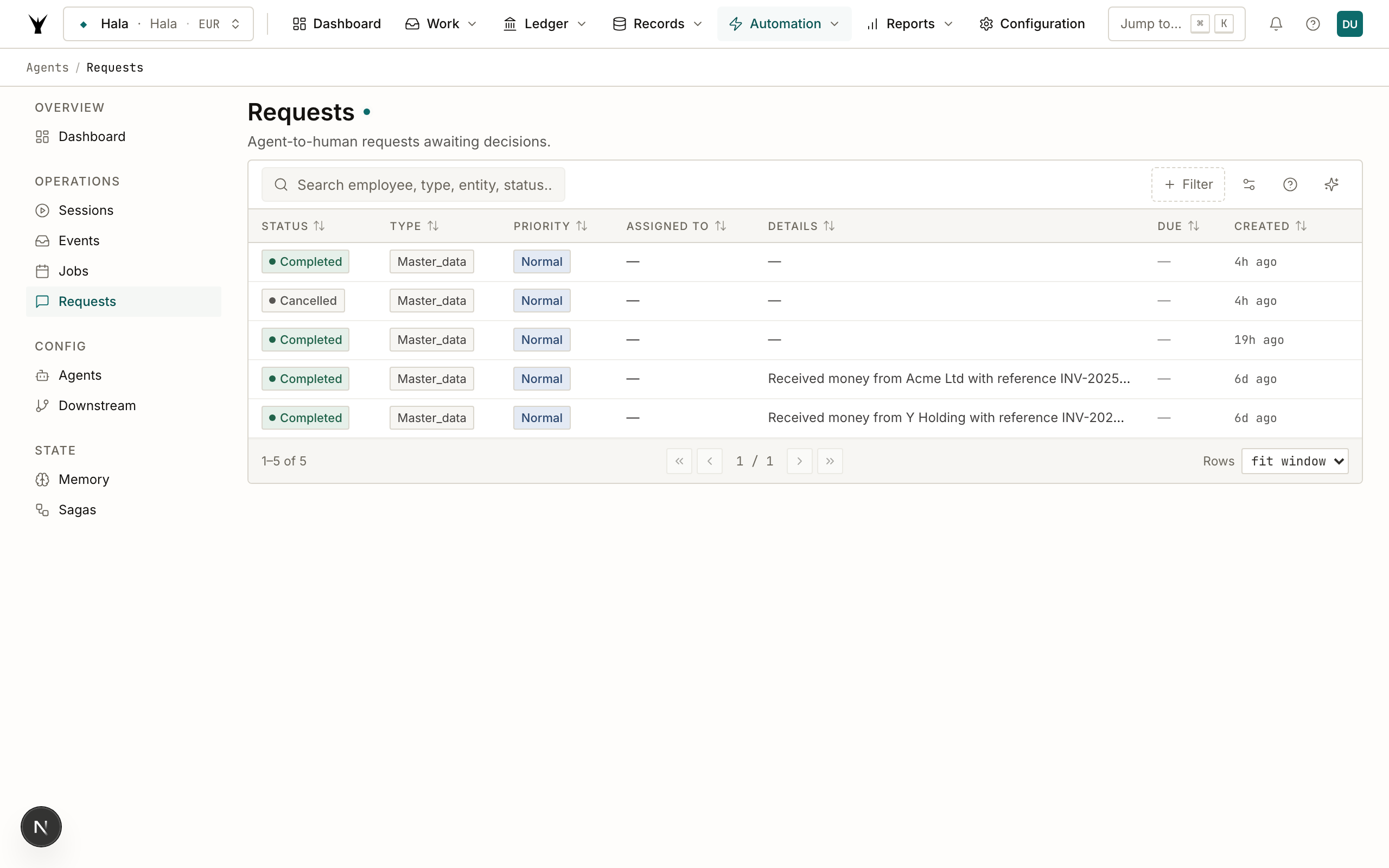
The Agent Requests view shows all open requests with their full context, any suggested actions the agent has proposed, and an interface for responding. Once you respond, the agent resumes from where it stopped. Unreviewed requests are highlighted — leaving them unattended means the agent's work for that item remains incomplete until a response is provided.
Next Steps
Once you are comfortable with the default agent catalog and monitoring tools, you can extend the system in two directions.
Build Custom Agents walks you through creating a new agent from a config.yaml and prompt.md — defining its tools, trigger type, memory behavior, and escalation rules. The Agent Architect agent can also generate an initial configuration from a plain-language description of what you need.
Agent Orchestration covers how to design multi-agent workflows for complex, multi-phase operations: how sagas work, how to chain agents with downstream rules, how to handle partial failures, and how to build reliable automation that spans days or weeks of real-world time.
The same procedure runs daily under governance — agents propose, your team approves through risk lanes, and every write lands as an immutable audit row.