How to Manage Prepaid Expenses
Forward a multi-period vendor invoice and watch the Bill Processor capitalise it to a prepaid asset, delegate contract creation to the Master Data Agent, and generate a calendar-month amortisation schedule — GAAP/IFRS compliant, fully auditable.
- An Artifi account with admin access
- A chart of accounts with a prepaid asset account (e.g. 1400 Prepayments) and a related expense account (e.g. 6960 Software and Subscriptions)
- Familiarity with the Bill Processor — see How to Automate Bill Processing
When you pay a vendor upfront for a service that spans several months — annual SaaS plans, insurance premiums, retainers — GAAP (ASC 340-10) and IFRS (IAS 1 accrual basis, matching principle) require the cost to be recognised in the periods it is consumed, not the month you paid. That means:
- On the payment date, the cost lands on a prepaid asset account (e.g. 1400 Prepayments) — a balance sheet item, not an expense.
- Each reporting period, a fraction of that prepaid balance is amortised to the expense account (e.g. 6960 Software and Subscriptions). Partial first and last months are prorated by days.
- The final period's expense exactly clears the remaining prepaid balance.
Artifi does all of this automatically. Forward the invoice once — the Bill Processor classifies the line as prepaid, the Master Data Agent opens a vendor contract, and the Amortization Recognizer posts the monthly journal entries on auto-pilot.
This walkthrough follows a real run: a €200 annual Anthropic subscription forwarded on 2026-04-16, covering the 365 days to 2027-04-15.
The Pipeline at a Glance
Email arrives (Resend webhook)
    ↓
Bill Processor
  • Haiku extracts invoice fields
  • Line classified as PREPAID (≥ 3 months, period spans forward, ≥ €500)
  • Posts bill: DR 1400 Prepayments €200, CR 2000 AP €200
  • Delegates contract creation → Master Data Agent
    ↓
Master Data Agent
  • Creates vendor contract (party_type=vendor, billing_frequency=once)
    ↓
Bill Processor (callback)
  • Activates the contract (draft → active)
  • Creates a 13-line calendar-month amortisation schedule
    ↓
Monthly: Amortization Recognizer
  • Scheduled job OR Run Now from Agents → Scheduled Jobs
  • Posts JE per due line: DR 6960, CR 1400
Every write goes through the workflow engine. See the approval note in Step 4 for how your org can gate any step behind human review.
Step 1: The Inbound Email
Forward your vendor invoice PDF to your entity's bills address — for our Estonian entity that's bills.ee-main.hala-digital-ou@mail.ar-ti-fi.com. Open Communications in the sidebar and click the email row.
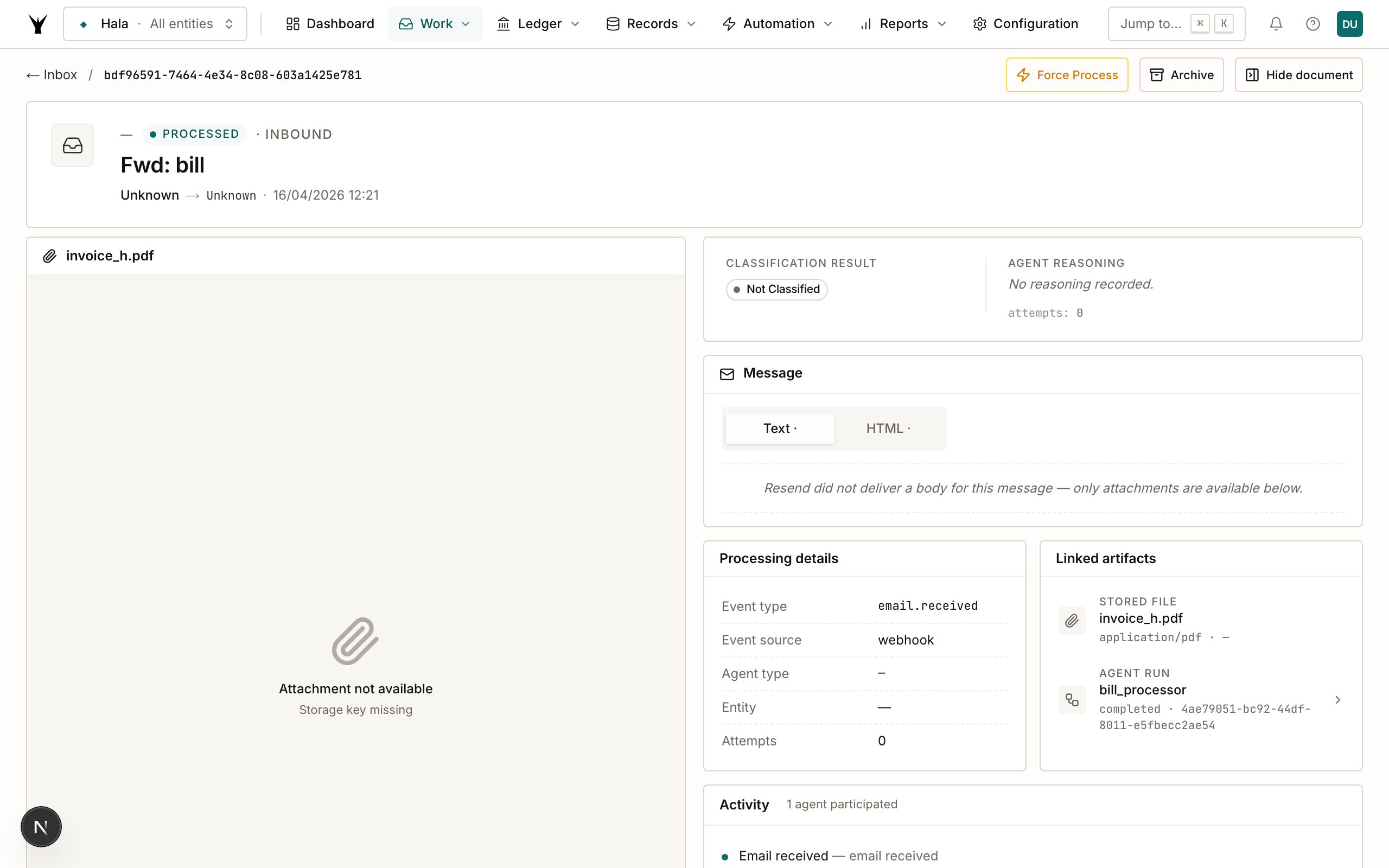
Three things worth looking at on the detail page:
Email Information — subject "Fwd: bill" with invoice_h.pdf attached.
Classification — every inbound email passes through a Haiku spam filter. Our email landed as Uncertain (0.45 confidence) because the subject was terse ("bill") — the filter is cautious but lets the email through for processing because the attachment count and sender are plausible. Obvious spam never reaches this page; it's rejected at the webhook.
Processing Details — event type email.received, the assigned agent instance, and the processing timestamps.
Tip — if the spam filter rejects a legitimate email, hit Mark as Real on this page. If the agent failed to post, hit Retry or Force Process.
Step 2: Agents that Ran
Every email that clears spam triggers an agent. Navigate to Agents → Sessions to see all the runs.
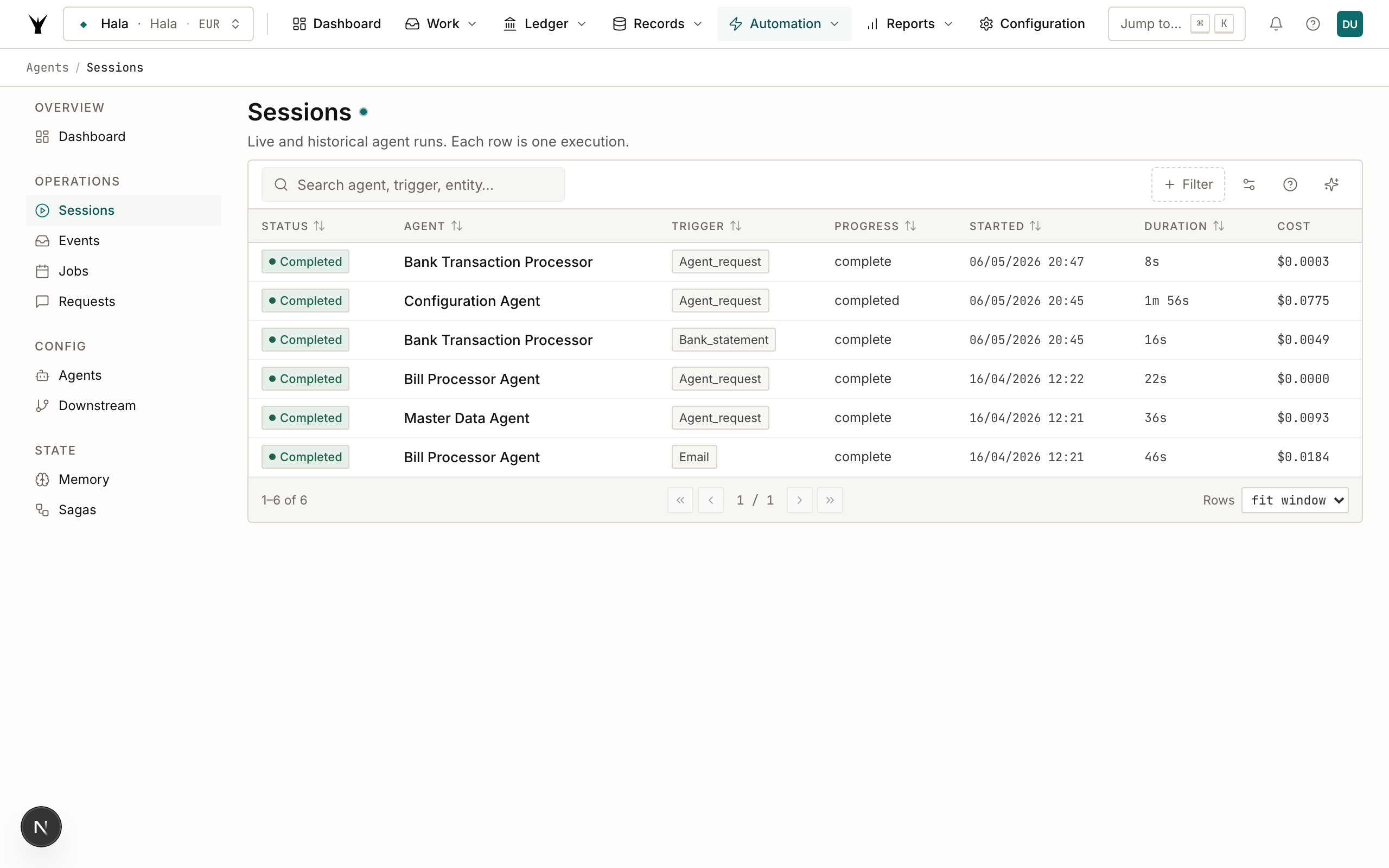
Three rows, all completed, in this order:
| # | Agent | Role |
|---|---|---|
| 1 | bill_processor | Extracted the PDF, classified the line as prepaid, posted BILL000021, delegated contract creation |
| 2 | master_data_agent | Created the vendor prepaid contract (CON-000009), returned the ID in the callback |
| 3 | bill_processor | Callback handler — activated the contract and created the amortisation schedule |
The second bill_processor is a callback — it's the same agent type re-invoked after master_data_agent completes, so it can thread the contract_id back into the amortisation schedule. This delegation-plus-callback pattern is how Artifi agents compose without a central orchestrator.
Click any row to see its full progress log, input payload, output data, and any workflow actions it took.
Step 3: The Posted Bill
Navigate to Transactions → Journal Entries and open BILL000021.
Lines tab
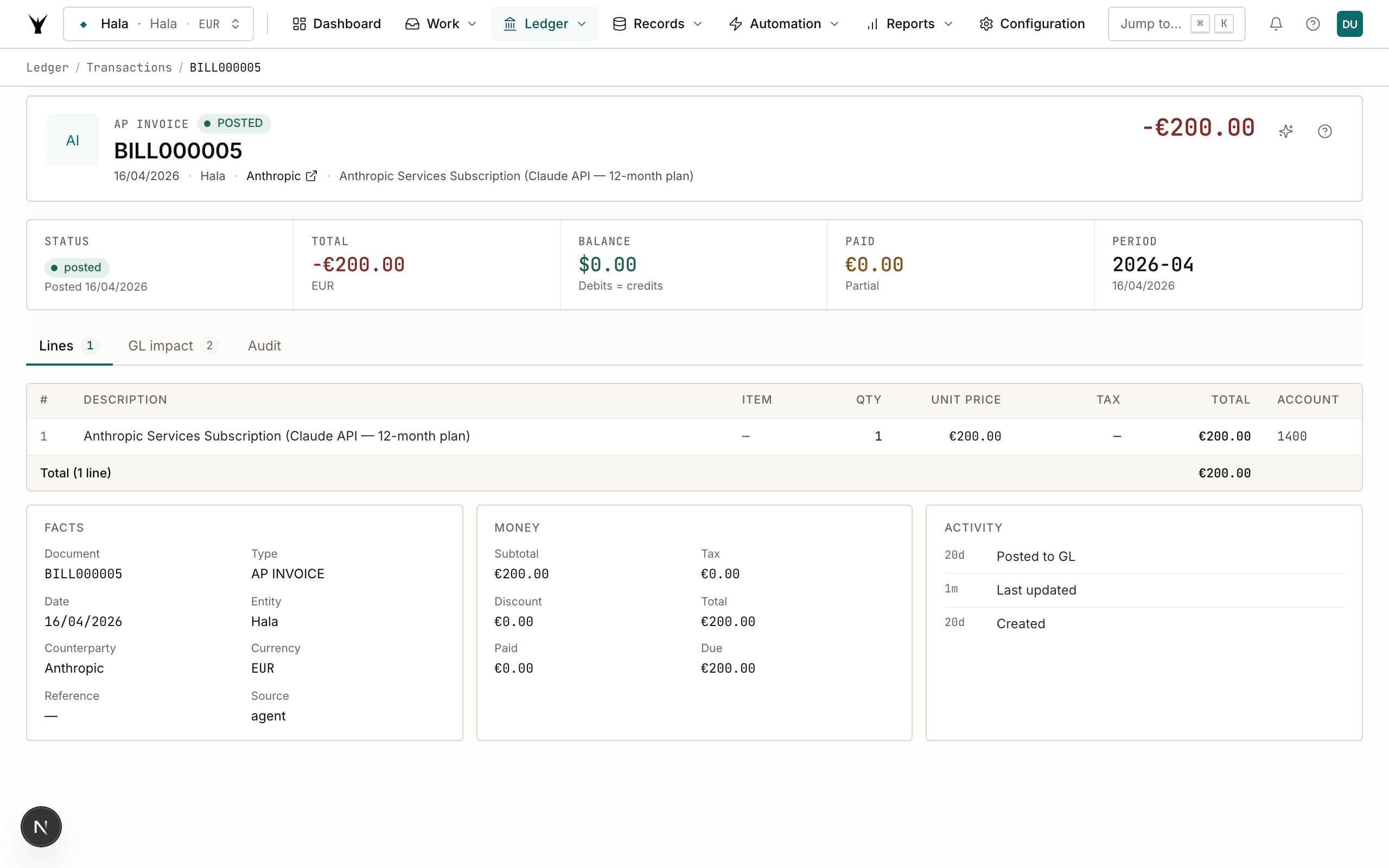
The business line as extracted from the invoice: "Anthropic Services Subscription (Claude API — 12-month plan)", qty 1, unit price €200.00, total €200.00, GL account 1400 — Prepayments.
This is the crux of the prepaid treatment: a single-month Anthropic bill would land on 6960 Software and Subscriptions, but the 12-month plan lands on 1400 Prepayments because the cost isn't consumed this month.
GL Impact tab
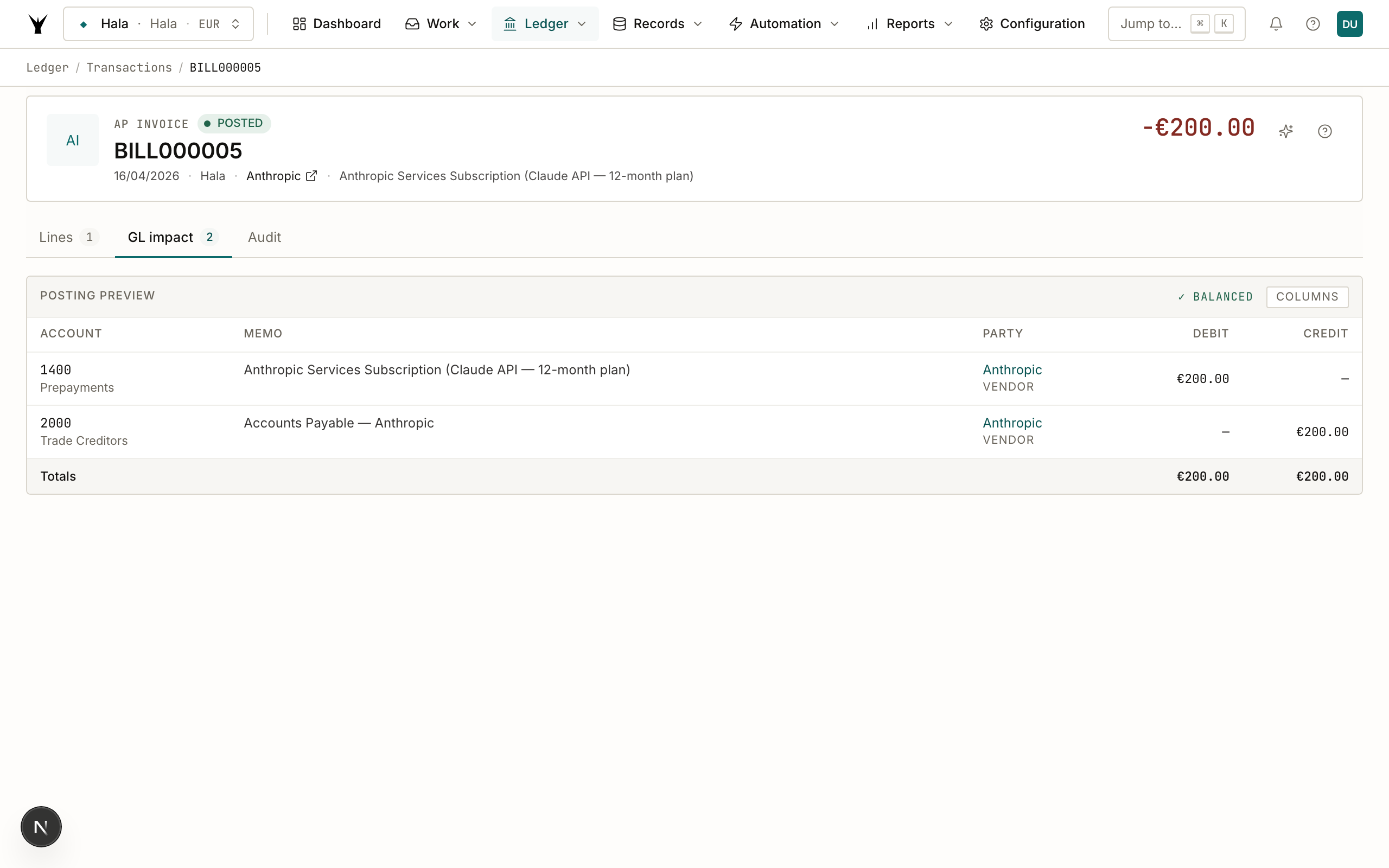
The double-entry posting:
- Debit €200.00 to 1400 Prepayments (asset ↑)
- Credit €200.00 to 2000 Trade Creditors / Accounts Payable (liability ↑)
Balanced. This posting creates the prepaid asset on the balance sheet. No expense hits the P&L yet — that's what the amortisation schedule will do, one month at a time.
Audit tab — the classification reasoning
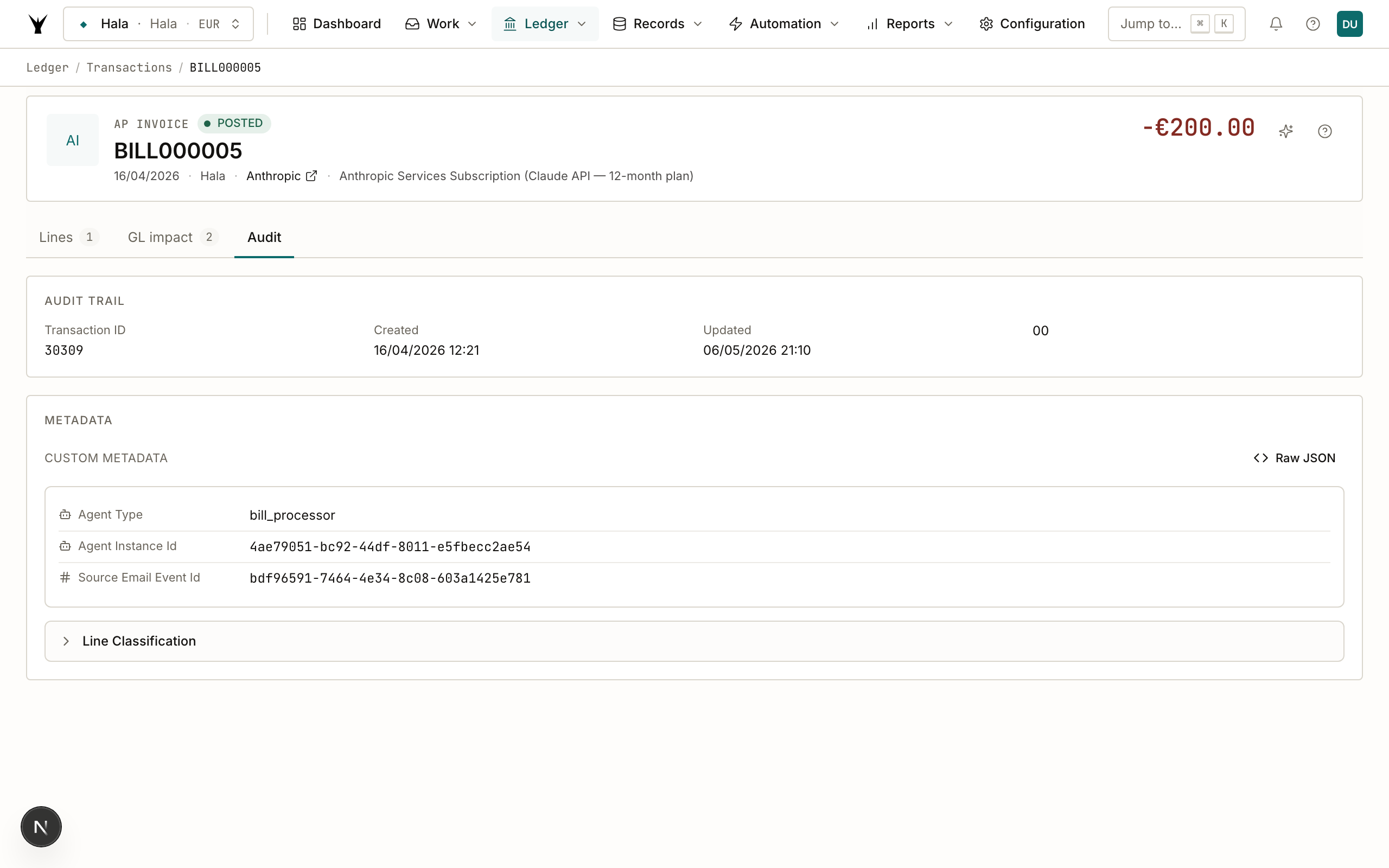
Open metadata.line_classification in the Audit tab. This is the exact Haiku output — why the agent chose 1400 over 6960:
Picked Prepayments (1400) because the line explicitly states '12-month plan', which is ≥ 3 months and spans beyond the current month, meeting both prepaid asset conditions. The service is a software subscription (Claude API), which would normally expense to 6960 Software and Subscriptions, but the multi-month prepayment period requires capitalization as a prepaid asset and monthly amortization. Period: 365 days.
If the agent ever gets this wrong, this is the audit trail that tells you why. Correct it by editing the line's GL account before you approve the transaction (if you're on an approval lane) or by adjusting the classification prompt in the agent config.
What makes a line "prepaid"?
The Bill Processor applies three conditions before it capitalises a line (all must hold):
- Service period ≥ 3 months — a single-month subscription stays on the expense account; only multi-period commitments get capitalised.
- Period starts or spans beyond the current month — a bill paid on the last day of a month for that same month is fully consumed; no need to amortise.
- Amount ≥ €500 — the threshold is configurable (
amortization_min_amount). Tiny prepayments aren't worth the accounting overhead.
Our €200 invoice technically fails test #3 in production — we dropped the threshold to 0 for the demo so the full flow runs. In a real tenant, save the prepaid treatment for material amounts.
Step 4: The Contract
Open the contract from the bill's metadata links or from the Contracts sidebar. The Master Data Agent created CON-000009 and the bill_processor callback flipped it from draft to active.
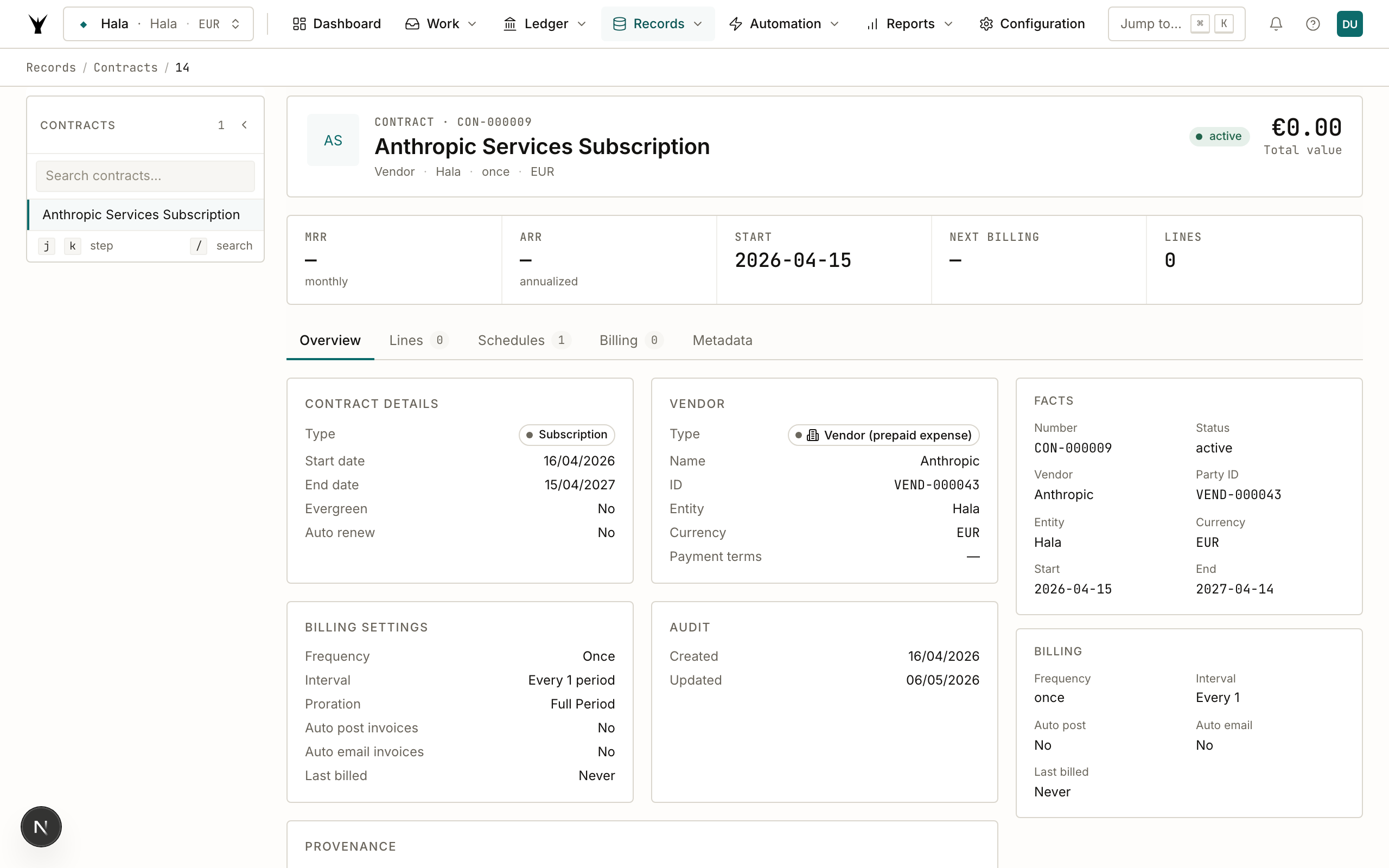
Four metric cards up top: value €200, billing Once, next billing —, lines 0. Under them, five tabs: Overview, Lines, Schedules, Billing History, Metadata.
The Overview tab gives you everything you need to answer "where did this contract come from?":
Audit — Created by Andrew Rudchuk (you), Updated by System User (the activate workflow ran as the system user).
Provenance — the full chain, clickable:
- Source Email → opens the
/communications/…page (Step 1) - Source Bill → opens BILL000021 (Step 3)
- Agents →
bill_processor(Processed incoming bill email) andmaster_data_agent(Created vendor / contract master data)
This panel is computed on demand by walking the FK graph from the contract back through the schedule's source transaction and the agent request chain. No metadata duplication, no rot.
💡 The workflow engine, and where approvals fit. Every write in this flow — the bill, the contract, the activation, the schedule — went through the workflow engine on the default green lane (auto-approve). Your org can attach approval steps to any operation (
transaction.post,recurring_contract.create,.activate,amortization_schedule.create) without touching agent code. When you do, the agent still submits the same way; the engine stops at a checkpoint until a reviewer clicks Approve, then the executor runs. The Provenance panel above lists every workflow instance for this contract so you can drill into any of them. The Amortization Recognizer silently skips schedules whose parent contract is indraft, so nothing posts until the human signs off.
Step 5: The Amortization Schedule
Click the Schedules tab on the contract page, then expand the EXP-202604-0001 card.
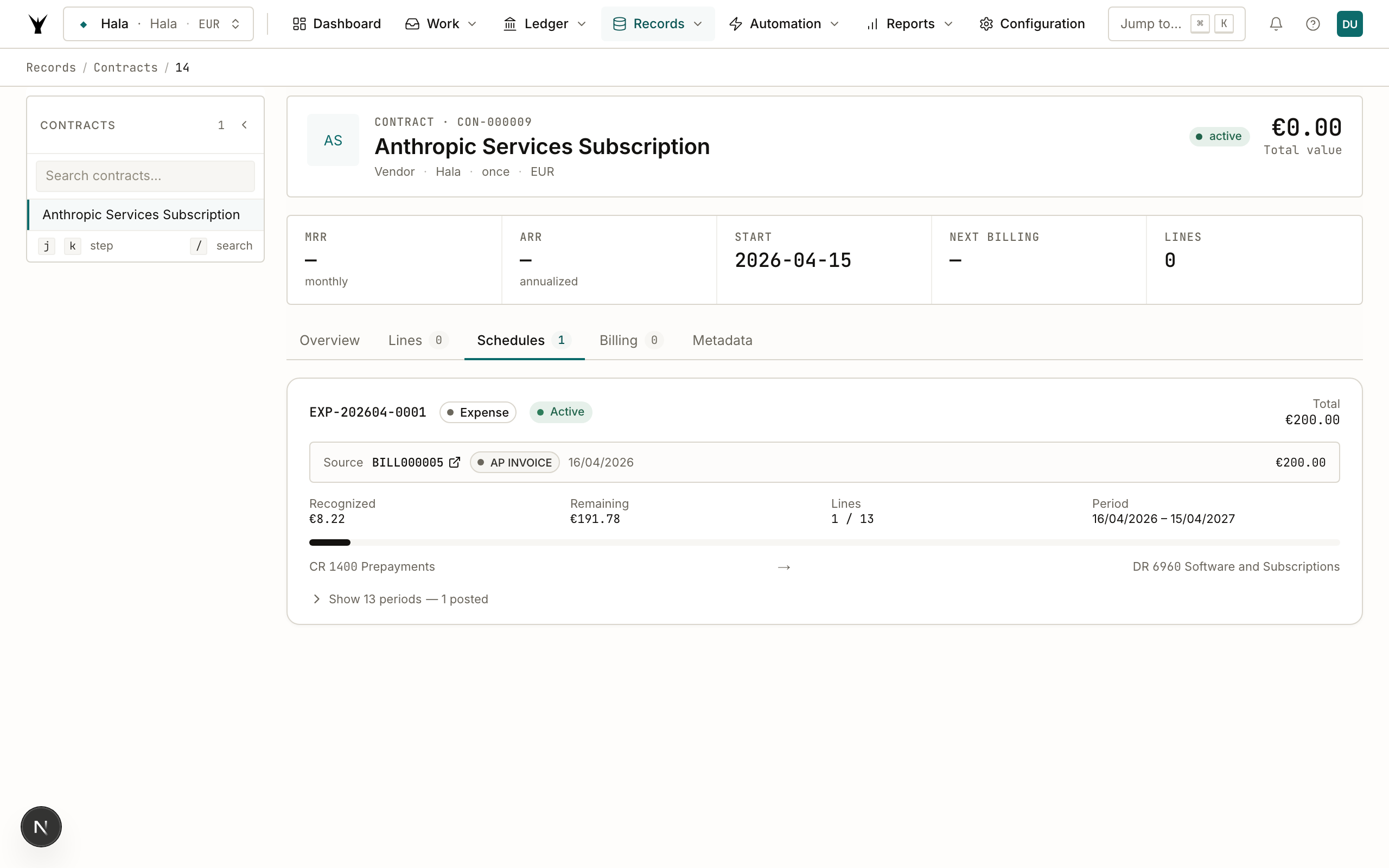
Here's the heart of the prepaid treatment: 13 calendar-month lines summing to exactly €200.00. Observe the proration:
| # | Period | Days | Planned amount |
|---|---|---|---|
| 1 | 2026-04-16 → 2026-04-30 | 15 | €8.22 |
| 2 | 2026-05-01 → 2026-05-31 | 31 | €16.99 |
| 3 | 2026-06-01 → 2026-06-30 | 30 | €16.44 |
| … | … | … | … |
| 11 | 2027-02-01 → 2027-02-28 | 28 | €15.34 |
| 12 | 2027-03-01 → 2027-03-31 | 31 | €16.99 |
| 13 | 2027-04-01 → 2027-04-15 | 15 | €8.19 |
| Total (365 days) | €200.00 |
Each line's amount = total × days_in_period / total_days, rounded to 2 decimals, with the last line absorbing the rounding remainder so the sum is exact.
Why calendar-month proration (GAAP/IFRS)
A naïve implementation would split €200 evenly into 12 anniversary periods of 30–31 days each (16th → 15th), giving €16.67 per period. That's wrong. If you close books monthly, April 2026 would show zero expense against this subscription, and the next month would show a full €16.67 — a matching-principle violation, and a material one at scale.
Artifi uses calendar-month periods with day-based proration (GAAP ASC 340-10, IFRS IAS 1 accrual basis):
- Period 1 starts on the invoice date and runs to end-of-month → partial amount.
- Middle periods are full calendar months → full prorated share.
- Last period starts on the 1st and runs to the contract end date → partial amount.
This keeps every monthly close accurate without manual adjustments, and it composes cleanly with reports grouped by calendar month — which is every report any finance team actually runs.
Step 6: Running the Recognizer
On a production org, the Amortization Recognizer runs monthly via APScheduler — triggered at 06:00 UTC on the 1st of each month to close out the prior period. For this walkthrough we'll run it on demand.
Navigate to Agents → Scheduled Jobs and find the amortization_recognizer_monthly job.
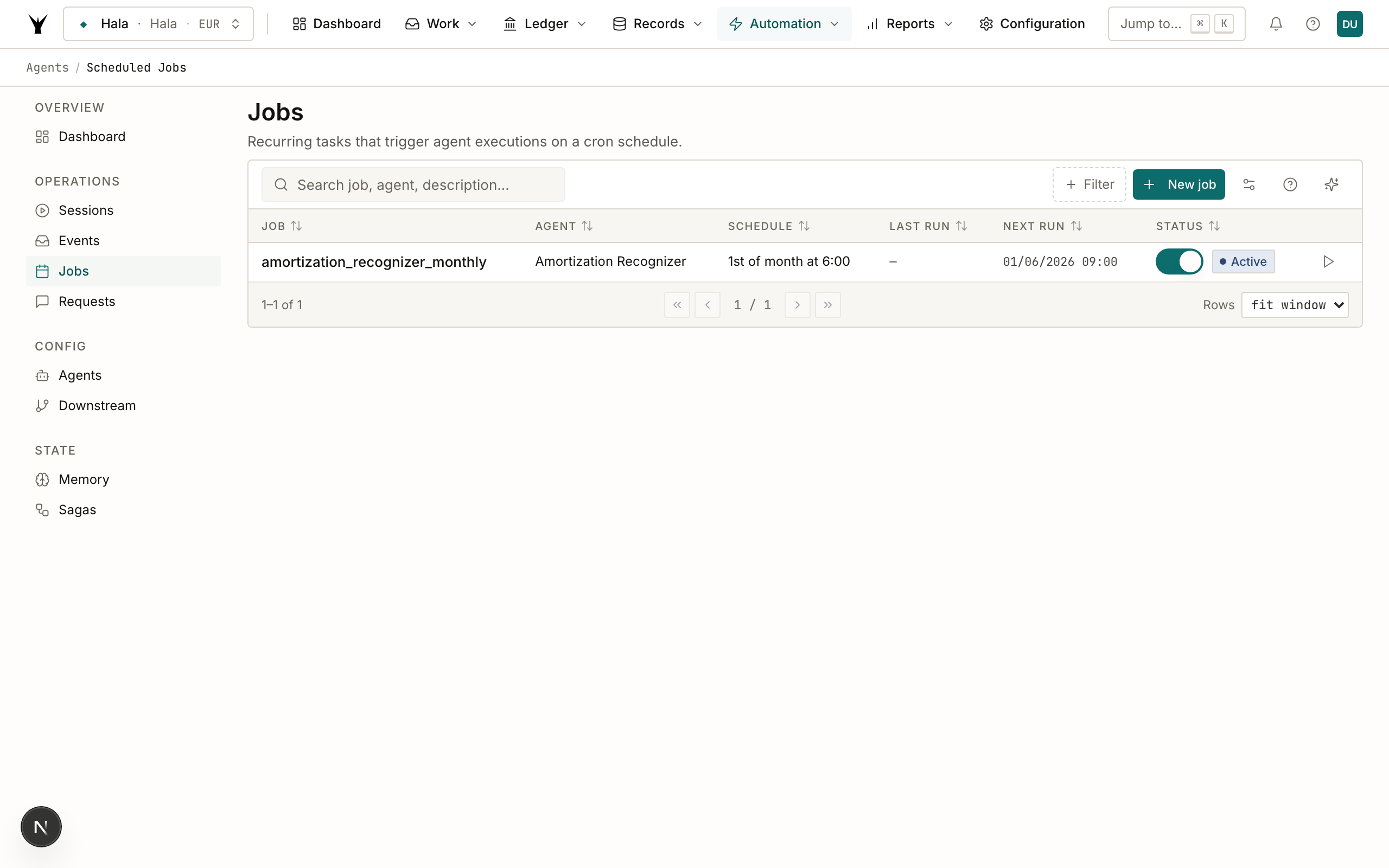
Click the row's action menu → Run Now. The job pushes an event, the event processor wakes up the agent, and the agent submits amortization_schedule.recognize through the workflow engine.
Date mechanics — the recognizer filters lines where
period_end <= as_of_date. If you run it today (2026-04-17), nothing is due yet (the first period ends 2026-04-30). To demo a real posting we invoked it withas_of_date=2026-04-30via the MCP submit tool in Claude.ai:
submit("amortization_schedule", "recognize", { legal_entity_id: 75, as_of_date: "2026-04-30" })That returns
recognized_count: 1, total_amount: 8.22, run_id: ...— one line posted, the €8.22 April partial month.
Step 7: The Amortization Run
Navigate to Runs → Amortization and open AMRT-202604-0001.
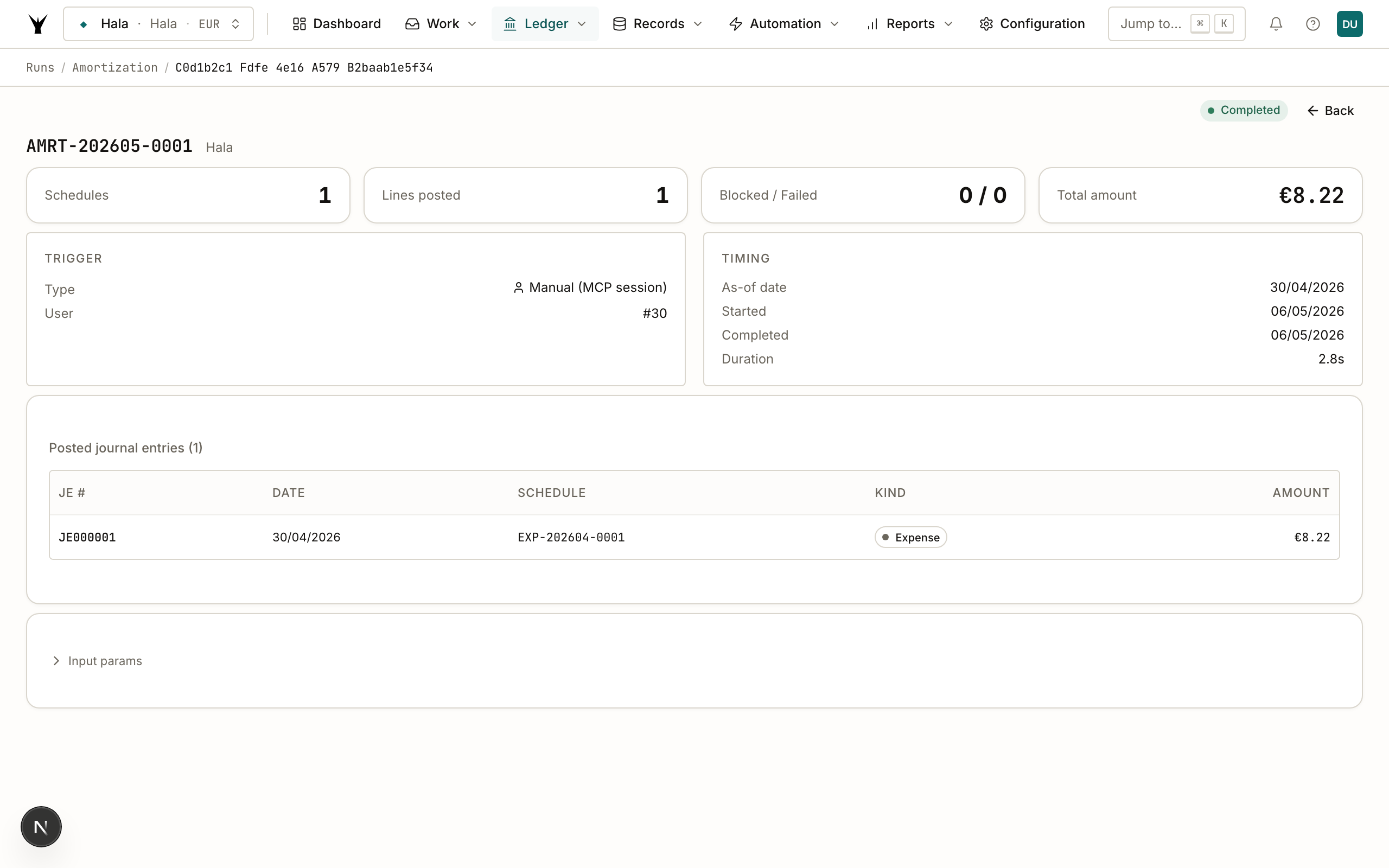
The run page shows:
- Status: completed
- Recognized: 1 line, €8.22
- Blocked / Failed: 0 / 0
- Trigger: Manual (MCP session)
- Duration: 7.5s
- Posted journal entries — a clickable table of the JEs the run created. Click JE000031 to open it.
If the run had hit remediable errors (missing fiscal period, closed period, wrong account mapping), those would fan out as agent_requests to the configuration_agent or master_data_agent automatically. When those fixes complete, a callback re-runs the recognition for just the blocked schedules. Self-healing by construction.
Step 8: The Posted Journal Entry
Click JE000031 to see the amortisation posting.
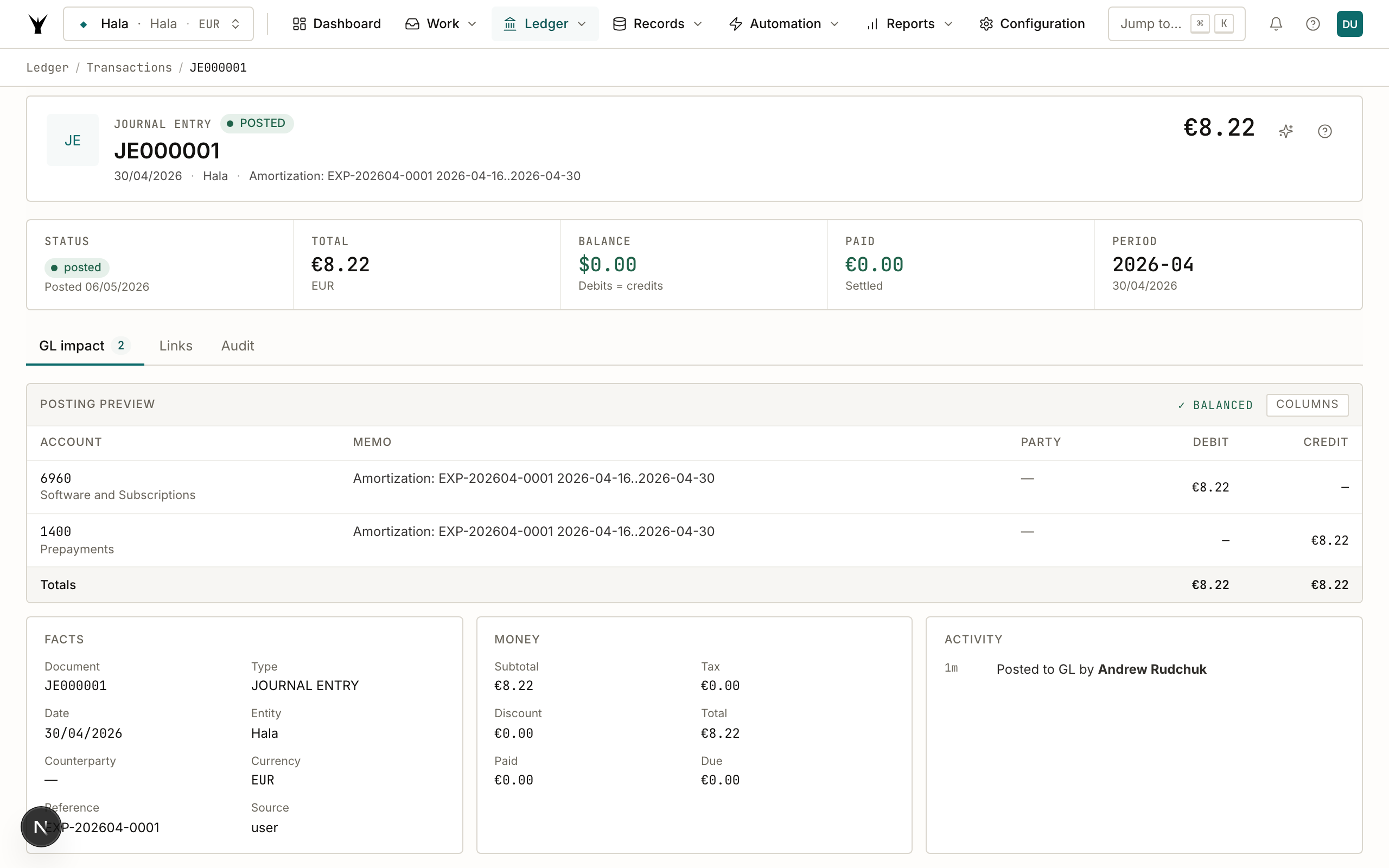
The posting:
- Debit €8.22 to 6960 — Software and Subscriptions (expense ↑)
- Credit €8.22 to 1400 — Prepayments (asset ↓)
Description: Amortization: EXP-202604-0001 2026-04-16..2026-04-30. The JE's metadata includes source: amortization_recognizer, the schedule_id, the amortization_run_id, and the line_id — all clickable on the journal entry page so you can navigate from any posted line back to its schedule in one click.
The prepaid balance at 1400 is now €191.78 (€200.00 − €8.22). Run the recognizer at end of May and you'll see a second JE for €16.99, dropping the balance to €174.79. And so on for 12 more months.
Recap
A single email → a full year of GAAP/IFRS-compliant monthly expense recognition. Every step is an idempotent workflow submit. Every decision — from the Haiku line classification to the prorated line amounts — lives in the metadata and is clickable from the contract's Provenance panel.
The whole system is composable. Want an approval before contracts activate? Add a step. Want to lock amortisation schedules over €50K behind the CFO's queue? Add a step. Want to trigger a Slack notification when the recognizer blocks on a closed period? Add a workflow automation. The agents don't change; they hand work to the engine, and the engine does the rest.
Common Issues
| Problem | Cause | Fix |
|---|---|---|
| Bill posted to wrong account (expense instead of prepaid) | Amount fell below amortization_min_amount threshold | Adjust the threshold in agent-definitions/bill_processor/config.yaml, or reclassify the line manually and trigger amortization_schedule.create from Claude.ai |
| Schedule created but no JEs post | Parent contract stuck in draft (an approval is pending) | Open the contract → Provenance → find the pending recurring_contract.activate workflow → approve the task |
| Recognizer says "period closed" | The fiscal period the line lands in is closed | Configuration Agent auto-opens a remediation request. If you want to post anyway, reopen the period in Accounting → Periods then re-run |
| Calendar-month math off by a cent | Expected — the last line absorbs rounding so the sum matches total exactly | The variance is always ≤ €0.01 per schedule |
| Contract shows wrong party (vendor vs customer) | AR invoices feed customer contracts, AP invoices feed vendor contracts — the discriminator is party_type | Check the source transaction: a BILL creates a vendor contract, an INV creates a customer contract |
Next Steps
- Automate Bill Processing — the bill ingestion pipeline that feeds the prepaid flow
- Agent Orchestration — delegation + callback patterns, the same mechanics the prepaid flow uses
- Process Bank Statements — the sibling flow on the cash side
The same procedure runs daily under governance — agents propose, your team approves through risk lanes, and every write lands as an immutable audit row.