How to Automate Bill Processing
Forward a vendor invoice to a dedicated email address and watch the Bill Processor Agent extract the data, resolve the vendor, classify the expense, and post the journal entry — all without manual data entry.
- An Artifi account with admin access
- At least one legal entity configured
- A chart of accounts with expense accounts
Forward a vendor invoice PDF to a dedicated email address. The Bill Processor Agent picks it up, extracts every field with Claude Document API, classifies the expense with strict rules, finds or creates the vendor, posts the journal entry, and links the source PDF to the transaction. Everything is auditable — every decision the agent made is written to the progress log with reasoning.
What This Agent Does
The Bill Processor runs in hybrid mode — a Python code agent for deterministic logic (vendor matching, tax code resolution, GL posting) paired with targeted Claude Haiku calls for the parts that need reasoning (document extraction, entity verification, line item classification).
For each attachment it receives, the agent performs this pipeline:
- Read the document — Claude Document API extracts vendor name, invoice number, amounts, tax rates, line items, currency, and the service period.
- Confirm the entity — checks that the bill is actually addressed to your legal entity (not a personal receipt that got forwarded by mistake).
- Resolve the vendor — memory lookup first (free), then DB search, then delegates to the Master Data Agent to create a stub if nothing matches.
- Resolve the tax code — matches the extracted VAT rate against available tax codes for the entity (e.g., EE_VAT_24, EU-EE-ZERO).
- Classify each line item — Haiku assigns a GL account using strict classification rules (see below).
- Check for capitalization — if any line is ≥ €1000 on an asset account, delegates to the Fixed Asset executor to create a fixed asset record.
- Post the transaction —
submit("transaction", "post", {transaction_type_code: "AP_INVOICE", ...})via the workflow engine. Green lane auto-executes. - Link the attachment — the source PDF is linked to the posted transaction so you can always trace it back.
- Email the user — if any attachment failed (low confidence, entity mismatch, duplicate), the agent emails you a summary so you can act on it.
Allowed workflows: transaction.post, vendor.create, vendor.update, fixed_asset.acquire_from_bill, attachment.create.
Typical run: ~30 seconds per attachment, ~$0.01 in Haiku cost. Costs drop to near-zero on repeat vendors since the vendor mapping lives in agent memory.
How Bills Enter the System
Three ingestion channels, all landing in the same pipeline:
- Email — forward a PDF or screenshot to
bills.{entity-code}.{org-slug}@mail.ar-ti-fi.com. This walkthrough uses this channel. - Admin dashboard — Transactions > AP > Upload lets you drop files in the UI.
- Claude.ai or MCP tools — call
submit("transaction", "post", {transaction_type_code: "AP_INVOICE", ...})directly if you already have structured data.
All three channels end up as an email.received event in the queue, triggering the Bill Processor.
Example: Processing a Real Invoice
This walkthrough follows a real Anthropic invoice forwarded to bills.ee-main.hala-digital-ou@mail.ar-ti-fi.com — a €90 monthly subscription for the Max plan (Oct 22 – Nov 22, 2025).
Step 1: The Communications Inbox
Every email the ERP sees lands in Communications. Navigate to Communications in the sidebar.
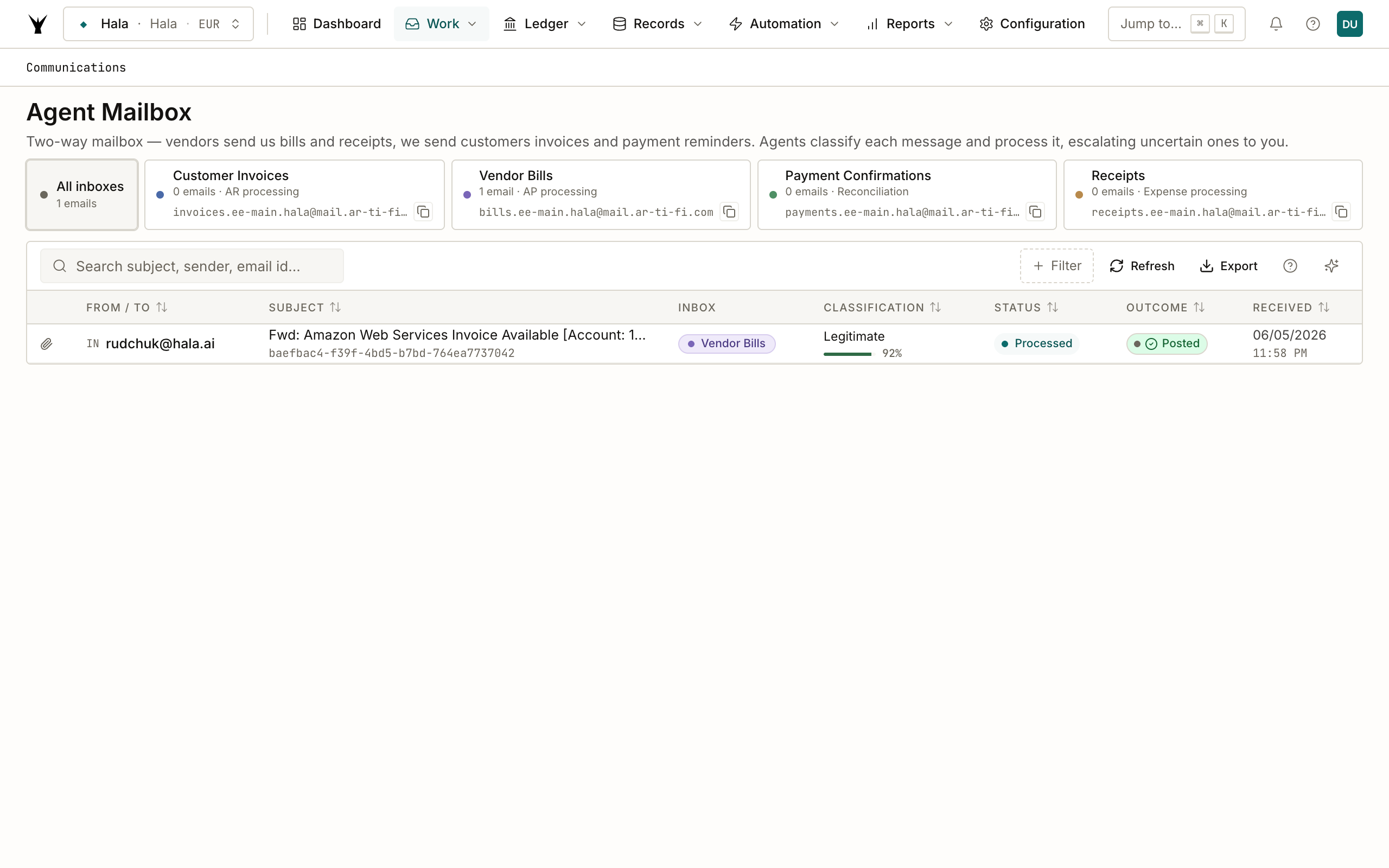
This is your central inbox for everything flowing into and out of the ERP. Columns:
- From / To — the email addresses involved.
- Subject — with an attachment icon and count.
- Entity — which legal entity the email was routed to (based on the email address prefix).
- Classification —
legitimate,spam, oruncertain, each with a confidence score (0–100%). Every inbound email passes through a Haiku-powered spam filter before it's queued for processing. Legitimate-looking bills breeze through; obvious spam is rejected at the webhook level and never creates a record. - Status — processing state of the underlying
agent_eventsrow:pending,processing,completed,failed,ignored,expired,duplicate, orarchived. - Outcome — derived from the agent's progress log:
posted,delegated,skipped,partial,duplicate, orerror. - Date — when the email arrived.
The top of the page shows counters for Unprocessed / Processed / Spam Blocked / Total over a 30-day window, plus filters for direction, status, classification, search, and date range.
Step 2: Inspecting a Specific Email
Click any row to open the detail view.
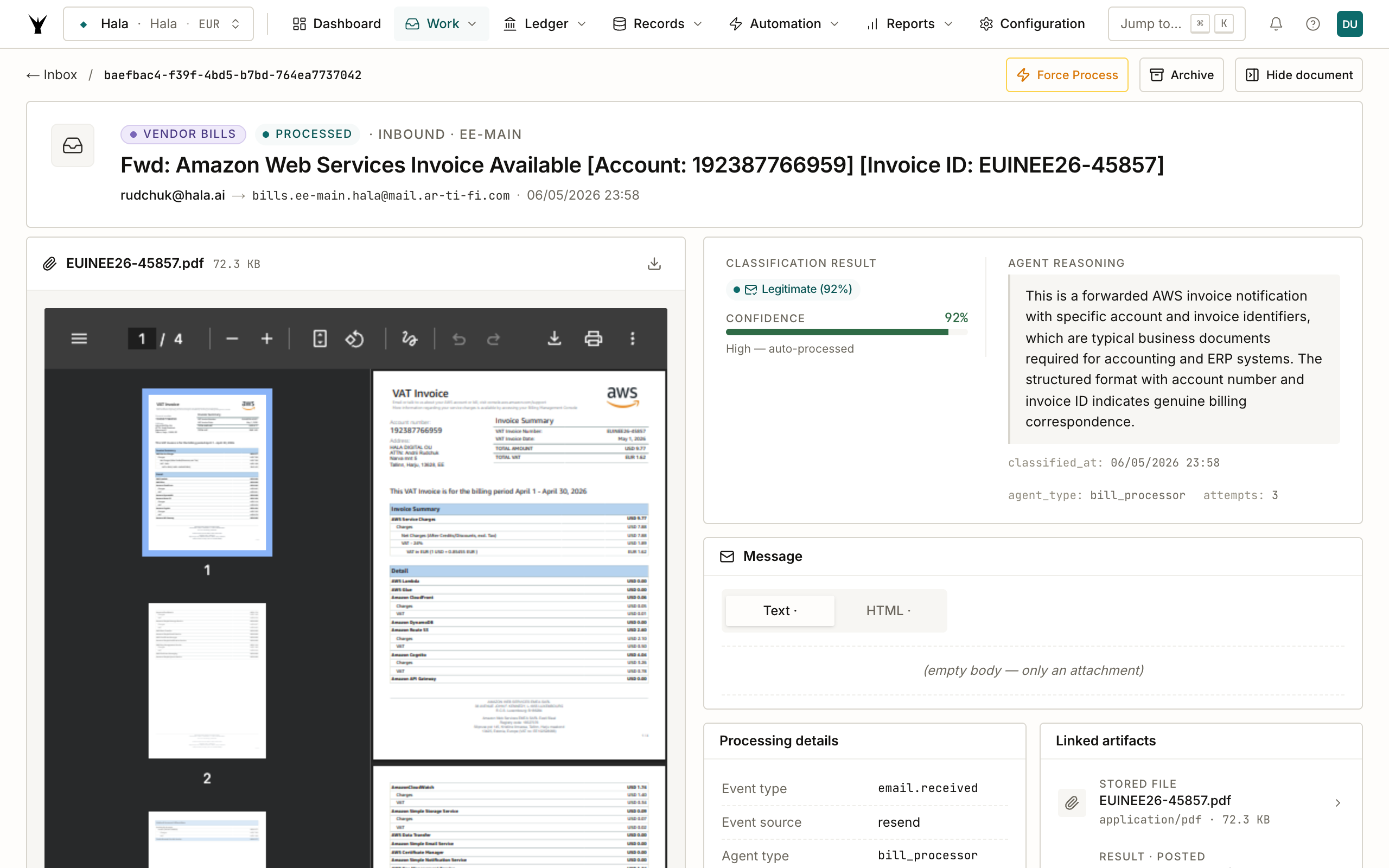
The detail page has three things worth noting:
Email Information — from / to / cc / received timestamp / processed timestamp. In our example the subject is "Fwd: Your receipt from Anthropic, PBC #2565-5073-1427" and the attachment is Invoice-J0RKNLBJ-0003.pdf.
Classification block — shows the spam classifier's decision:
- Classification: Legitimate (0.92 confidence)
- Reasoning: "This is a forwarded receipt from Anthropic, PBC with a specific transaction ID, which is a legitimate business document."
- Model used:
claude-haiku-4-5-20251001 - Cost: fractions of a cent
Processing Results — the human-readable summary from the agent plus a per-attachment table showing what happened: Posted as BILL000003 / Duplicate invoice / vendor name / transaction number / confidence.
Action buttons let you Mark as Real (if the spam filter got it wrong), Retry (re-run the agent), Force Process (bypass entity validation), or Archive.
Step 3: The Agent Instance
Every email that makes it past spam filtering spawns an agent instance. Navigate to Agents > Sessions to see all runs.
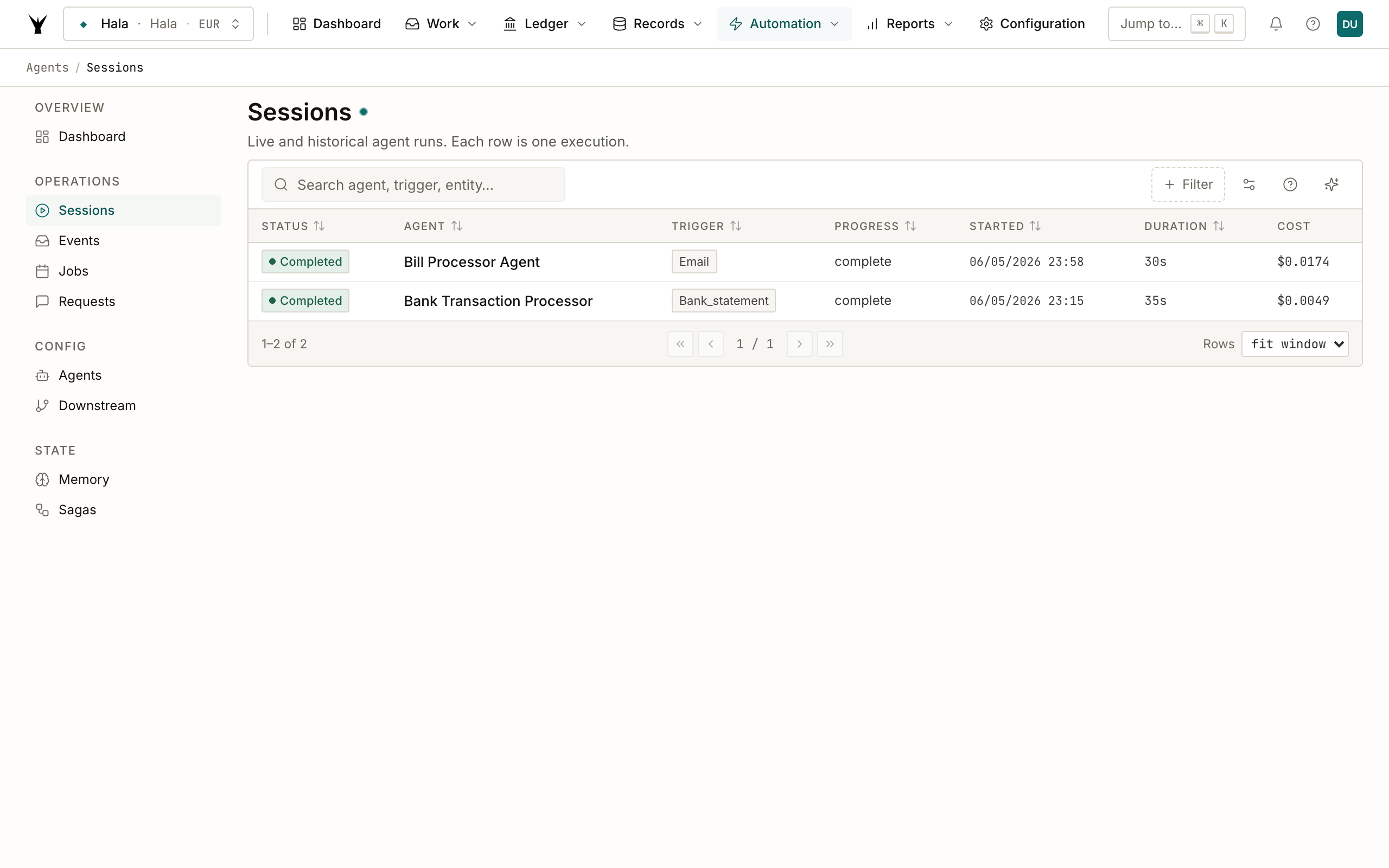
This page shows every agent execution across every agent type — bank transaction processor, bill processor, master data agent, configuration agent, and so on. Each row shows status, agent, trigger, entity, progress, duration, and cost. Click the bill processor row to drill in.
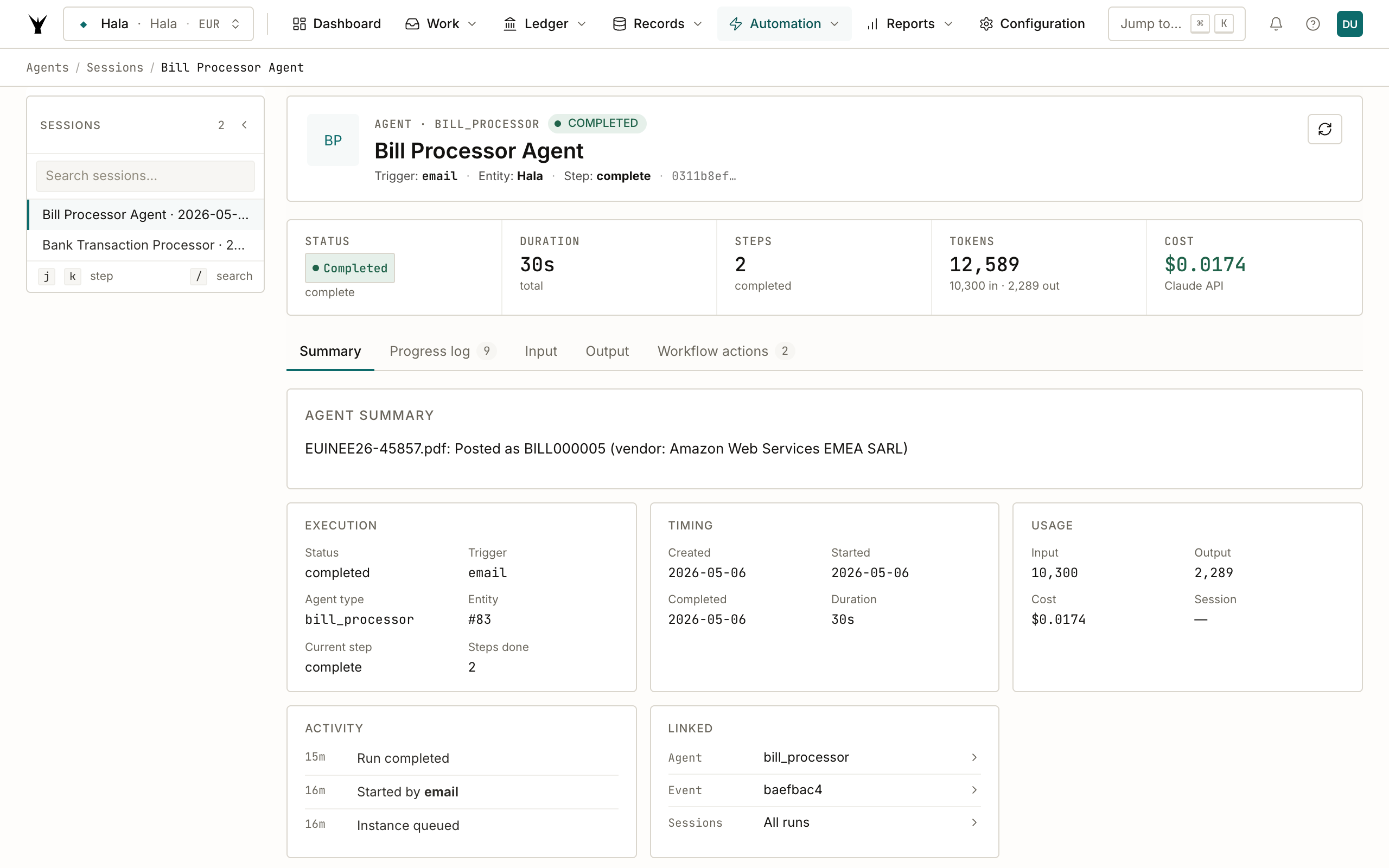
The detail page has five tabs:
- Overview — status, trigger (
email), entity, current step, and the human-readable summary of what the agent accomplished. In our case: "Invoice-J0RKNLBJ-0003.pdf: Posted as BILL000003 (vendor: Anthropic, PBC); Receipt-2565-5073-1427.pdf: Duplicate invoice (#J0RKNLBJ-0003) — already posted as BILL000003 from Anthropic, PBC". - Progress Log — step-by-step execution trace:
initialization→code_agent_init→email_parsed→attachment_start→entity_confirmed→vendor_enriched→transaction_posted→attachment_linked→complete→email(the agent emails you back about any issues). Every step is timestamped and includes structured data. - Input Data — the raw event payload the agent received (email body, attachment URLs, routing info, spam classification).
- Output Data — the final result: created transactions, per-attachment outcomes, total Haiku calls, token usage, cost.
- Workflow Actions — if the agent submitted any workflows that required approval (yellow/red lane), they'd show up here. Green-lane auto-approvals don't generate tasks.
Timing & cost: our run took 33 seconds and cost $0.011 (4 Haiku calls, 6,726 input tokens, 1,351 output tokens).
Step 4: The Journal Entry
The agent posted transaction 75-23221 (BILL000003). Open it via the link in the progress log or navigate to Transactions > Journal Entries.
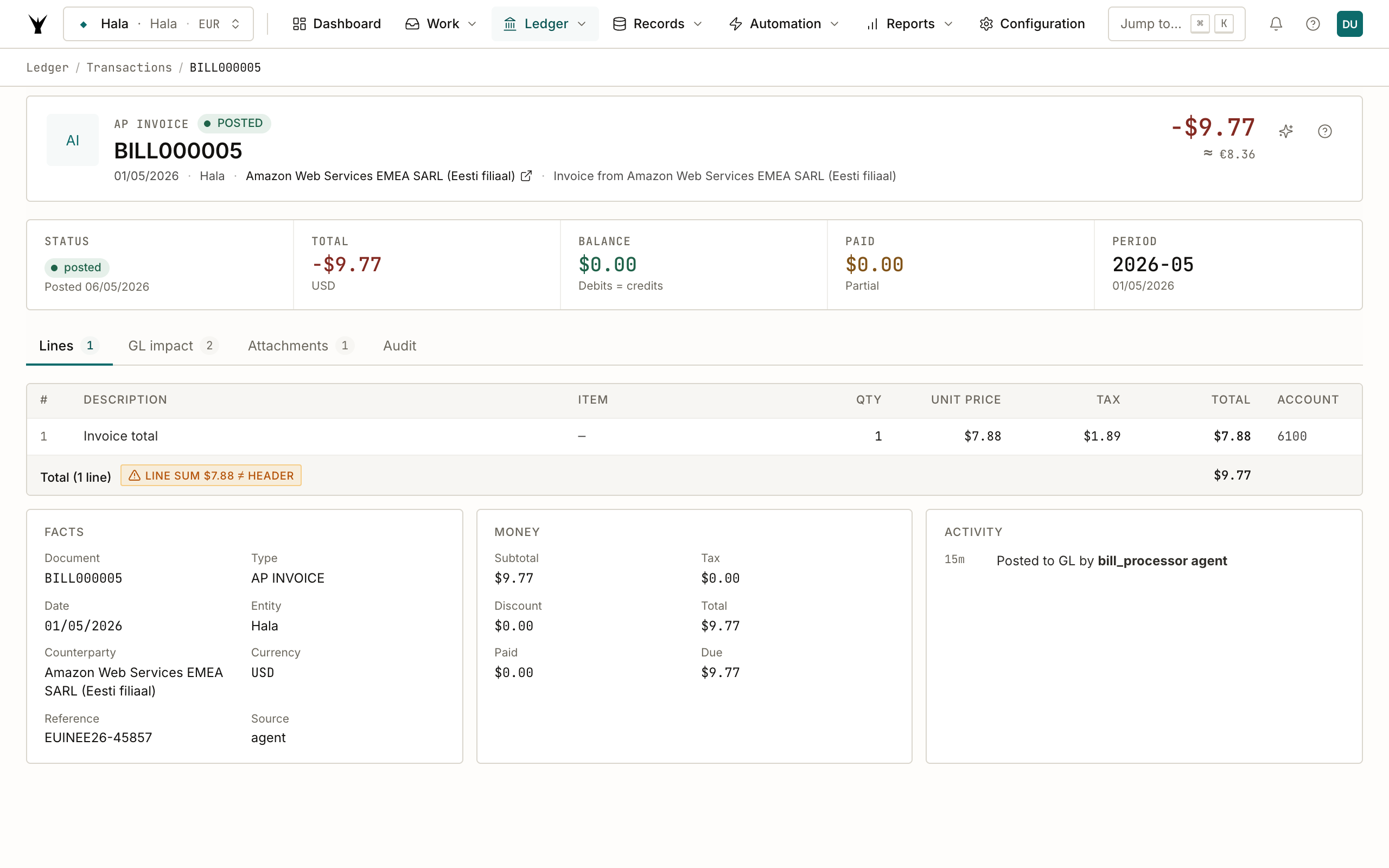
Header information:
- Status: Posted, Type: AP INVOICE, Number: BILL000003
- Vendor: Anthropic, Entity: Hala Digital OU
- Transaction Date: 22/10/2025, Due Date: 21/11/2025
- Fiscal Period: 2025-10, Currency: EUR
- Reference: J0RKNLBJ-0003 (the invoice number from the PDF)
- Total / Paid / Balance Due: €90.00 / €0.00 / €90.00
The page has four tabs, each representing a different view of the same transaction:
Lines (1)
The business lines as extracted from the invoice — what was actually on the document.
The Max plan line shows: Description, Quantity (1), Unit Price (€90.00), Total (€90.00), GL Account (6960 — Software and Subscriptions), and any dimensions (project, department, etc.). This is the view an accountant would recognize from a traditional ERP — it mirrors the invoice itself.
GL Impact (2)
The double-entry journal posting the workflow engine created.
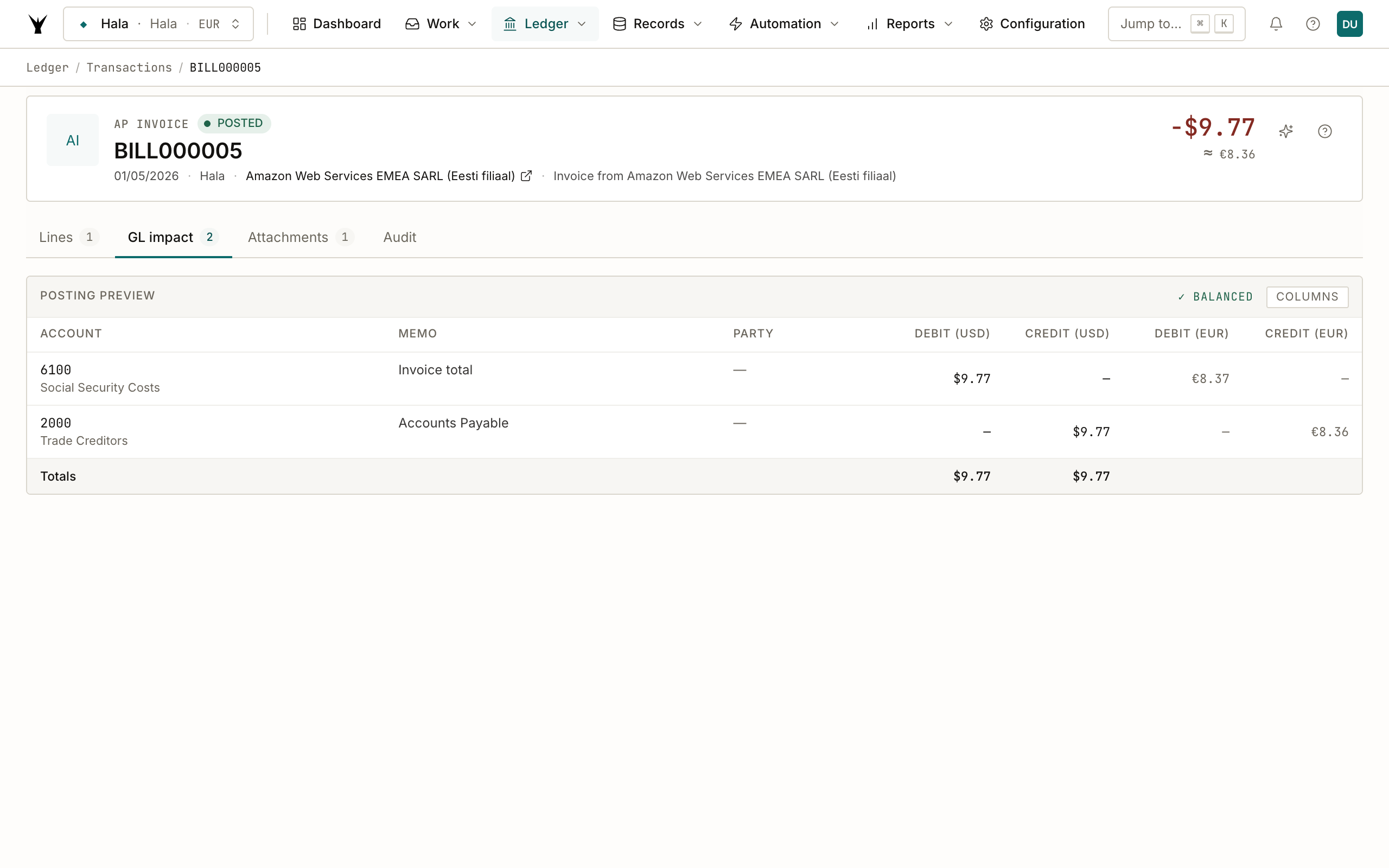
Two GL lines:
- Debit €90 to account 6960 (Software and Subscriptions) — Max plan - 5x Oct 22 – Nov 22, 2025. Tax code: EU-EE-ZERO.
- Credit €90 to account 2000 (Trade Creditors / Accounts Payable) — Accounts Payable.
Totals: Debits €90 = Credits €90. Balanced.
Notice the agent didn't pick a generic expense account — it chose Software and Subscriptions specifically because the line description ("Max plan") matches a SaaS subscription. The agent reads every eligible account name in your chart of accounts and picks the most specific semantic match. If your COA has a dedicated "Telephone" account, telecom bills land there; if it has "Marketing", ad spend lands there. You don't need to hardcode mappings per vendor.
Attachments (1)
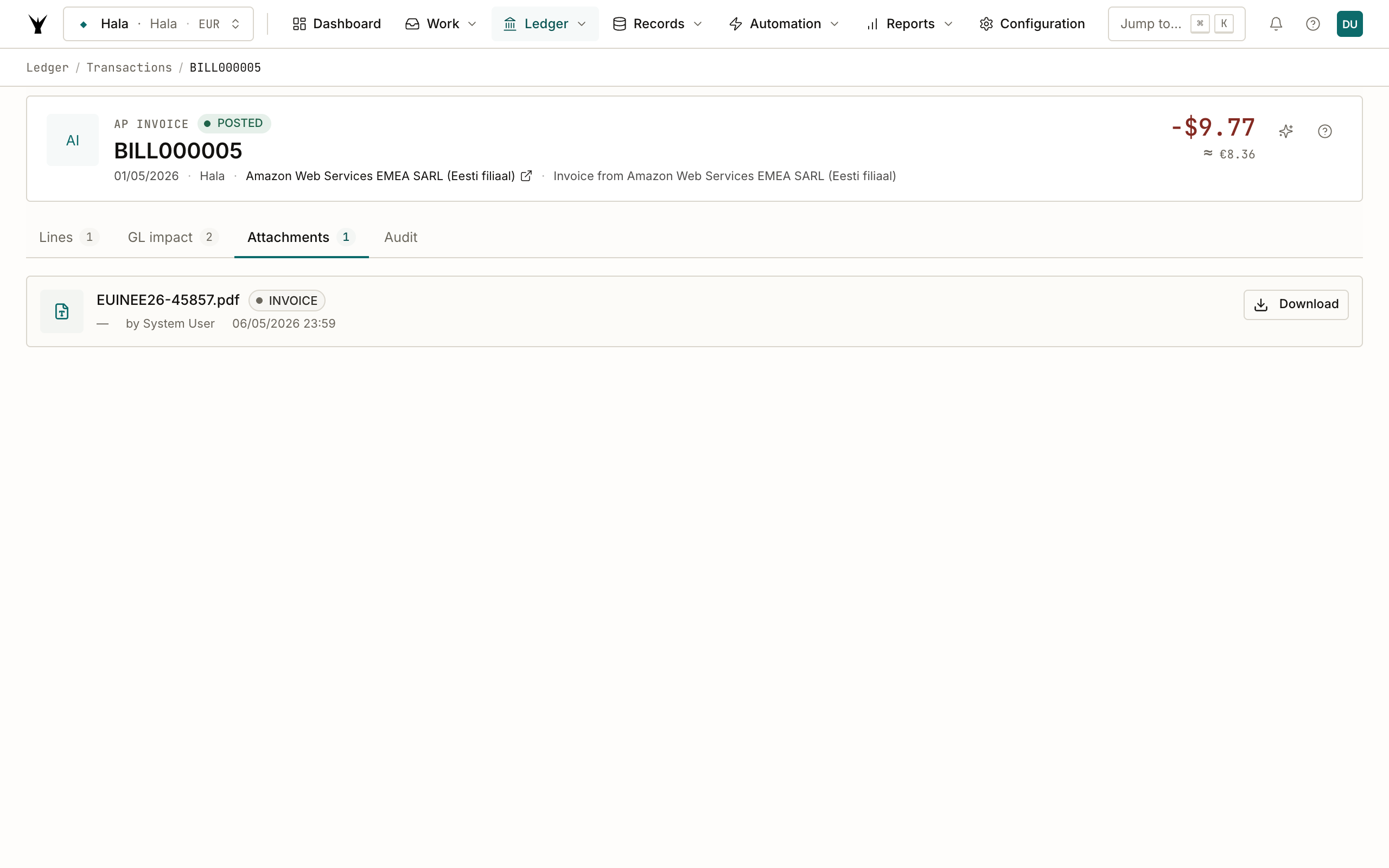
The original Invoice-J0RKNLBJ-0003.pdf is linked to the transaction. The agent uploaded it to encrypted R2 storage when it processed the email, and created an attachment_document_link row connecting it to transaction 23219. Click to download from R2 via a fresh presigned URL — no re-upload needed, ever.
This solves the "where's the original document" problem that plagues most ERPs. Every posted transaction keeps a bidirectional link to its source artifact.
Audit
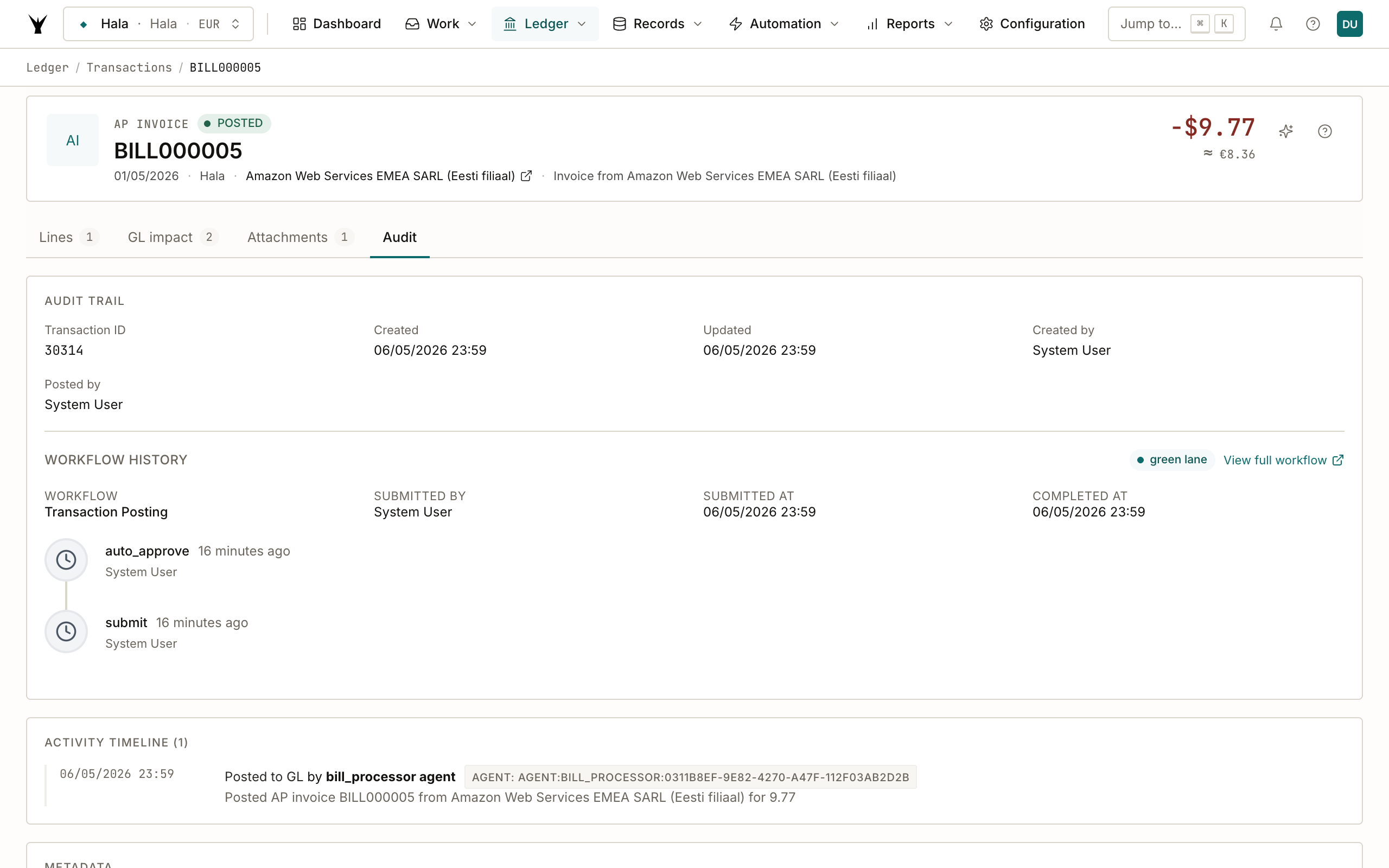
The audit trail captures:
- Created / Updated timestamps and user IDs
- Posted By — in our case
System Userbecause the agent used the system auth context - Metadata — the full JSON blob the agent wrote when posting the transaction. Look at
agent_type: "bill_processor",agent_instance_id,source_document(the extracted invoice data),tax_code_reasoning, andline_classification(which shows why the agent picked the specific GL account — for us, "Picked Software and Subscriptions because this is a monthly SaaS/subscription service (Max plan) covering Oct 22 – Nov 22, 2025, which is exactly 31 days (one month). This falls under OPERATING EXPENSE as it is consumed within a single billing cycle. Period: 31 days.").
If you ever question the agent's decision, this metadata is the audit trail.
The Bill Processor Pipeline
Email arrives at Resend → Webhook verifies signature
    ↓
Haiku spam classification (~$0.0001)
    ├─ spam + confidence ≥ 0.85 → rejected (400), no record created
    └─ legitimate → agent_events row created (status: pending)
        ↓
Event processor picks up → creates bill_processor agent_instance
    ↓
For each attachment:
  1. read_attachment() → Claude Document API extracts structured fields
  2. Entity confirmation — vendor addresses your legal entity?
  3. Vendor resolution — memory → DB search → master_data_agent request
  4. Tax code resolution — match extracted VAT rate to available codes
  5. Line classification — Haiku with strict rules (default: expense)
  6. Capitalization check — ≥ €1000 on asset account → fixed_asset workflow
  7. submit("transaction", "post", AP_INVOICE) via workflow engine
  8. Link attachment → transaction in attachment_document_links
    ↓
Duplicate check — same vendor + invoice number + amount? Flag, skip post.
    ↓
Email the user if any attachment failed or needs review
    ↓
agent_events.status → completed
The pipeline is idempotent — re-running the same email won't create duplicate transactions. Duplicate detection lives in the agent itself (checking transactions for matching reference_number + vendor_id).
Classification Rules
The agent doesn't use a hardcoded mapping of description → GL account. Instead, it reads every eligible debit account from your chart of accounts and picks the one whose name semantically matches the line description. On each run it loads your expense accounts (6xxx, 7xxx), COGS accounts (5xxx), prepaid accounts (1300–1499), and fixed asset accounts (1500–1899) — excluding liabilities, bank accounts, receivables, and contra-assets (accumulated depreciation) — and sends the full list to Haiku for every line.
On top of the per-account matching, Haiku applies four classification categories in order:
- Operating Expense — Default. Monthly subscriptions, utilities, services rendered this month, consumables, one-time purchases under €1000. Within this category, the agent picks the MOST SPECIFIC account available in your COA. For a software subscription it prefers "Software and Subscriptions"; for internet bills "Internet and Data"; for rent "Rent and Rates". If your chart of accounts doesn't have a specific match, it falls back to the closest general expense account.
- Prepaid Asset — Only if all three conditions are met: service period ≥ 3 months, period starts or spans beyond the current month, and amount ≥ €500. Within this category it picks the most specific prepaid account (Prepayments, Prepaid Insurance, Security Deposits, etc.).
- Fixed Asset — Equipment, hardware, furniture ≥ €1000 with useful life > 1 year. Within this category it picks the specific asset type (Computer Equipment, Plant and Machinery, Motor Vehicles, etc.) and triggers downstream fixed asset capitalization.
- Cost of Goods Sold — Inventory purchases for resale. Picks the relevant inventory/COGS account.
The agent writes the chosen account name and the reasoning to metadata.line_classification[].reason, so you can audit every decision. If a vendor keeps landing in the wrong account, the fix is either to add a more specific account to your COA (e.g., add "AI and Cloud Services" next to "Software and Subscriptions") or to pin a mapping in Agents > Memory.
Note: Full prepaid expense management with automated monthly amortization is on the roadmap — see the upcoming Prepaid Expense Management guide.
Agent Memory
Every successfully processed invoice stores a vendor mapping in agent memory. The next time the same vendor shows up, the agent skips the vendor lookup entirely — it already knows the vendor ID, default tax code, and typical GL account.
Navigate to Agents > Memory to see learned mappings:
vendor_mapping:anthropic→{vendor_id: 4687, default_tax_code: EU-EE-ZERO}vendor_mapping:digitalocean→{vendor_id: 4681, ...}
You can edit, delete, or add memory entries through the admin dashboard. You can also ask Claude.ai to correct a mapping for you — "the agent is matching invoices from 'Bolt Estonia' to the wrong vendor, please fix the memory entry" — and Claude will use the MCP tools to update it.
Memory is the main reason costs drop to near-zero on repeat runs. The first invoice from a new vendor costs one Haiku call; every subsequent invoice from that vendor costs nothing.
Configuration
The agent has several configurable thresholds in its definition (agent-definitions/bill_processor/config.yaml):
| Setting | Default | What it does |
|---|---|---|
confidence_threshold | 0.85 | Minimum extraction confidence to auto-post (below → flag for review) |
capitalization_threshold | 1000.00 | Amounts ≥ this on asset accounts trigger fixed asset creation |
prepaid_account_range | 1300–1399 | GL account range treated as prepaid assets |
asset_account_range | 1500–1599 | GL account range treated as fixed assets |
auto_create_vendors | true | Delegate to Master Data Agent for unknown vendors |
use_haiku_line_classification | true | Use Haiku for line classification (vs. deterministic rules) |
default_expense_account | 6100 | Fallback GL account when classification is unsure |
Common Issues
| Problem | Cause | Fix |
|---|---|---|
| Invoice posted to wrong GL account | Haiku chose a suboptimal expense account | Edit the vendor mapping in Agents > Memory to pin the correct account for that vendor |
| "Bill processing issue" email received | The agent emails you when something failed | Open the communication detail page — the processing results table explains what went wrong per attachment |
| Single-month subscription landed in Prepayments | Pre-fix bug in the classification prompt | Fixed — the agent now requires a ≥ 3-month service period before classifying as prepaid |
| Duplicate detected | Same vendor + invoice number already posted | Expected. Duplicates are flagged and skipped, not re-posted |
| Posting profile missing | New transaction type for your entity | Configuration Agent is auto-requested to create it |
| Vendor not found in system | No matching vendor | Master Data Agent auto-creates a stub vendor |
| Entity mismatch | Invoice addressed to a different legal entity than the email routing | Use Force Process on the communication detail page to override, or forward to the correct email address |
Next Steps
- Process Bank Statements — the same delegation pattern applied to bank lines instead of invoices
- Agents Overview — all default agents and their capabilities
- Agent Orchestration — how agents delegate work to each other through requests and callbacks
The same procedure runs daily under governance — agents propose, your team approves through risk lanes, and every write lands as an immutable audit row.