How to Process Bank Statements
Automatically categorize bank transactions, match vendors and customers, and post journal entries using the Bank Transaction Processor and multi-agent orchestration.
- An Artifi account with admin access
- At least one legal entity with a bank account configured
- A chart of accounts with posting profiles set up
The Bank Transaction Processor takes raw bank statement lines and turns them into posted journal entries. It matches each transaction to the right vendor or customer, selects the correct expense or revenue account, and posts the GL entry. When it encounters missing configuration — like fiscal periods or counterparty bank accounts — it delegates to other agents instead of stopping.
What This Agent Does
The Bank Transaction Processor runs in Code mode with targeted Haiku calls for name extraction. It processes bank statement lines through a 2-tier classification system:
Tier 1 — Memory lookup (free). The agent checks its stored mappings first. If it has seen "DIGITALOCEAN.COM" before, it already knows the vendor ID and transaction type. No API call needed.
Tier 2 — Haiku classification (cents per call). For new descriptions the agent hasn't seen before, it calls Claude Haiku to extract the business name and classify the transaction type. The result is stored in memory for next time.
After classification, the agent:
- Identifies the transaction type — AP payment, AR payment, bank fee, bank transfer, bank interest, or general withdrawal/deposit
- Resolves the counterparty — matches to an existing vendor or customer, or creates one inline
- Posts the GL entry — using the correct posting profile for each transaction type, with the bank account's GL number on one side
- Matches the line — links each bank statement line to its posted transaction
- Delegates when blocked — if fiscal periods are missing, it requests the Configuration Agent. If a counterparty bank account doesn't exist, it requests the Master Data Agent. Both run autonomously and trigger a callback.
A typical run processes 35 lines in under a minute. First-run cost depends on how many new vendors the agent encounters — roughly $0.001 per Haiku call. Subsequent runs with the same vendors cost nothing.
How Bank Statements Enter the System
Bank statements can be uploaded in several ways:
- Claude.ai or Cursor — Ask Claude to import a bank statement using MCP tools. Upload a CSV or describe the transactions conversationally.
- MCP API — Call the
submittool withobject_type: "bank_statement"andoperation: "import"from n8n, Zapier, or custom scripts. - Admin dashboard — Upload statement files through Transactions > Bank Statements.
- Bank connectors — Connect Wise, Salt Edge, LHV, or Swedbank for automatic statement sync.
- Coming soon — Direct bank connections via Plaid and Open Banking for daily automatic imports.
Once a statement is uploaded, the Bank Transaction Processor triggers automatically — no manual action needed.
Example: Processing a Real Bank Statement
This walkthrough shows a real Wise EUR statement from Hala Digital OU being processed end-to-end. Three lines: an October 2025 DigitalOcean cloud-hosting charge, a Notion team-workspace subscription, and a Wise account fee. Net €157.50 in outflows.
DigitalOcean is already in our master vendor catalog. Notion is not. Watch what the Bank Transaction Processor does with that gap.
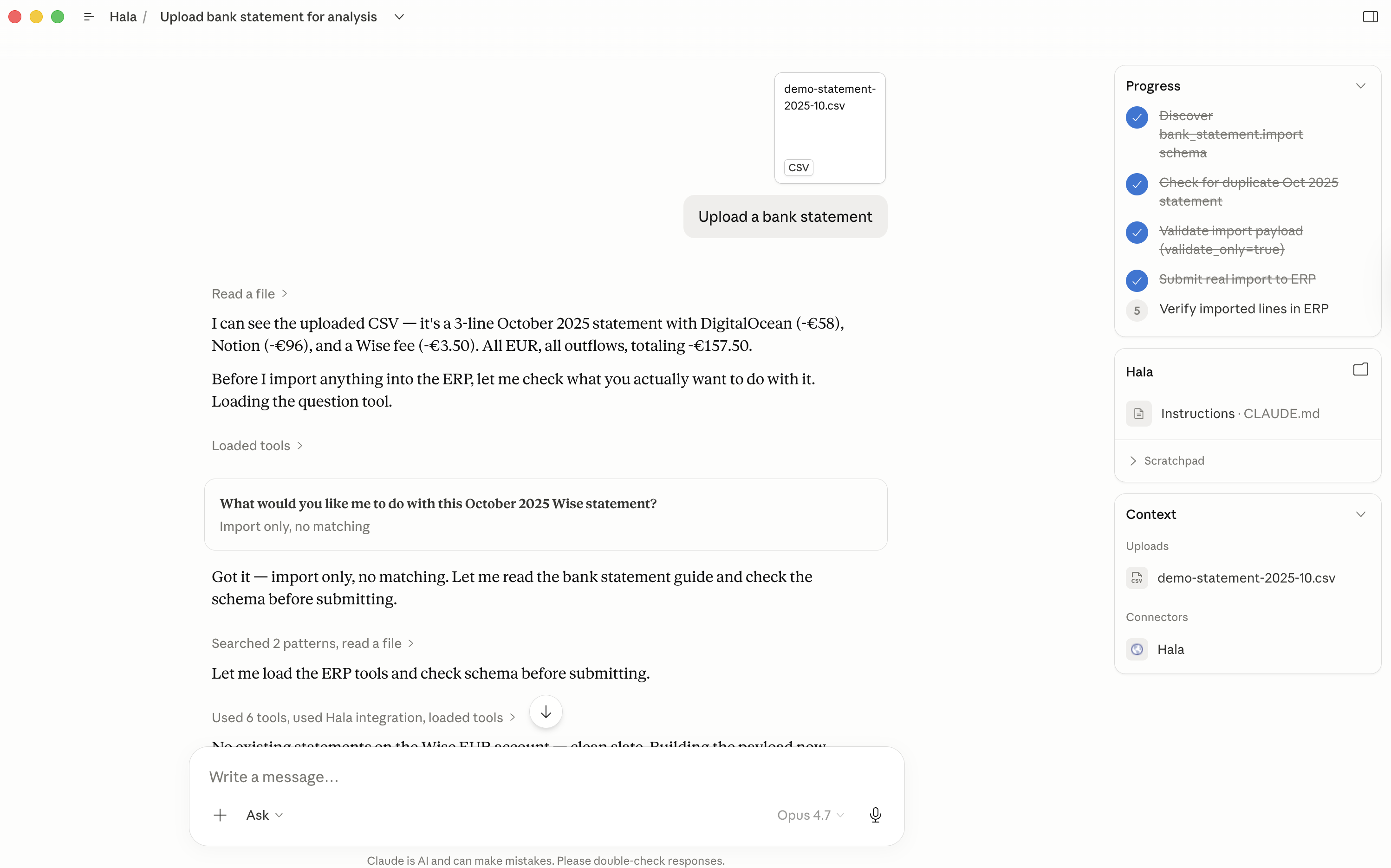
Step 1: Forward the Statement to Claude
Open Claude.ai with your Hala connector enabled, drag the CSV onto the conversation, and ask Claude to import it.
Step 2: Claude Imports the Statement
Claude reads the file, validates the schema, checks for duplicates, then calls the bank_statement.import workflow with validate_only=true first to surface any errors before writing. When the dry-run passes, it submits the real import. Total round-trip is a few seconds.
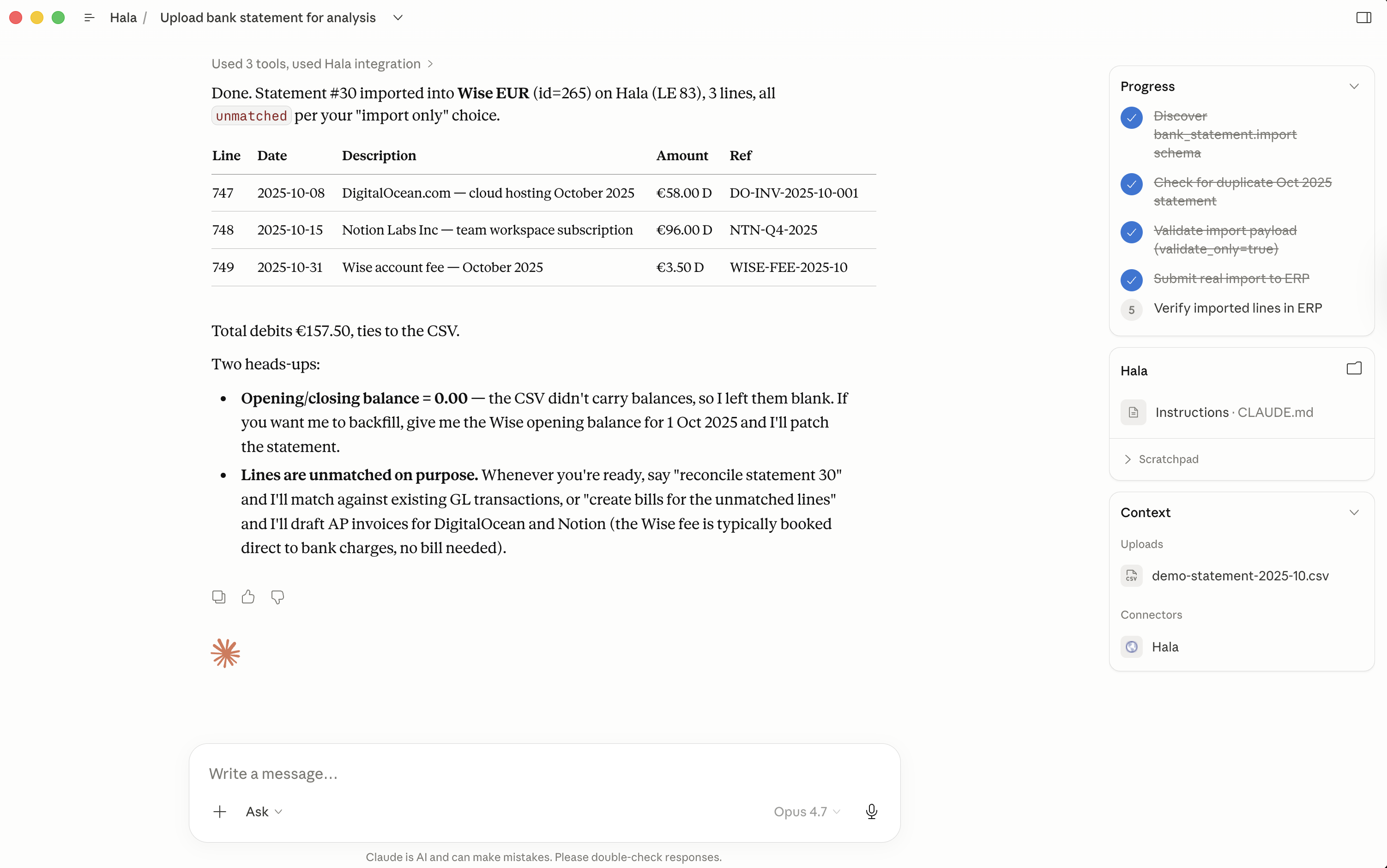
The moment the statement lands in the database, a bank_statement.manual_import event fires. The Bank Transaction Processor agent picks it up automatically — no further prompts needed.
Step 3: 100% Match Rate, Reconciled
Navigate to Transactions → Bank Statements in the dashboard. The statement is already there with 100% match rate and status Reconciled.
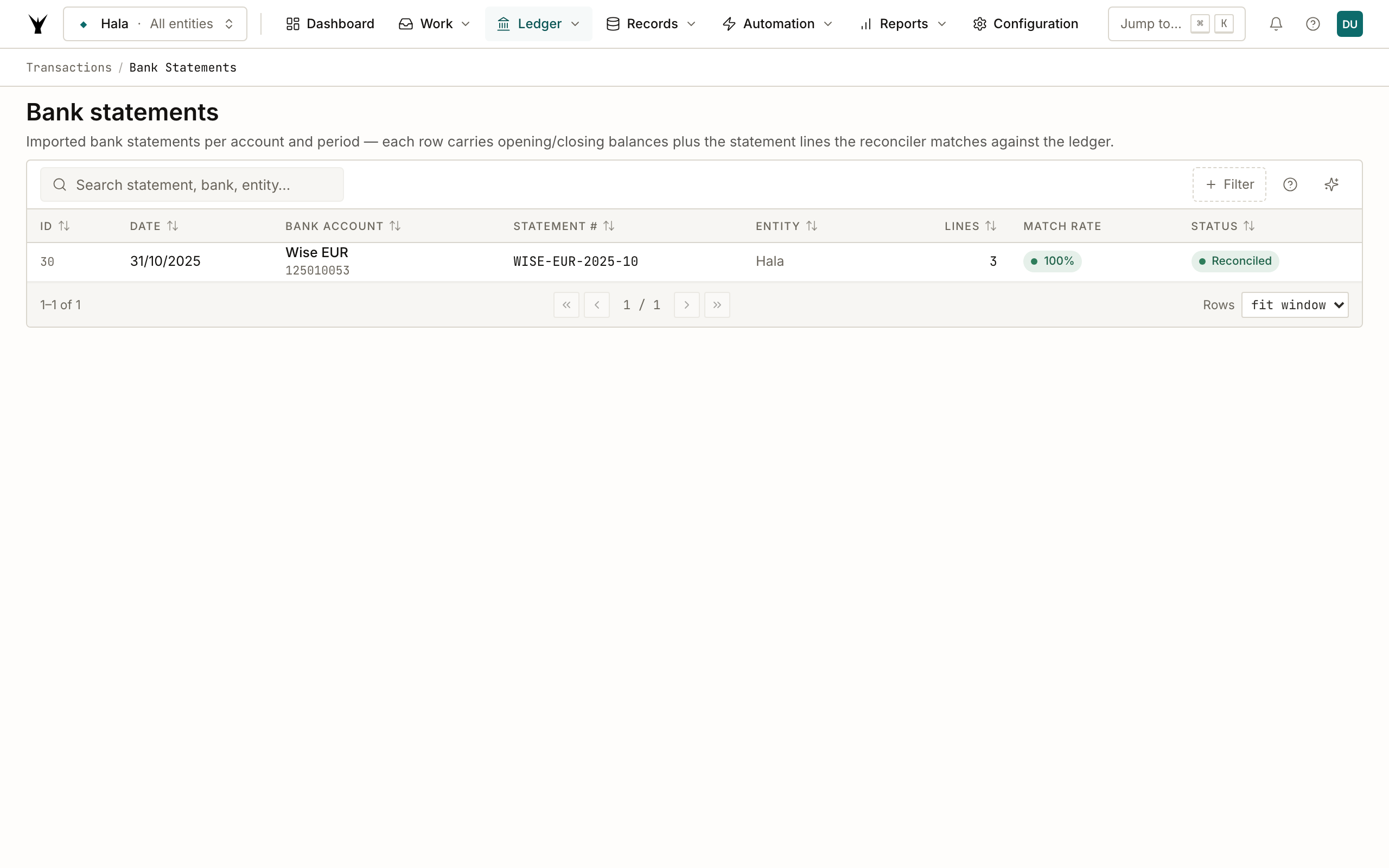
The agent finished while you switched tabs. 35 seconds, end to end, including the LLM classifications.
Step 4: Every Line Linked to a Transaction
Click the statement to see the lines. Each one is now Posted and linked to the transaction the agent created — DigitalOcean → PAY000051, Notion → PAY000052, the Wise fee → FEE000038.
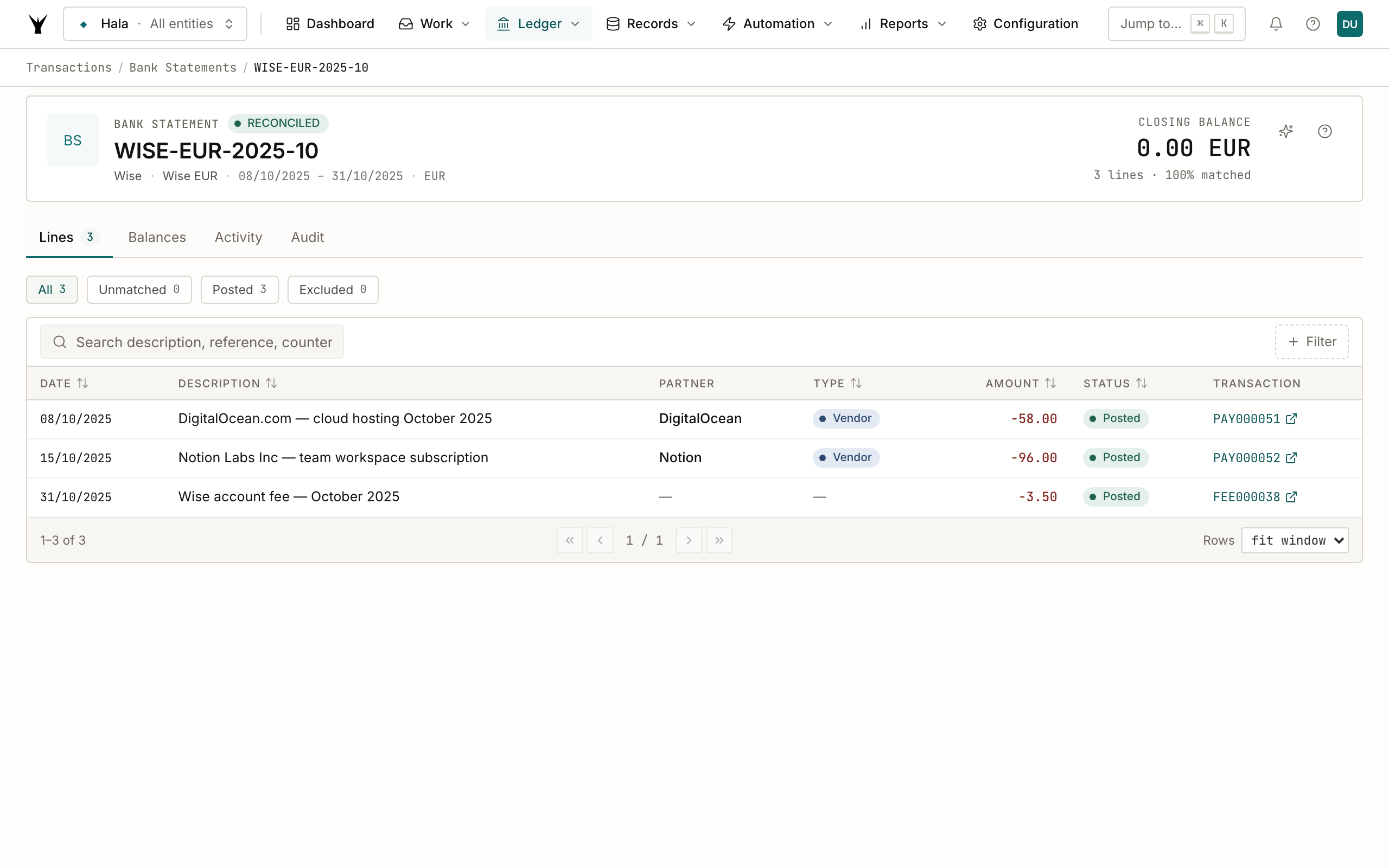
This is what "100% matched" means in practice: every bank line has a direct line back to a journal entry in the GL.
Step 5: The Agent that Did the Work
Open Agents → Sessions and click the Bank Transaction Processor run.
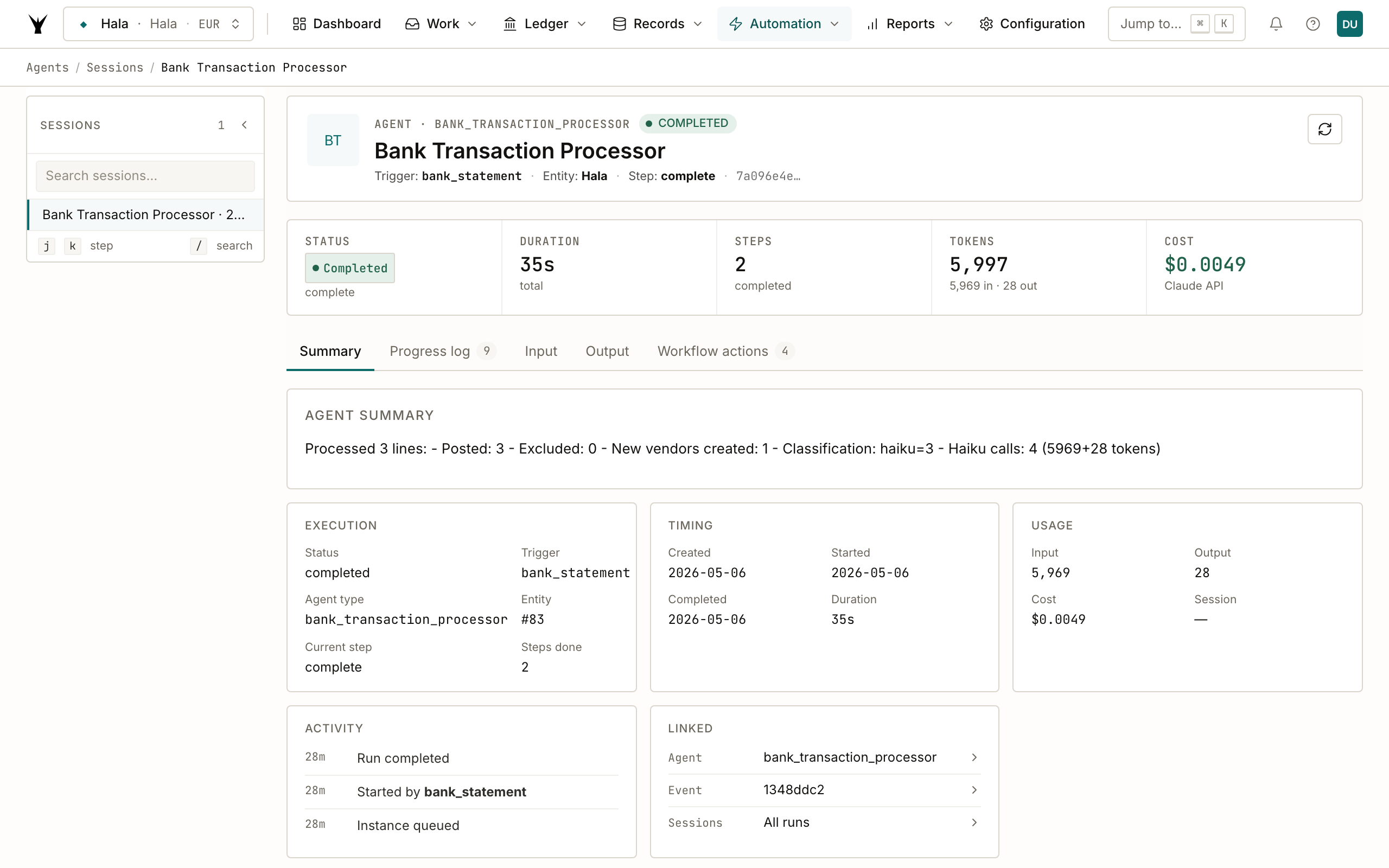
In 35 seconds, one agent run:
- Made 4 Haiku classification calls (5,997 tokens, $0.0049)
- Posted 3 transactions (2 AP_PAYMENT, 1 BANK_FEE)
- Created 1 new vendor (Notion) inline because no master record existed for that name
- Reused the existing master record for DigitalOcean
- Linked every bank line back to its journal entry
No callbacks, no failed sub-runs, no waiting for helper agents — the Bank Transaction Processor handles classification, vendor creation, posting, and matching in a single pass when nothing's missing.
Step 6: The Auto-Created Vendor
Open Records → Vendors. Both vendors show up as registered with Hala — DigitalOcean (matched to an existing master) and Notion (newly created from a bank-line description).
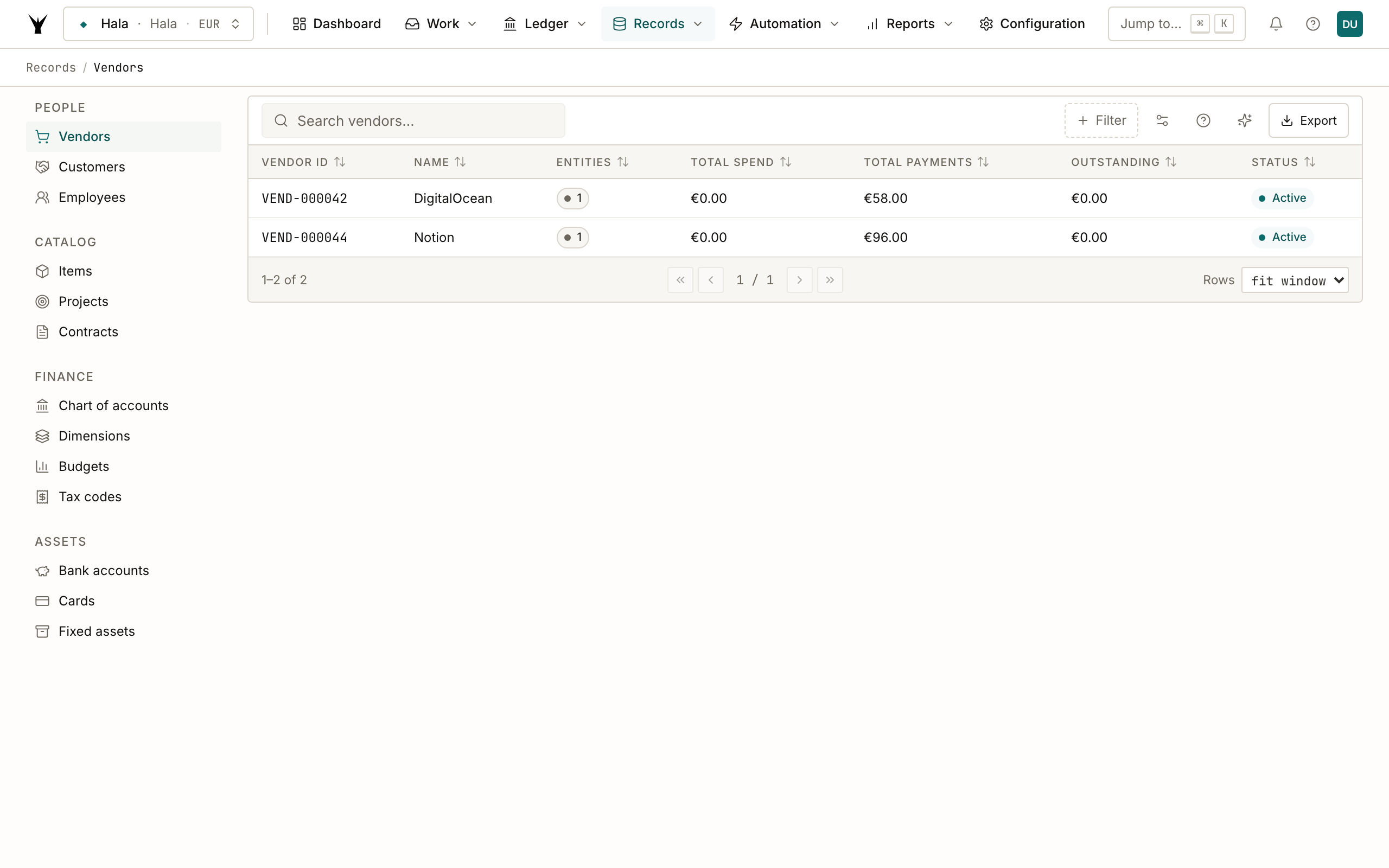
The new Notion vendor was created with the workflow's required fields. Optional fields (email, tax ID, payment terms) were left empty for the user to fill in later. The vendor's "Auto-created by bank_transaction_processor from: Notion Labs Inc — team workspace subscription" note records the provenance.
Step 7: Open a Posted Journal Entry
Click PAY000052 (Notion) on the statement detail or in the vendor's ledger to see the posting itself.
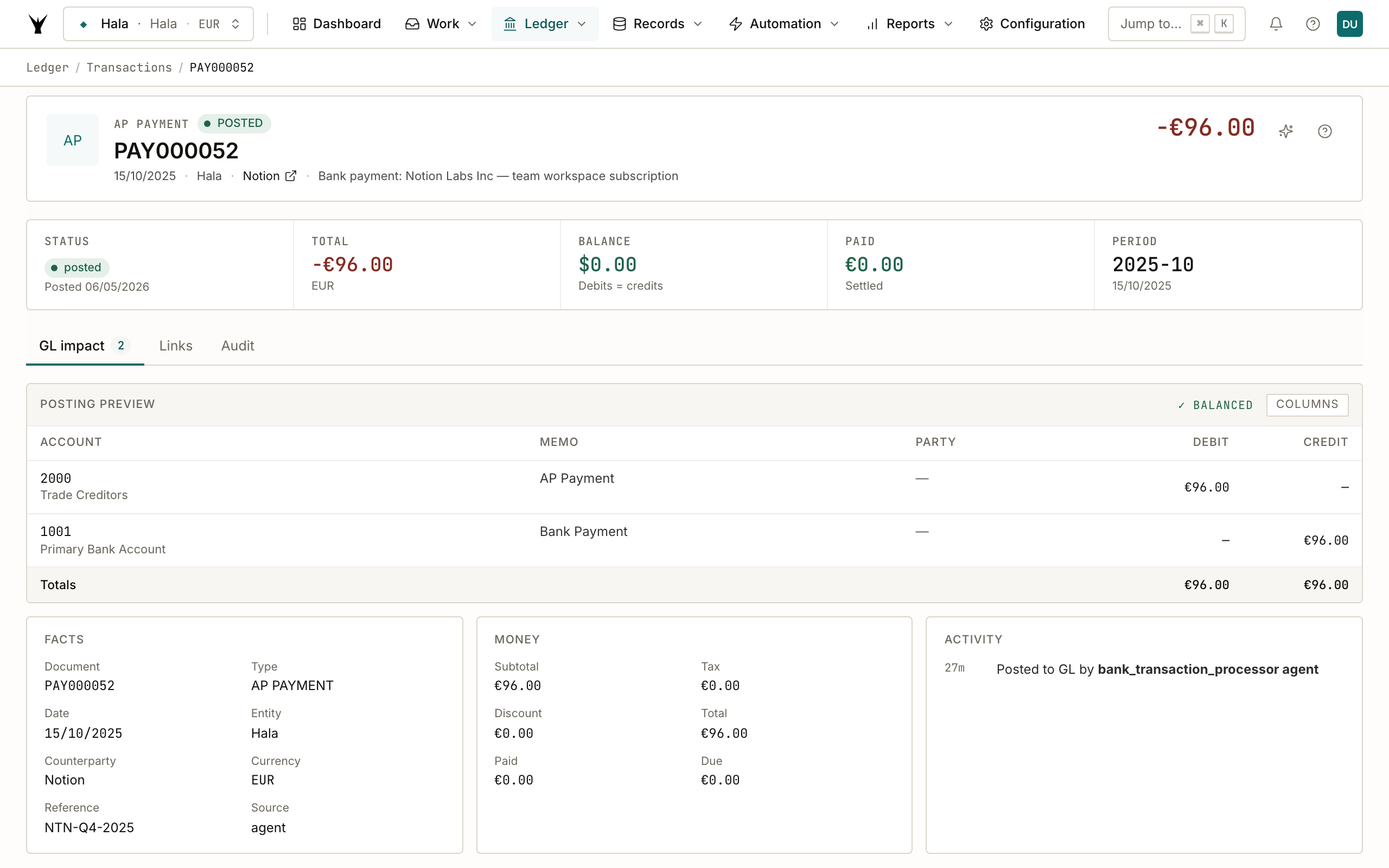
The entry: DR 2000 Trade Creditors €96.00 / CR 1001 Primary Bank Account €96.00 — a standard AP_PAYMENT posting. The activity panel shows it was posted by bank_transaction_processor agent, with the source agent and reference NTN-Q4-2025 carried straight from the bank line.
Step 8: What the Agent Learned
Open Agents → Memory to see the mappings the agent stored on this run. Each row links a bank-line pattern (description, party_key) to the vendor and transaction type the agent decided on.
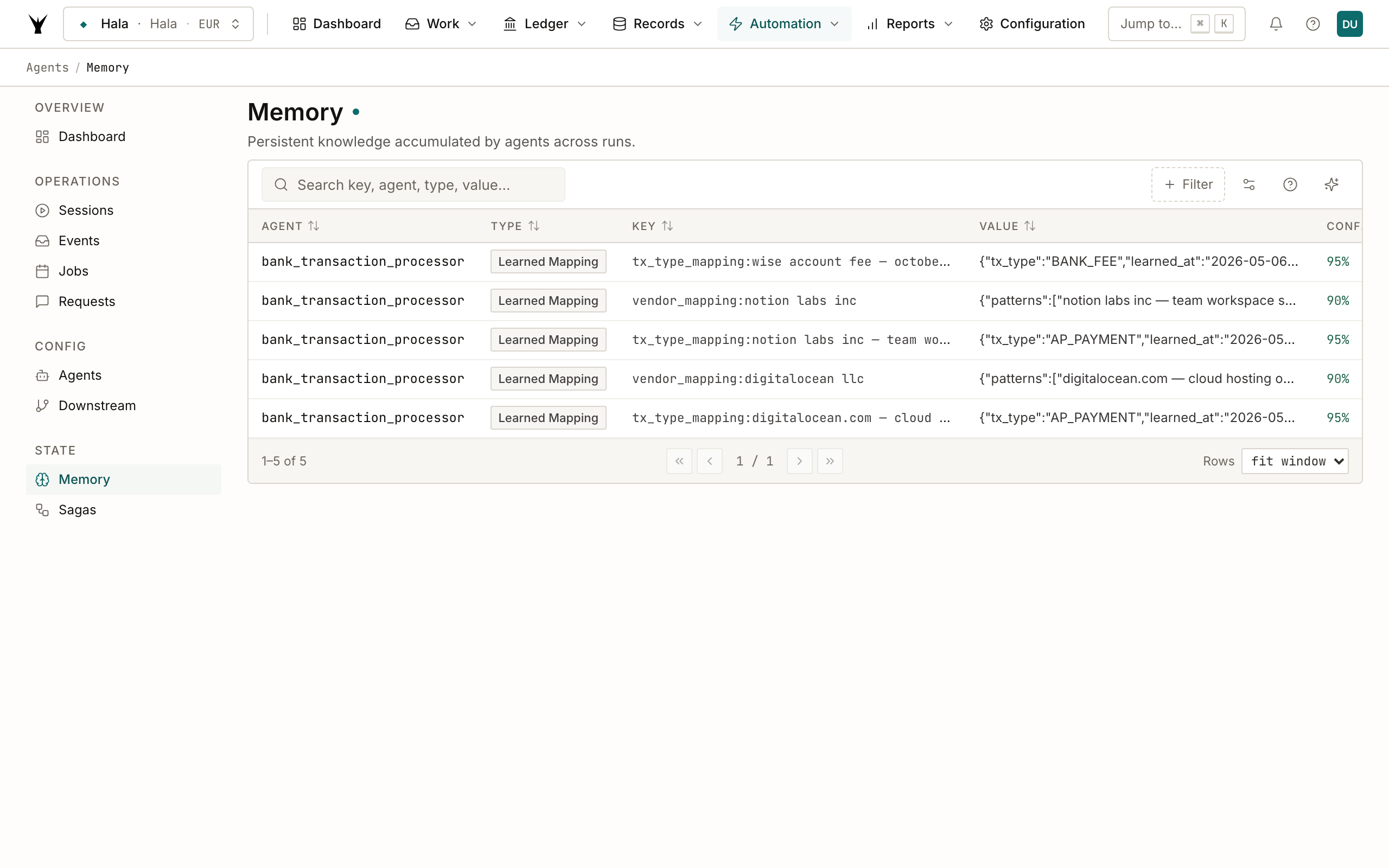
Next time a similar description shows up — say "Notion Labs — invoice 12482" or "DIGITALOCEAN.COM" — the agent looks up the memory first, skips the Haiku call entirely, and posts at zero LLM cost. The first run is the expensive one; subsequent runs trend toward free as memory accumulates.
What Could Have Gone Differently
The example above ran cleanly because everything the Bank Transaction Processor needed already existed: open fiscal periods, posting profiles, GL accounts, a master record for DigitalOcean. When something is missing, the agent doesn't fail — it delegates and re-runs.
Bank Transaction Processor
    │
    ├─── Vendor name unknown to master_vendors ───────▶ created inline (this run)
    │
    ├─── Vendor needs fields BTP can't supply ────────▶ Master Data Agent
    │                                                       │
    │                                                       ▼ creates with placeholders
    │                                                  Callback → BTP re-runs
    │
    ├─── Counterparty IBAN not in bank_accounts ──────▶ Master Data Agent
    │                                                       │
    │                                                       ▼ creates the bank account
    │                                                  Callback → BTP re-runs
    │
    └─── Posting profile missing for txn type ────────▶ Configuration Agent
                                                            │
                                                            ▼ creates the profile
                                                       Callback → BTP re-runs
The match rate on the Bank Statements list reflects how many bank lines ended up with a linked journal entry — 100% means every callback resolved successfully. If you ever see a sub-100% rate, click the statement; the unmatched lines tell you exactly which agent request is still pending.
Configuration
Open the agent definition and switch to the Configuration tab to customize processing behavior.
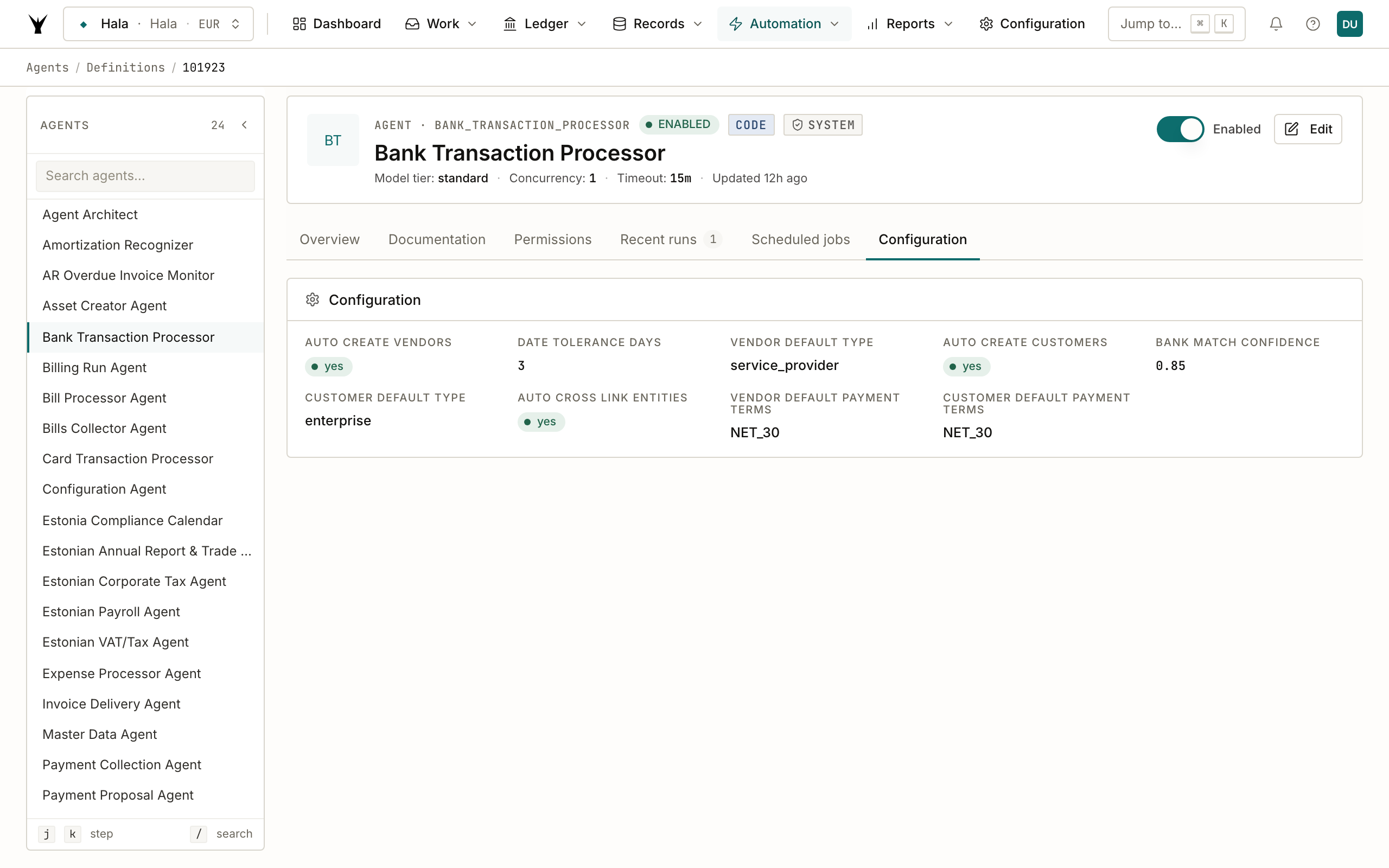
| Setting | What it does |
|---|---|
| Auto Create Vendors | Automatically create vendor records for unrecognized payee names. Disable to flag unknown vendors for manual review instead. |
| Auto Create Customers | Same as above but for incoming payments from unknown parties. |
| Date Tolerance Days | How many days of date difference to allow when matching bank lines to existing transactions (default: 3). |
| Bank Match Confidence | Minimum confidence score for automatic matching (default: 0.85). |
| Vendor Default Type | Default vendor category for auto-created vendors (default: service_provider). |
| Customer Default Type | Default customer category for auto-created customers (default: enterprise). |
| Default Payment Terms | Payment terms assigned to auto-created vendors and customers (default: NET_30). |
| Auto Cross Link Entities | When creating a vendor, check if a matching customer already exists and link them. |
Common Issues
| Problem | Cause | Fix |
|---|---|---|
| Lines show "Unmatched" after processing | Missing posting profile for the transaction type | The agent automatically requests the Configuration Agent to create the missing profile. If the error persists, check Agents > Sessions for an open request. |
| Wrong vendor matched | Agent memory has an incorrect mapping | Go to Agents > Memory, find the wrong mapping, and delete or correct it. The agent will re-classify on the next run. |
| Vendor created but wrong name | Haiku extraction was imprecise for a complex description | Edit the vendor name in master data, then correct the memory mapping in Agents > Memory. |
| Missing counterparty bank for transfers | Transfer lines reference an IBAN not in the system | The agent requests the Master Data Agent to create the missing bank account. Check Agents > Sessions to see if the request was created. |
| High cost on first run | Many new vendor descriptions requiring Haiku calls | Normal for the first statement. Costs drop dramatically on subsequent runs as memory grows — repeat descriptions get matched at $0.00. |
| Duplicate statement rejected | Statement for the same bank account and date already exists | Each combination of bank account + date must be unique. Void the existing statement first if you need to re-import. |
Next Steps
- Manage Agents — Learn about all default agents and how to configure them
- How to Automate Bill Processing — Set up automatic vendor invoice processing from email
- Agent Orchestration — Understand how agents delegate work to each other through the request/callback system
The same procedure runs daily under governance — agents propose, your team approves through risk lanes, and every write lands as an immutable audit row.