How to Reconcile Transactions
Schedule the Transaction Reconciliation Agent to match payments to invoices automatically — exact pairs, group settlements, and unmatched items flagged for review.
- An Artifi account with the Transaction Reconciliation Agent enabled
- Posted AP/AR invoices and payments to match against each other
- (Optional) Configured tolerances under the agent's Configuration tab
Reconciliation is the bookkeeping ritual everyone wants to skip. You have an invoice and a payment that should obviously match — same vendor, similar amount, dates a few days apart. The accounting system doesn't connect them automatically; you have to open both, click "apply this payment to that invoice," repeat for every line. At month-end with 200 transactions, that's a half-day of clicking.
The Transaction Reconciliation Agent does it in 4 seconds. It's a code agent that scans posted AP_PAYMENT and AP_INVOICE rows (and AR equivalents), runs them through a 6-pass matching algorithm, and writes a result row for every pair it finds — full match, partial settlement, group of invoices settled by one payment, or unmatched. A small Haiku call kicks in only when the deterministic passes don't find a candidate. Cost per run for a hundred items: ~$0.001.
This walkthrough schedules the agent for daily runs, triggers it once manually so we don't wait until tomorrow, and shows the output: 6 paired items in Hala spanning 3 outcome types — full match, group match, unmatched.
What "matched" means
The agent runs 6 deterministic passes plus an LLM fallback, in this order:
- Exact — same vendor + same amount + same currency + ≤7 days apart → confidence 1.00
- Exact-with-FX — same vendor + same amount in functional currency + different document currency → confidence 0.95
- Approximate — same vendor + amount within
approx_tolerance(default ±€3 or ±5%) + ≤14 days → confidence 0.85 - Group/aggregate — multiple invoices summing to one payment, or one invoice settled by multiple payments → confidence 0.95
- Partial — single payment for less than full invoice (when
partial_payment_matching: true) → confidence ~0.80, statuspartially_matched - Haiku fuzzy — LLM looks at description, reference numbers, amount patterns → confidence 0.50–0.95
Items not matched by any pass land as unmatched for human review. Pass 1 + Pass 4 cover ~90% of typical month-end activity.
Step 1: Find the agent and review its tolerances
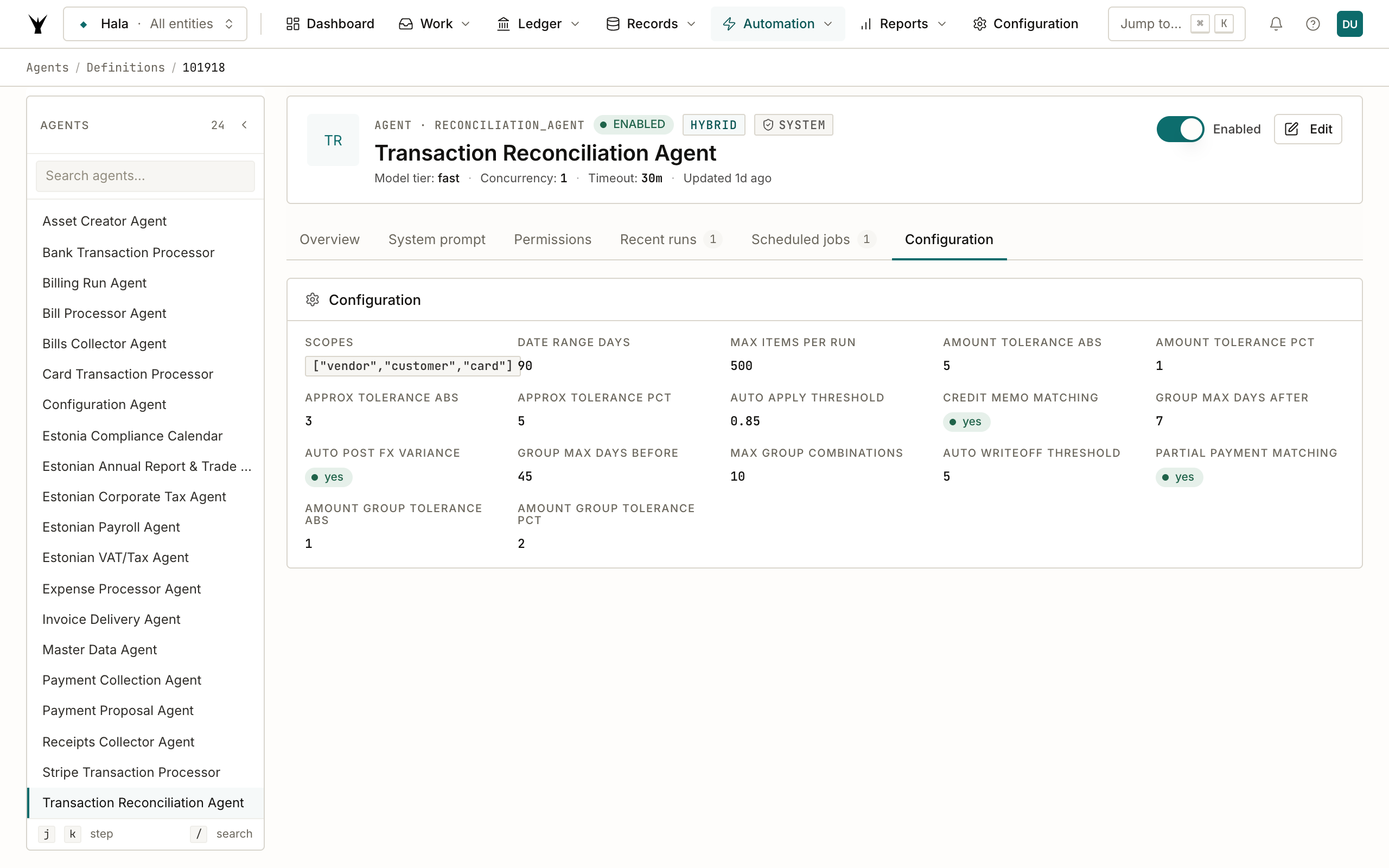
Navigate to Agents → Definitions and click Transaction Reconciliation Agent. The Configuration tab shows every dial you can turn.
Two settings worth thinking about for your org:
amount_tolerance_abs(default €5) andamount_tolerance_pct(default 1%) — how close a payment needs to be to an invoice to be considered an "exact" match. Tightening helps catch fee deductions; loosening helps with FX drift. Most companies leave the default.group_max_days_before/group_max_days_after— controls how far apart invoices and the settling payment can be before the group-match logic considers them related. Default 45 days before / 7 days after the payment, which works for most 30-day net terms with a few days of slack.
Don't change auto_apply_threshold (default 0.85) without thinking — it's the confidence floor below which matches stay as proposals instead of auto-posting. Lowering it speeds reconciliation but can introduce wrong matches.
Step 2: Schedule the agent for daily runs
Open Agents → Scheduled Jobs and click + New job. Pick the Transaction Reconciliation Agent, pick "Daily at 6:00 UTC," and save.
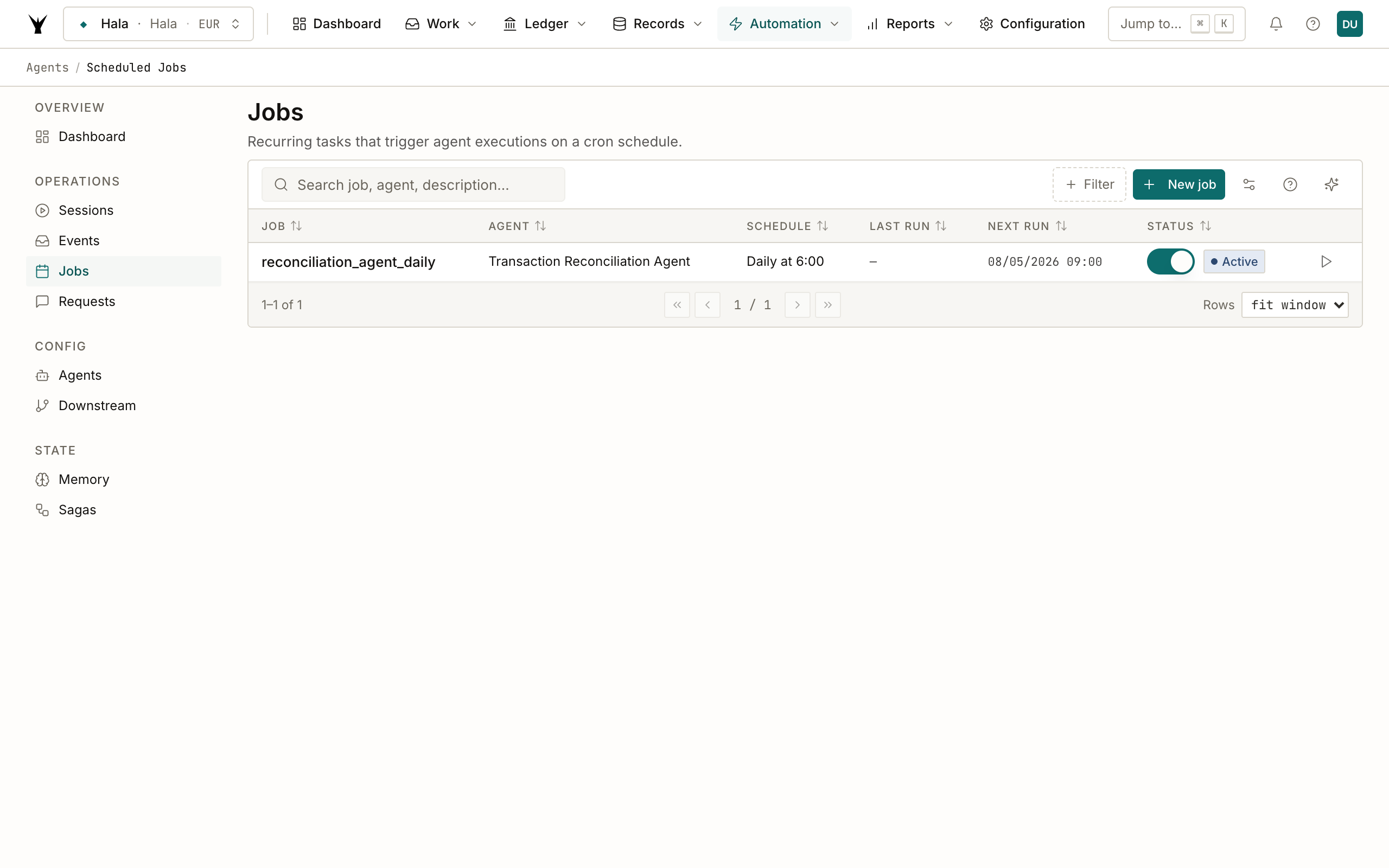
The job runs unsupervised every morning. New invoices and payments posted during the prior day get matched against everything that's still unmatched within the 90-day rolling window. As your AP/AR flow accumulates, the agent's first job is finding the new pairs; subsequent runs mostly stay quiet.
If you'd rather trigger reconciliation right after a specific event — say, every time a bank statement finishes processing — set the cron to a less-aggressive schedule and add an agent_request.completed event subscription instead. The agent listens for those out of the box.
Step 3: Trigger it manually for the demo
You don't have to wait until tomorrow. The scheduled-job row has a ▶ Run now action button on the right side. Click it. The runtime emits a manual.trigger event, the agent picks it up, and the run completes in about 4 seconds for the 8 items in our demo.
You can also trigger it from a Claude.ai conversation or the dashboard's agent definition page — the result is identical.
Step 4: Reconciliation runs list
Navigate to Runs → Reconciliation. The new run shows as #100 with scope Vendor, status Completed, 3 of 8 matched, €113 total amount matched, 4-second duration. The agent also created sibling runs for Customer (no AR data yet) and Card (no card transactions yet) — both completed instantly with 0 items.
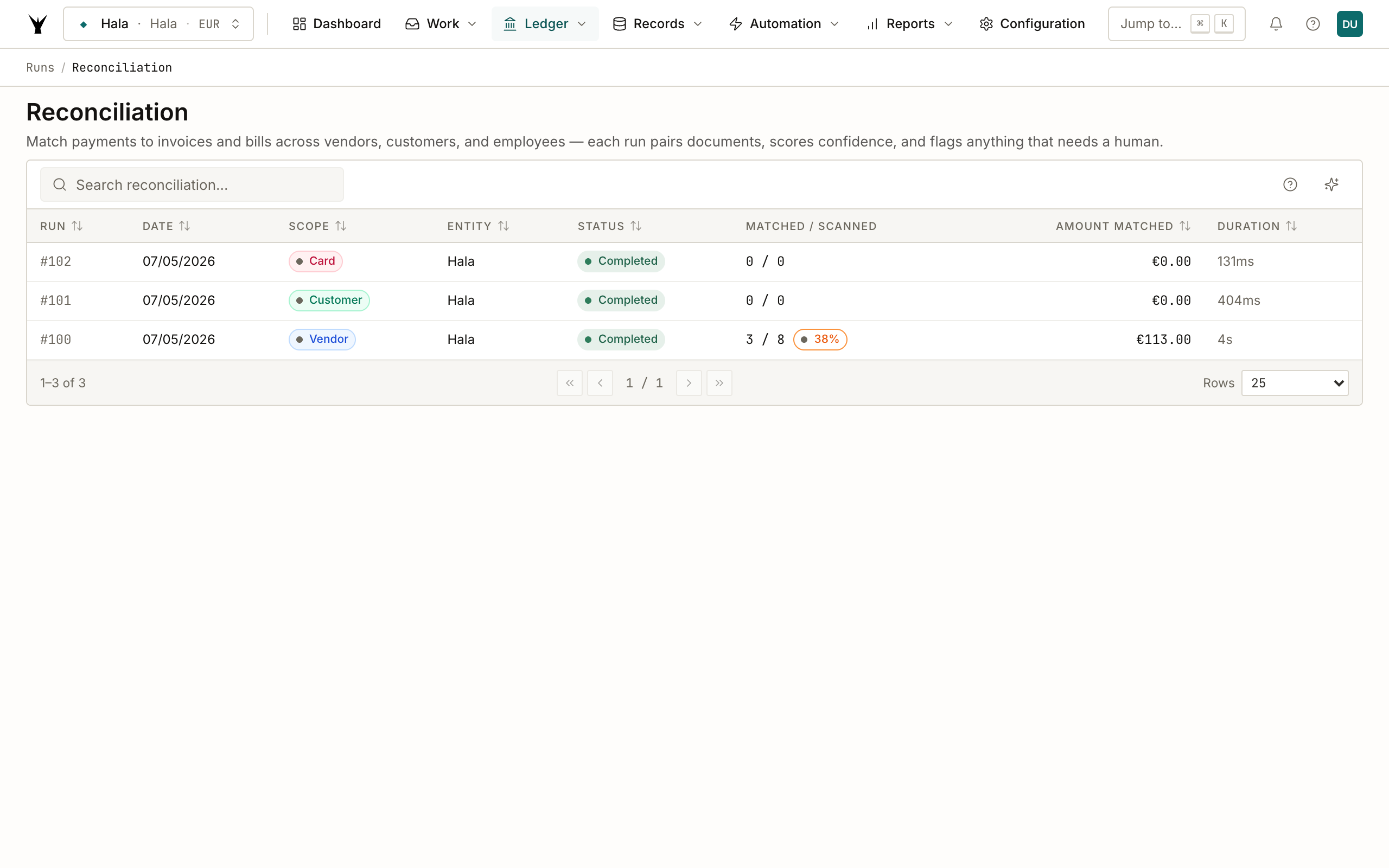
The match rate column is colored: green ≥80%, amber 50–80%, red <50%. 38% looks low for a real org but it's the right number for our demo — most of Hala's transactions don't have counterparts yet (we only seeded 4 paired ones plus the lone AWS bill).
Step 5: Inside the run — three outcomes side by side
Click run #100 to see all the items the agent looked at. The default tab filter is Unmatched, showing the items still needing attention.
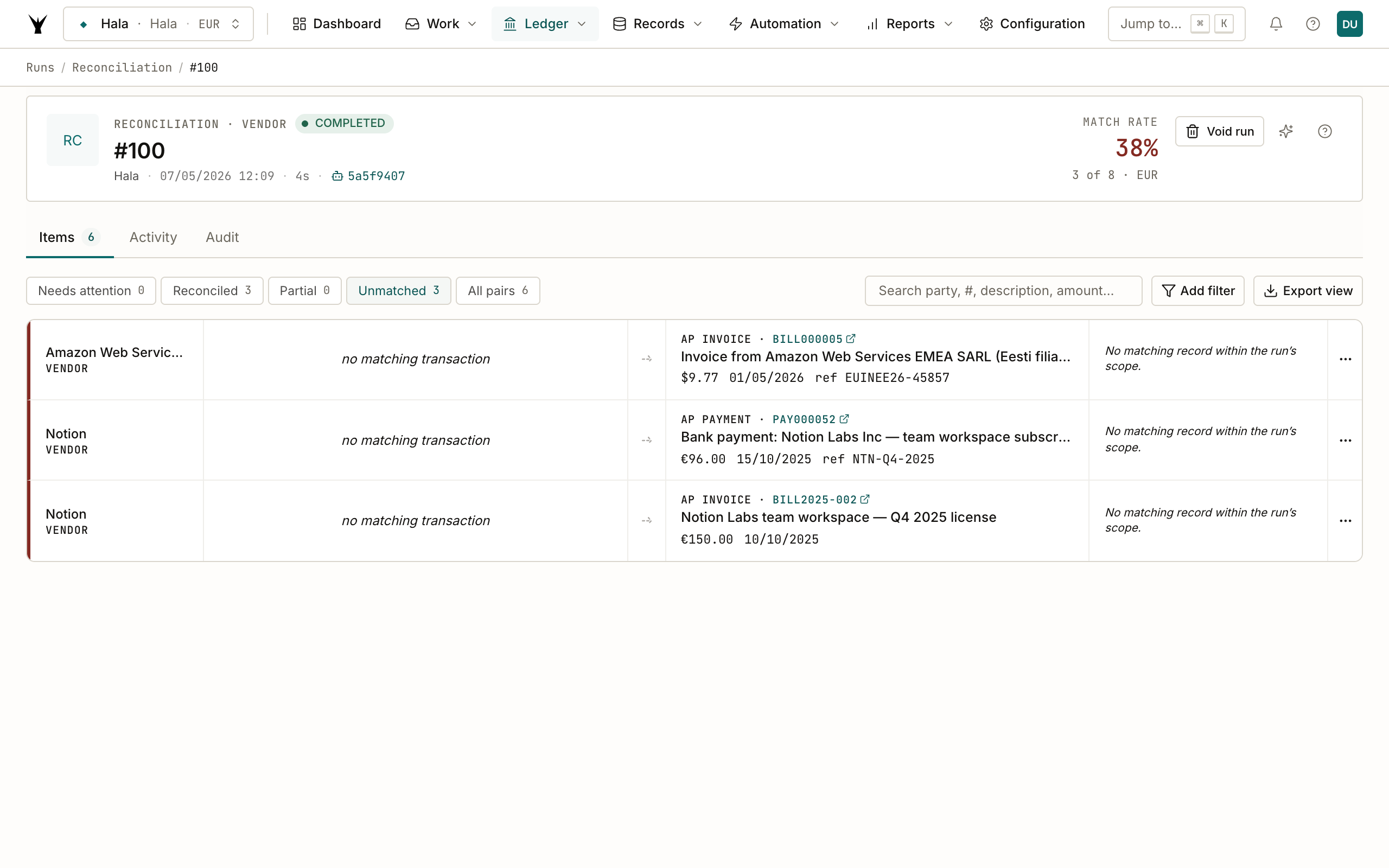
Click the All pairs filter to see everything in one view: matched + unmatched.
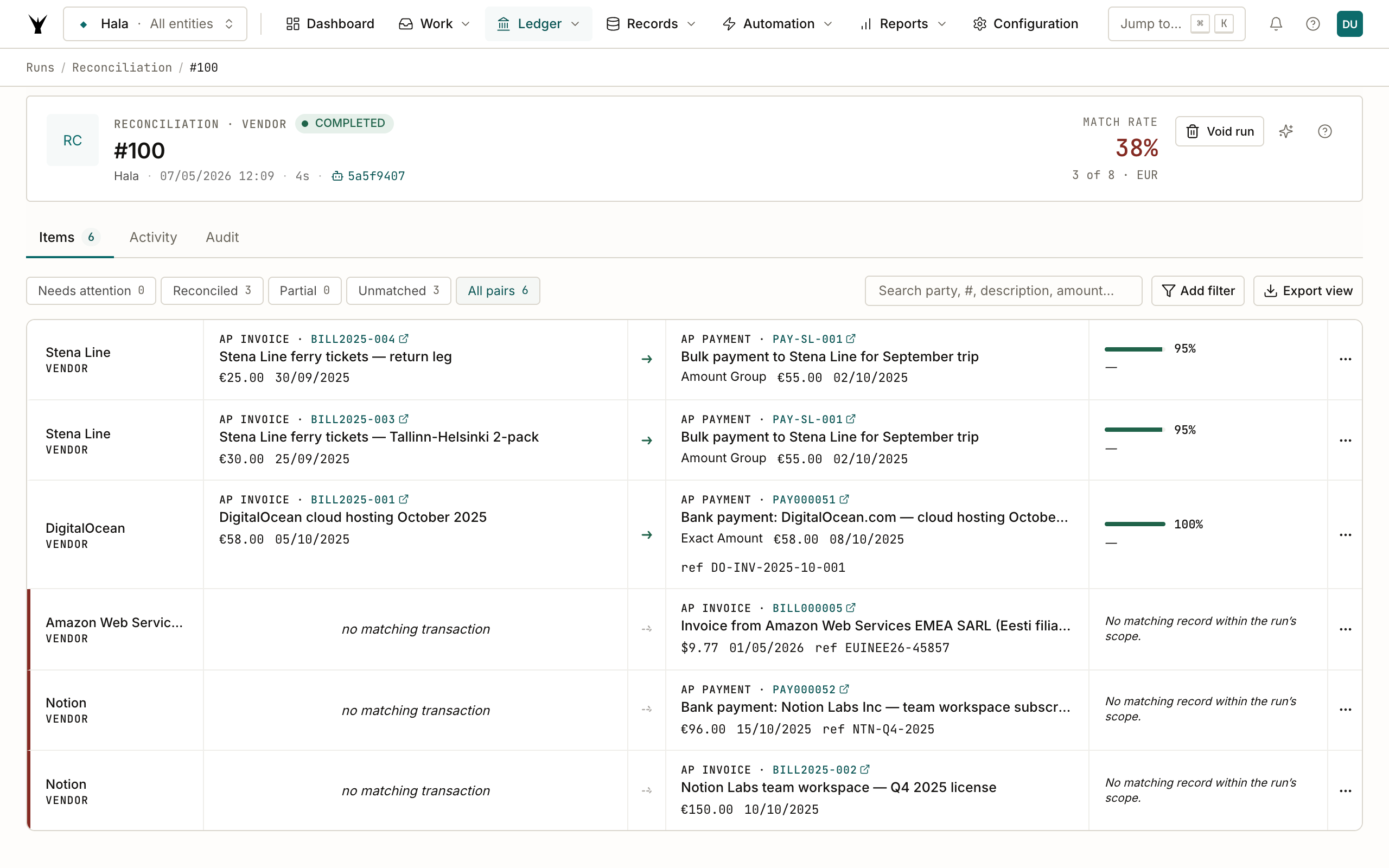
Three outcomes are visible:
- ✅ DigitalOcean — full match: BILL2025-001 €58 (2025-10-05) paired with PAY000051 €58 (2025-10-08). Same vendor, identical amount, 3 days apart — Pass 1 hits it instantly with confidence 1.00 and method
exact_amount. - 🔗 Stena Line — group match: PAY-SL-001 €55 (2025-10-02) settles BOTH BILL2025-003 €30 (2025-09-25) AND BILL2025-004 €25 (2025-09-30) — €30 + €25 = €55. The agent shows two rows, one for each invoice, each linked to the same payment with method
amount_groupand 95% confidence. This is Pass 4 in action. - ❌ Unmatched: BILL000005 AWS €9.77 (no payment exists), PAY000052 Notion €96 (no invoice within tolerance), BILL2025-002 Notion €150 (no payment within tolerance). The €54 gap between the Notion payment and invoice is too wide for any of the matching passes — would need either a tighter tolerance, a partial-payment record, or the LLM fallback (which the agent only invokes when confidence floor is below 0.70).
Step 6: What happens to unmatched items
Unmatched items don't disappear. They live on the run with status unmatched, and they stay eligible for matching by every subsequent run within the 90-day rolling window. Three things can resolve them:
- A new posting closes the loop — when the missing invoice or payment finally arrives, the next agent run pairs them.
- A human applies the match manually — the run-detail page has a "Match manually" action on each unmatched row. Pick the counterpart, the agent records it as
match_method: manual. - The item ages out — after 90 days, the agent stops considering it. Stale items are surfaced in a separate exception report.
For our demo, BILL000005 (the AWS invoice) is the canonical "still owed" line — no payment will ever be made because it's a tiny prepaid bill that's already been accrued. Notion's €54 gap is more interesting: in production this is exactly where you'd add a credit memo, post a residual write-off, or accept the partial.
When to tighten or loosen the tolerances
Most defaults work. Two cases where you might tune:
- Bank fee deductions — wire transfers often arrive €15–25 short because the sending bank deducts a fee. If you see a lot of these, raise
amount_tolerance_absto 25 (or post the fee write-off rule via the workflow engine to keep tolerances tight). - Multi-day batch payments — if your treasury processes payments in batches that take 3–5 days to clear, raise
group_max_days_afterto 7 or 10 to keep the group match catching them.
Going the other direction (lower tolerances) catches more ambiguous matches as proposals instead of auto-posts. Useful if you want a human-in-the-loop on every match. Set auto_apply_threshold to 0.95 instead of 0.85 — the agent still calculates the matches, just doesn't auto-apply them.
Common Issues
| Problem | Cause | Fix |
|---|---|---|
| "Match rate" shows lower than expected | Recently posted invoices/payments don't have counterparts within the 90-day window yet | Wait for the next run after the matching counterpart posts. Or post the missing AR/AP transaction manually |
| Agent matched the wrong invoice | Two vendors with similar amounts and dates — Haiku fuzzy pass picked one over the other at low confidence | Open the run, find the wrong match, click "Unmatch." The agent learns from manual unmatches and weights against the same pairing next time |
| Group match has too many invoices | Long stretches of small recurring invoices summing accidentally to a single payment | Lower max_group_combinations (default 10) to limit the search depth |
| Customer scope shows 0 / 0 | No customer payments / invoices in the date range | Expected when you're starting out. AR-side reconciliation kicks in once you start posting AR_INVOICE rows |
| FX-variance auto-post failed | Source and target are in different currencies and the FX profile isn't configured | The agent emits a configuration request to the Configuration Agent — check Agents → Sessions for the request and the resolution status |
Next Steps
- Process Bank Statements — once cash hits the bank, the bank-transaction agent posts the AP_PAYMENT rows that this agent then matches to invoices
- Automate Bill Processing — the bill-processor agent posts the AP_INVOICE rows on the receivable side
- Allocate Costs — once a bill is matched, you can allocate it across departments using dimension tags
The same procedure runs daily under governance — agents propose, your team approves through risk lanes, and every write lands as an immutable audit row.